How to Fix Laptop Running Slow After Startup

Is your laptop crawling after startup? You’re not alone, and the good news is you don’t have to live with it.
A slow laptop can waste your time and test your patience every day. But what if you could fix this problem quickly and get your device running smoothly again? You’ll discover simple, effective ways to speed up your laptop right after it boots up.
Keep reading, because the solution to a faster, more responsive laptop is closer than you think.
Identify Startup Bottlenecks
Identifying startup bottlenecks helps find what slows your laptop after it turns on. Many programs and processes start automatically. Some use too much memory or CPU power. This can make the laptop slow for minutes. Finding these slow parts is the first step to fixing the problem.
Check Startup Programs
Startup programs are apps that open when your laptop boots up. Too many apps here can slow the system. Open the Task Manager by pressing Ctrl + Shift + Esc. Click the ‘Startup’ tab to see all enabled programs. Disable apps you do not need at startup. This action speeds up the boot time. Keep only essential programs active.
Review Background Processes
Background processes run behind the scenes. They use CPU and memory even if you don’t see them. Use Task Manager to check these processes. Sort by CPU or memory to find the heaviest users. Close programs that consume too many resources. This frees up power for your laptop to run faster. Be careful not to stop system processes.

Credit: www.youtube.com
Optimize System Performance
Optimizing your laptop’s system performance can make a big difference in speed. It helps your computer run smoothly after startup. Small changes improve overall responsiveness and reduce lag.
Focus on clearing unnecessary files and keeping drivers updated. These tasks keep your system healthy and fast. Follow these simple steps to boost your laptop’s performance.
Clean Temporary Files
Temporary files build up over time and slow down your laptop. These files include cache, logs, and leftover installation data. Removing them frees up space and speeds up your system.
Use built-in tools like Disk Cleanup on Windows. For Mac, use the Storage Management feature. Regular cleaning helps maintain a faster startup and better performance.
Update Drivers And Software
Outdated drivers cause slowdowns and errors. They link your hardware to your operating system. Updating drivers ensures smooth communication and better speed.
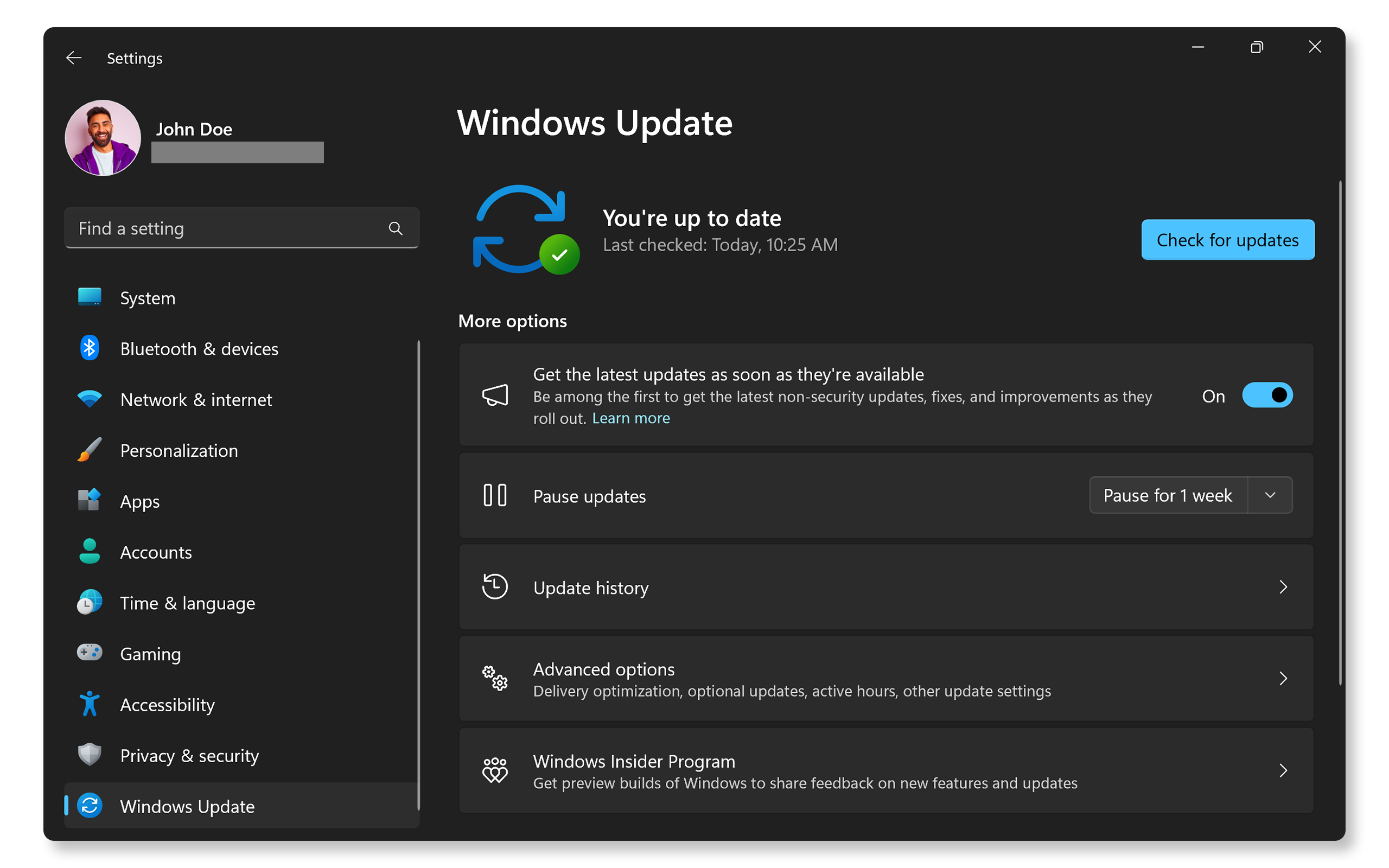
Check your device manager or use manufacturer websites for updates. Software updates also fix bugs and improve efficiency. Keep your system and apps current for best results.
Manage Hardware Resources
Managing hardware resources is key to speeding up a slow laptop after startup. Over time, hardware can struggle to keep up with software demands. This causes delays and slow performance.
Simple hardware checks and upgrades can improve your laptop’s speed. Focus on parts that affect startup and overall speed. Two important areas are RAM and the hard drive.
Upgrade Ram
RAM helps your laptop run many programs at once. Low RAM can slow down your laptop during startup. Adding more RAM increases memory space for tasks. This reduces lag and speeds up boot time. Check your laptop’s RAM capacity before upgrading. Choose compatible RAM sticks for better performance.
Check Hard Drive Health
The hard drive stores your files and system data. A failing hard drive slows down data access and startup. Use built-in tools to check drive health. Look for bad sectors or errors. Consider replacing old hard drives with faster SSDs. SSDs boost startup speed and overall responsiveness.

Credit: www.hp.com
Adjust Power Settings
Adjusting your laptop’s power settings can help it run faster after startup. These settings control how your laptop uses energy and resources. By changing them, you can improve performance and reduce lag.
Choose High-performance Mode
High-Performance mode makes your laptop use more power to run faster. It stops the system from slowing down to save energy. This mode helps programs open quickly and run smoothly. To enable it, open Control Panel, go to Power Options, and select High-Performance. This change boosts speed but may use more battery.
Modify Sleep And Hibernate Options
Sleep and Hibernate save power by pausing your laptop. These modes can slow startup if they take too long to wake. Adjust the timing so your laptop stays awake longer before sleeping. This reduces delays after you turn it on. Find these settings in Power Options under “Change plan settings” and set timeouts higher or disable them for faster startups.
Scan For Malware
Malware can slow your laptop right after startup. It uses resources and blocks normal tasks. Scanning for malware helps find and remove harmful software. This step improves your laptop’s speed and safety.
Run Full System Scan
Open your antivirus program. Choose the full system scan option. This scan checks every file and folder on your laptop. It takes time but finds hidden threats. Let the scan finish without stopping it. After scanning, the program shows detected malware. Follow the instructions to remove or quarantine threats. Restart your laptop to complete the cleanup.
Remove Suspicious Programs
Check your installed programs list. Look for names you do not recognize. Some malware hides as normal software. Uninstall any suspicious or unwanted programs. Use the control panel or system settings to remove them. Restart your laptop after uninstalling. This frees up space and speeds up startup.
Tweak Visual Effects
Tweaking visual effects can help your laptop run faster after startup. Many effects use extra memory and processing power. Turning off or reducing these effects frees resources. This change makes your system respond more quickly. It also lowers the load on your graphics card and CPU.
Disable Animations
Animations look nice but slow down your laptop. Disabling them speeds up startup and overall use. To disable animations, open System Settings. Find the Performance or Visual Effects section. Choose to turn off animations and transitions. This simple step reduces the time your system takes to show windows and menus.
Simplify Desktop Appearance
A busy desktop can slow your laptop. Using fewer icons and simple backgrounds helps. Remove unnecessary shortcuts and widgets. Choose a plain wallpaper instead of a detailed image. This reduces the work your system does to display the screen. A clean desktop improves startup speed and system stability.
Reset Or Reinstall Windows
Resetting or reinstalling Windows can fix many problems causing slow startup. It removes unwanted files and settings that slow your laptop. This process gives your system a fresh start and often improves speed. Choose the right method based on your situation and backup needs.
Perform System Reset
System Reset restores Windows without removing your files. It deletes apps and settings that may cause slow startup. To start, open Settings and find the Recovery option. Click “Reset this PC” and select “Keep my files.” Follow the prompts to complete the reset. This method is faster and keeps your personal data safe. It often improves laptop performance after startup.
Backup And Clean Install
Clean install removes everything and installs Windows fresh. This method is best for serious problems or many unwanted files. First, backup all important files to an external drive or cloud. Download Windows installation media from Microsoft’s website. Boot your laptop from the installation media. Choose “Custom Install” and delete old partitions. Install Windows on the clean drive. This gives your laptop a brand new system and helps it run faster after startup.

Credit: technofy.co.nz
Frequently Asked Questions
Why Is My Laptop Slow After Startup?
A slow laptop after startup often results from too many startup programs. These apps consume memory and CPU power, delaying performance. Removing unnecessary startup items can speed up your laptop. Also, malware and outdated drivers may cause slowdowns, so keep software updated and scan regularly.
How Can I Speed Up Laptop Startup Time?
To speed up startup, disable unnecessary startup programs via Task Manager. Clean temporary files and update your operating system. Running a disk cleanup and defragmentation can also help. Additionally, upgrading to an SSD significantly reduces boot times and improves overall speed.
Does Malware Cause Laptop Slowdowns After Startup?
Yes, malware often runs silently at startup, using resources and slowing your laptop. Regular antivirus scans and malware removal tools can detect and eliminate threats. Keeping your security software updated helps prevent infections that degrade performance after startup.
Can Upgrading Hardware Improve Startup Speed?
Upgrading hardware like installing an SSD or adding RAM can greatly improve startup speed. SSDs offer faster data access than traditional hard drives. More RAM allows your laptop to handle multiple tasks efficiently, reducing startup lag. Hardware upgrades are a reliable fix for slow startups.
Conclusion
A slow laptop after startup can frustrate anyone. Cleaning startup programs and removing junk files helps speed up your device. Regular updates keep your system running smoothly. Check for viruses to avoid hidden problems. Small steps can make your laptop feel new again.
Stay patient and follow these tips carefully. Your laptop deserves to work fast and well every time.