How to Stop Laptop from Shutting down Randomly

Is your laptop shutting down randomly and interrupting your work or entertainment? It’s frustrating when your device powers off without warning, causing you to lose important files or break your focus.
You’re not alone, and the good news is that you can fix this. You’ll discover simple, effective ways to stop your laptop from shutting down on its own. Keep reading, and you’ll learn how to protect your laptop and keep it running smoothly every time you need it.
Check Power Settings
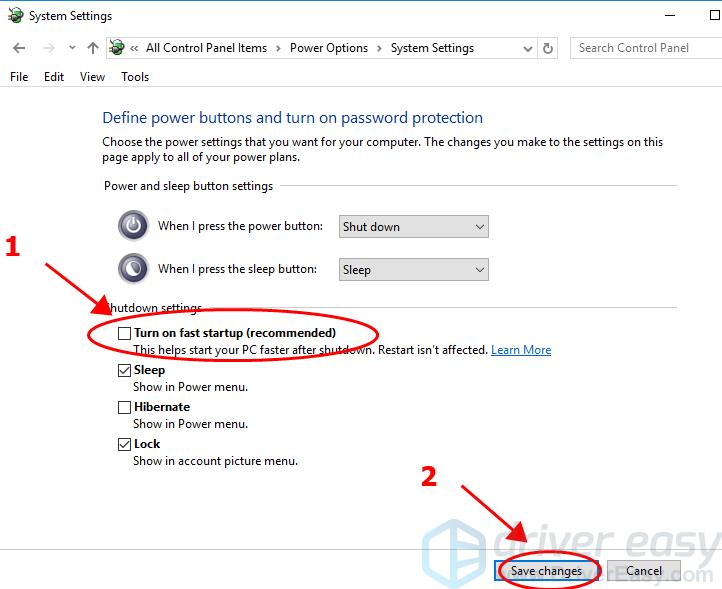
Random shutdowns often link to power settings. The laptop might turn off to save energy. Checking these settings helps stop this issue. Adjusting power options gives control over sleep and battery modes. This keeps the laptop running longer without unexpected shutdowns.
Adjust Sleep And Hibernate Options
Sleep mode saves power by pausing your work. Hibernate saves your work and turns off the laptop. Too short sleep or hibernate times cause sudden shutdowns. Set these times longer or disable them temporarily. Go to Power & Sleep settings in Control Panel. Change the timer to a longer period or never. This stops the laptop from sleeping or hibernating too soon.
Modify Battery Saver Settings
Battery saver activates to save power at low charge. It can close apps or shut down the laptop. Check the battery saver settings in system preferences. Increase the battery level to turn it on later. Or turn off battery saver if it causes shutdowns. Keep an eye on battery health to avoid power issues.

Credit: www.youtube.com
Inspect Hardware Components
Random laptop shutdowns often stem from hardware problems. Checking hardware parts helps find the real cause. This step is important before trying software fixes. Poor battery, faulty power adapter, or overheating can force shutdowns. Testing these parts ensures your laptop runs smoothly and safely.
Test The Battery Health
A bad battery causes sudden power loss. Use built-in tools to check battery status. Look for low capacity or high wear levels. Replace the battery if health is poor. This prevents unexpected shutdowns during use.
Examine The Power Adapter And Cable
Power adapters and cables can break or wear out. Inspect for visible damage or loose connections. Use a different adapter to see if problems stop. A faulty adapter cannot supply steady power. Fix or replace damaged parts to keep power steady.
Check For Overheating Issues
Overheating often triggers automatic shutdowns to protect hardware. Clean dust from fans and vents regularly. Make sure fans spin properly and are not blocked. Use software to monitor CPU and GPU temperatures. Keep the laptop cool to avoid sudden shutdowns.
Update System Software
Updating your system software can fix many issues causing random shutdowns. Software updates improve system stability and security. They fix bugs that may cause your laptop to turn off unexpectedly. Keeping your software current helps your laptop run smoothly and safely.
Install Operating System Updates
Operating system updates include important fixes and improvements. These updates often solve problems that cause crashes or shutdowns. Check for updates regularly and install them promptly. Most systems notify you when updates are ready. You can also check manually in the system settings.
Installing these updates keeps your laptop stable. It also enhances performance and protects against security threats. Avoid skipping updates to reduce shutdown risks.
Update Device Drivers
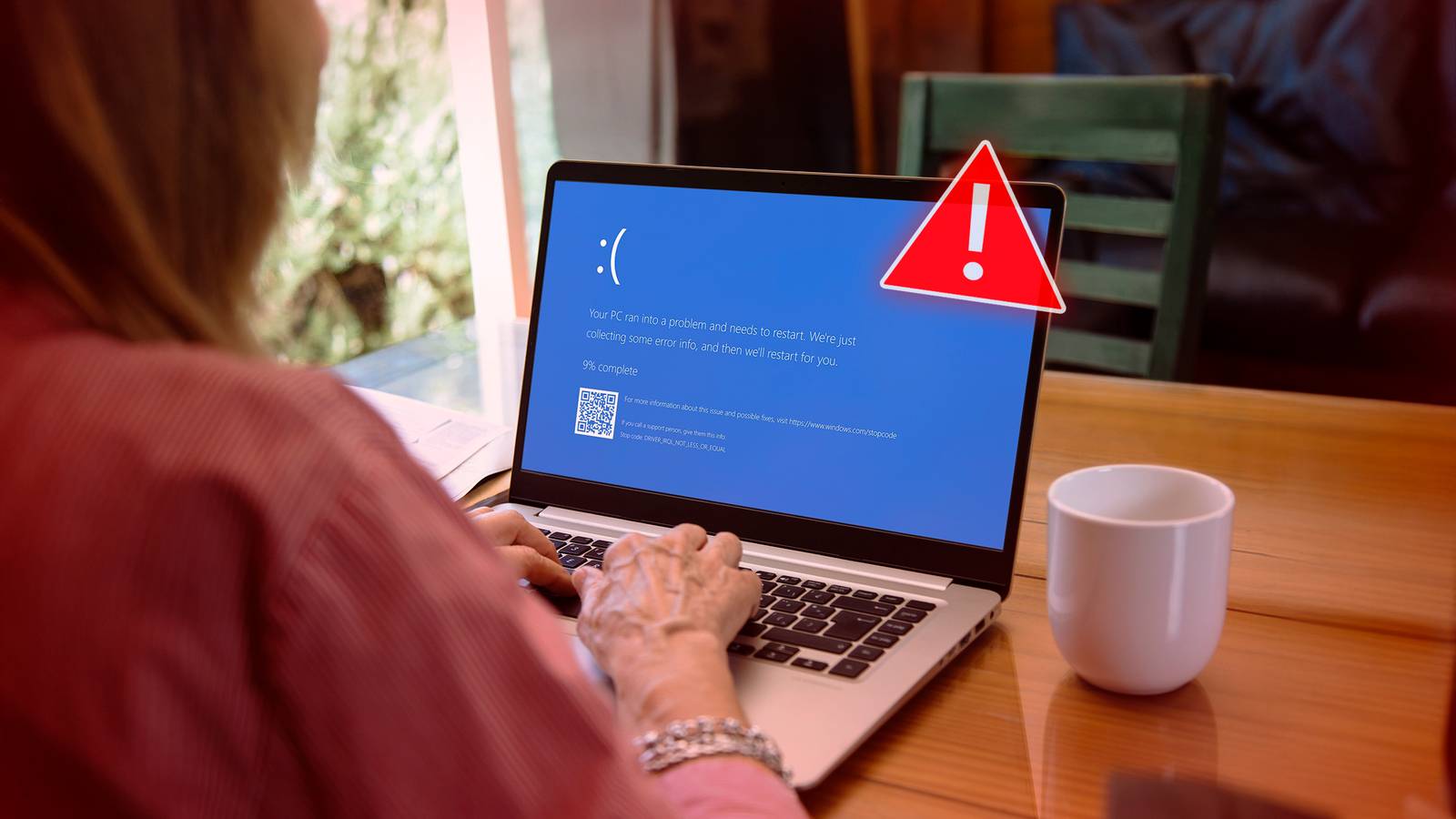
Device drivers control hardware like the graphics card and network adapter. Outdated drivers can cause hardware conflicts and shutdowns. Visit the laptop manufacturer’s website to find the latest drivers. Use device manager tools to check for updates automatically.
Updating drivers ensures hardware works well with your system. It can prevent crashes and improve laptop reliability. Keep drivers up to date for better performance and fewer errors.
Credit: www.howtogeek.com
Scan For Malware
Random laptop shutdowns can happen because of malware. Malicious software may cause your system to behave oddly. It can overload your laptop and force it to turn off. Scanning for malware is a crucial step to keep your laptop safe. This process helps find and remove hidden threats. It improves your laptop’s performance and prevents unexpected shutdowns.
Use Antivirus Software
Antivirus software detects and removes harmful programs. Choose a trusted antivirus tool with good reviews. Run a full system scan to check all files and apps. The scan finds viruses, spyware, and other malware. Follow the software’s instructions to delete or quarantine threats. Regular scans keep your laptop protected over time.
Remove Suspicious Programs
Malware often hides in unknown or suspicious apps. Open your laptop’s program list to check installed software. Look for unfamiliar names or ones you did not install. Uninstall any suspicious programs right away. This step reduces the chance of malware causing shutdowns. Keep only trusted apps on your laptop.
Manage Startup Programs
Managing startup programs helps keep your laptop stable. Many apps start automatically when you turn on your computer. Some of these apps use a lot of resources. This can cause your laptop to shut down randomly.
Controlling these startup programs improves your laptop’s performance. It also reduces the chances of unexpected shutdowns. Focus on disabling unnecessary apps and optimizing the boot process.
Disable Unnecessary Apps
Many apps run in the background without your knowledge. These apps consume memory and CPU power. This can make your laptop overheat or crash. Open the Task Manager or System Configuration tool. Check the list of startup programs. Turn off apps you do not need to start automatically. Leave only essential programs enabled. This step frees up resources and prevents overload.
Optimize Boot Process
Too many startup programs slow down your boot time. A slow boot can cause system errors or shutdowns. Keep the number of startup apps low. Remove heavy apps that delay the boot process. Update your system and drivers regularly. This ensures faster and smoother startup. A clean boot process helps your laptop run stable and avoids sudden shutdowns.
Run Diagnostic Tools
Running diagnostic tools helps find the root cause of random shutdowns. These tools check software and hardware for issues. They guide you to fix problems quickly. Start with simple built-in options. Then move to detailed hardware tests.
Use Built-in Troubleshooters
Most laptops have built-in troubleshooters to detect common problems. These tools scan your system for errors. They check power settings, battery health, and system stability. To access, open the Settings menu. Choose Update & Security, then Troubleshoot. Run the Power troubleshooter for shutdown issues. Follow the on-screen instructions to fix errors. This method is fast and easy. It often resolves simple software glitches causing shutdowns.
Perform Hardware Diagnostics
Hardware diagnostics test your laptop’s physical components. These tests check the battery, memory, and motherboard. Many brands include diagnostics in the boot menu. Restart your laptop and press the key shown on screen. Run the full hardware test to spot faults. You can also use third-party tools if needed. Detecting hardware problems early prevents damage. Replace or repair parts based on the test results. This step ensures your laptop hardware is not causing shutdowns.
Adjust Bios Settings
Adjusting BIOS settings can fix random shutdowns on your laptop. The BIOS controls hardware functions and power management. Incorrect settings may cause your laptop to turn off unexpectedly. Simple changes in BIOS can improve stability and performance.
Reset To Default
Resetting BIOS to default clears any wrong settings. This step helps if a recent change caused shutdown issues. To reset, restart your laptop and enter BIOS setup. Look for an option like “Load Setup Defaults” or “Restore Factory Settings.” Save and exit BIOS. Your laptop will restart with default settings, often fixing random shutdowns.
Update Bios Firmware
Updating BIOS firmware can fix bugs and improve hardware control. Check your laptop manufacturer’s website for the latest BIOS version. Download the update carefully. Follow the instructions exactly to avoid problems. A successful update may stop your laptop from shutting down randomly. Keep your BIOS updated for better laptop health.
Seek Professional Help
Sometimes, random laptop shutdowns are signs of deeper issues. These problems need expert attention. Seeking professional help can save your laptop from further damage. Experts have tools and skills to find hidden faults. They can fix hardware and software problems safely.
Contact Support Services
Many laptop brands offer dedicated support services. Contact them through phone, chat, or email. Describe the shutdown problem clearly. Support teams guide you through troubleshooting steps. They may suggest software updates or settings changes. If needed, they arrange repairs or replacements. Using official support keeps your warranty safe.
Visit Repair Centers
Authorized repair centers have trained technicians. They use original parts for repairs. Visiting a center allows hands-on diagnosis. Experts check the battery, motherboard, and cooling system. They fix faults causing random shutdowns. Repair centers provide service reports for your records. Professional repair avoids risks of self-fixing.
Credit: www.drivereasy.com
Frequently Asked Questions
Why Does My Laptop Shut Down Randomly?
Random shutdowns often result from overheating, hardware issues, or software conflicts. Check your laptop’s temperature and ensure it’s clean inside. Update drivers and scan for malware. Faulty batteries or power supply can also cause shutdowns, so inspect those components carefully.
How Can I Prevent Laptop Overheating?
Keep vents clear and use a cooling pad to improve airflow. Avoid using your laptop on soft surfaces like beds. Clean dust from fans regularly. Lower screen brightness and close unnecessary apps to reduce heat generation, preventing random shutdowns caused by overheating.
Can Outdated Drivers Cause Shutdowns?
Yes, outdated drivers can cause system instability and random shutdowns. Regularly update your laptop’s drivers via the manufacturer’s website or device manager. Updated drivers improve hardware compatibility and system performance, reducing the chances of unexpected shutdowns.
Is A Faulty Battery Causing Shutdowns?
A faulty or old battery can cause sudden laptop shutdowns. Check battery health using system diagnostics or third-party tools. If the battery fails to hold charge or shows errors, consider replacing it to prevent random shutdown issues.
Conclusion
Stopping your laptop from shutting down randomly is possible. Check the battery health and clean the vents. Keep your software updated and scan for viruses often. Avoid overheating by using your laptop on hard surfaces. Simple steps can save you from sudden shutdowns.
Stay patient and try each fix carefully. Your laptop will work more smoothly and last longer. Small changes make a big difference in laptop performance. Keep your device safe and enjoy uninterrupted use every day.