How to Fix Lag While Watching Youtube Videos

Are you tired of your YouTube videos freezing or buffering right when the best part is about to play? Lag can turn a fun watching experience into a frustrating wait.
But don’t worry—fixing this problem is easier than you think. You’ll discover simple and effective ways to stop lag and enjoy smooth, uninterrupted videos every time. Keep reading, and you’ll be back to watching your favorite content without any annoying delays.
Credit: www.guidingtech.com
Common Causes Of Youtube Lag
Experiencing lag while watching YouTube videos can be frustrating. Several common causes often lead to slow or choppy playback. Understanding these causes helps fix the problem quickly. Below are key reasons why YouTube videos may lag.
Internet Connection Issues
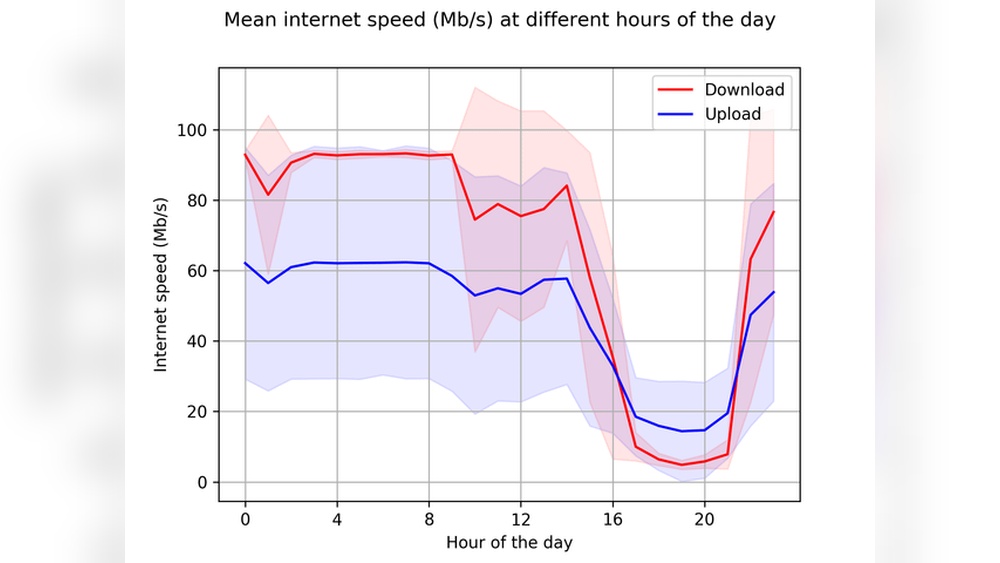
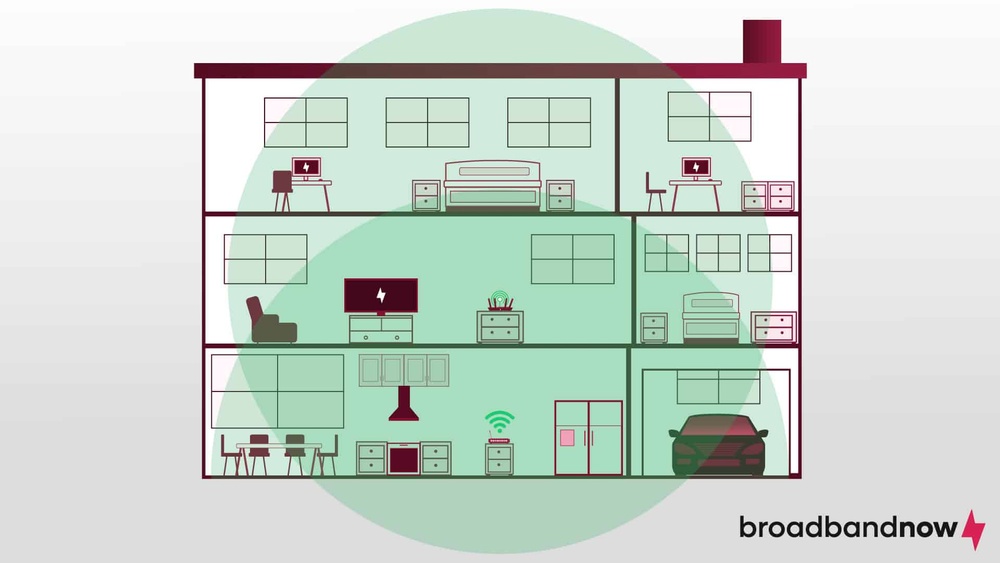
A slow or unstable internet connection often causes YouTube lag. Video streaming needs a steady data flow. Interruptions or low speeds disrupt this flow. Wi-Fi signals may weaken due to distance or obstacles. Using mobile data with poor coverage can also slow videos.
Browser Performance Problems
Browsers can slow down over time. Running many tabs or extensions drains resources. Outdated browser versions may not support video playback efficiently. Cached files and cookies sometimes cause conflicts. These issues lead to buffering and lag during videos.
Device Hardware Limitations
Older devices may struggle with high-quality videos. Limited RAM and slow processors reduce video performance. Graphics cards also impact smooth playback. Running multiple apps uses device resources, causing lag. Device temperature can affect performance too.
Youtube Server Glitches
YouTube’s servers sometimes face issues. Server overload or maintenance can cause slow streaming. These problems affect many users at once. Video buffering and lag happen despite good internet. Waiting or trying later often fixes this.

Credit: www.youtube.com
Improving Internet Speed
Improving your internet speed helps reduce lag on YouTube videos. A faster connection allows videos to load quickly and play smoothly. Small changes can make a big difference in your viewing experience.
Restarting Your Router
Turn off your router and wait for 30 seconds. This clears its memory and resets the connection. Restarting often fixes slow internet problems. Try this step before watching videos again.
Using Wired Connections
Connect your device directly to the router with an Ethernet cable. Wired connections are faster and more stable than Wi-Fi. This reduces buffering and lag during video playback.
Limiting Background Data Usage
Close apps and browser tabs that use the internet. Background data slows down your connection speed. Pause downloads or updates while watching videos. This frees up bandwidth for smoother streaming.
Choosing Optimal Video Quality
Select a video quality that matches your internet speed. Lower resolutions like 480p or 360p use less data. This helps videos load faster and play without interruptions. Adjust quality in the YouTube player settings.
Optimizing Browser Settings
Optimizing your browser settings can greatly reduce lag while watching YouTube videos. Browsers store data and run extensions that may slow down video playback. Adjusting these settings helps videos load faster and play smoothly.
Clearing Cache And Cookies
Cache and cookies store website data to speed up loading times. Over time, they build up and cause lag. Clear them regularly to keep your browser running fast. This frees space and removes old files that may cause errors.
Disabling Unnecessary Extensions
Browser extensions add features but can use extra memory. Some extensions slow down video playback. Disable or remove extensions you don’t need. This reduces the load on your browser and improves video speed.
Updating Your Browser
Browser updates include fixes for bugs and performance improvements. Using an outdated browser can cause lag. Check for updates often and install the latest version. This helps videos run smoothly and keeps your browser secure.
Using Lightweight Browsers
Some browsers use less memory and run faster. Lightweight browsers are ideal for slow computers or weak internet. Try browsers designed to use fewer resources. They improve video playback and reduce lag during streaming.
Enhancing Device Performance
Enhancing device performance is key to stopping YouTube videos from lagging. A slow device can struggle to play videos smoothly. Improving performance helps videos load faster and play without interruptions.
Many factors affect device speed. Closing apps that run in the background frees up memory. Updating drivers ensures your hardware works well. Removing unnecessary files creates space for better function. Scanning for malware keeps your device safe and quick.
Closing Background Applications
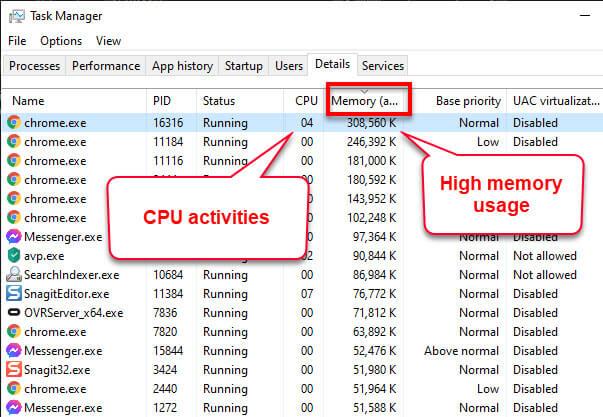
Background apps use memory and CPU power. This can slow down video playback. Close apps you do not need. On Windows, use Task Manager to end tasks. On smartphones, swipe apps away or use app manager. Free memory helps your device focus on YouTube.
Updating Device Drivers
Device drivers connect your hardware to the system. Outdated drivers can cause slow video performance. Visit your device manufacturer’s website to find updates. Install the latest graphics and network drivers. Updated drivers improve video processing and streaming speed.
Freeing Up Storage Space
Storage space affects how your device works. Low storage can cause lag and crashes. Delete old files, apps, and downloads you no longer need. Use built-in tools to clean junk files. More free space helps your device run smoothly.
Checking For Malware
Malware slows down your device by using resources secretly. Run a full scan using trusted antivirus software. Remove any threats found during the scan. Keeping your device clean ensures fast and safe video playback.
Adjusting Youtube Playback Options
Adjusting YouTube playback options can help reduce lag and improve video watching experience. These settings control how videos load and play on your device. Small changes can make a big difference in smoothness and speed.
Try turning off features you do not need. This reduces the data your device processes. Switching viewing modes can also help the video run better. Using hardware acceleration lets your computer share work with the graphics card. Finally, watching videos on the YouTube app might give better performance than a browser.
Turning Off Annotations And Captions
Annotations and captions add extra information on the video. They require more data and slow down playback. Turn them off to reduce lag. Click the settings gear icon on the video player. Disable the “Annotations” and “Subtitles/CC” options. This helps videos load faster and play more smoothly.
Using Theater Or Fullscreen Mode
Theater and fullscreen modes change how the video fits on your screen. Fullscreen mode uses your entire display, reducing distractions. Theater mode enlarges the video without filling the screen. Both modes can improve video performance by focusing system resources on playback. Switch to these modes using the icons at the bottom right of the video player.
Enabling Hardware Acceleration
Hardware acceleration allows your computer’s graphics card to help play videos. This reduces load on the main processor and improves smoothness. Enable this in your browser settings. For Chrome, go to Settings > Advanced > System, then turn on “Use hardware acceleration when available.” Restart your browser. Videos should run with less lag.
Switching To Youtube App
The YouTube app is optimized for video playback on mobile devices. It uses less data and handles buffering better than browsers. Download the official app from your device’s store. Using the app often reduces lag and provides a better watching experience. This is especially helpful on slower connections or older phones.
Credit: www.windowsdigitals.com
Advanced Troubleshooting Steps
Advanced troubleshooting steps help fix lag on YouTube videos beyond basic fixes. These steps target network and device settings that affect streaming quality. They improve video playback by addressing deeper technical issues.
Resetting Network Settings
Resetting network settings clears saved Wi-Fi and data configurations. It removes errors that slow down internet speed. This step restores default network setups, which can fix connection problems. After resetting, reconnect to your Wi-Fi and test YouTube again.
Changing Dns Servers
DNS servers translate web addresses into IP addresses. Switching to faster DNS servers can speed up video loading. Use public DNS services like Google DNS or Cloudflare. Change DNS settings in your device’s network options for better performance.
Using Vpns To Bypass Restrictions
Some regions limit YouTube streaming speed. VPNs help bypass these restrictions by changing your IP location. This can reduce lag and buffering issues. Choose a reliable VPN with fast servers near your area for best results.
Checking For System Updates
Outdated software affects video playback and device speed. Regularly check for system and app updates. Updates fix bugs and improve compatibility with YouTube. Keep your device and browser up to date for smooth streaming.
Frequently Asked Questions
Why Do Youtube Videos Lag On My Device?
YouTube videos lag due to slow internet, device overload, or outdated software. Clear cache, close apps, or update your browser to improve playback.
How Can I Improve Youtube Video Loading Speed?
Improve loading speed by using a faster internet connection, reducing video quality, or pausing the video to buffer before playing.
Does Clearing Cache Fix Youtube Lag Issues?
Yes, clearing cache removes stored data that may cause lag. It frees up space and improves video streaming performance.
Can Updating My Browser Reduce Youtube Buffering?
Updating your browser ensures compatibility and better performance. It fixes bugs that may cause video lag or buffering on YouTube.
Conclusion
Fixing lag on YouTube can make watching videos much better. Check your internet speed and close other apps using data. Lower video quality if your connection is slow. Clear browser cache to help videos run smoothly. Restart your device to refresh settings and connections.
These simple steps can reduce buffering and pauses. Enjoy your videos without constant interruptions. Keep these tips handy for the next time lag appears. Watching YouTube should be easy and fun for everyone.