How to Fix Touch Screen Not Responding Properly

Is your touch screen acting up and not responding the way it should? It can be frustrating when your device doesn’t react to your taps or swipes, especially when you need it the most.
But don’t worry—you’re not alone, and fixing this issue might be easier than you think. You’ll discover simple steps you can take right now to get your touch screen working smoothly again. Keep reading, and soon you’ll be back in control of your device without the hassle.

Credit: www.carlcare.com
Common Causes Of Touchscreen Issues
Touchscreen problems often frustrate users. Understanding common causes helps fix them fast. Many issues stem from software or hardware troubles. Dirt, moisture, or screen protectors also affect touch response. Calibration errors may stop the screen from working right. Below are the main reasons touchscreens fail to respond properly.
Software Glitches
Software bugs can freeze or delay screen response. Apps running in the background may slow down touch input. System updates sometimes cause temporary glitches. Restarting the device can clear minor software issues. Keeping your software updated reduces touchscreen errors.
Hardware Damage
Physical damage affects touchscreen performance. Cracks or dents on the screen disrupt touch signals. Dropping the device can harm internal parts. Hardware faults require professional repair or replacement. Avoiding drops helps protect the touchscreen.
Screen Protector Interference
Thick or poor-quality screen protectors block touch sensitivity. Air bubbles under the protector cause unresponsive spots. Some protectors do not work well with certain devices. Removing or replacing the protector can restore touch function.
Dirt And Moisture
Dirt, dust, or grease on the screen affects touch. Moisture from sweat or rain can cause erratic behavior. Cleaning the screen regularly keeps it responsive. Use a soft, dry cloth to avoid damage.
Calibration Problems
Touchscreens need proper calibration for accuracy. Miscalibration causes the screen to register wrong touches. Calibration tools or settings can help fix this issue. Regular checks keep the touchscreen working smoothly.
Basic Troubleshooting Steps
Basic troubleshooting steps can often solve touch screen issues quickly. These simple actions fix common problems without extra tools. Start with easy fixes before trying complex solutions.
Restart Your Device
Turn off your device completely. Wait for 10 seconds. Turn it back on. Restarting clears temporary glitches affecting the touch screen.
Clean The Screen
Use a soft, dry cloth to wipe the screen gently. Dirt, dust, and oils can block touch signals. Avoid using harsh chemicals or wet wipes.
Remove Screen Protector
Take off any screen protector carefully. Sometimes protectors reduce touch sensitivity. After removing, test the screen responsiveness again.
Check For Software Updates
Open your device settings and find the update section. Install any available software updates. Updates often include fixes for touch screen problems.
Advanced Fixes For Touchscreen Problems
Advanced fixes target deeper touchscreen issues beyond basic steps. These methods help when simple solutions fail. They require careful attention but can restore your device’s touch functionality.
Try these advanced options one at a time. Each step works differently depending on the problem source. Follow instructions closely for the best results.
Reset Touchscreen Calibration
Touchscreen calibration sets how your screen senses touch. Sometimes it drifts and causes poor response. Resetting calibration can fix this.
Go to your device’s settings menu. Find the touchscreen or display section. Look for calibration or touch settings. Follow prompts to reset or recalibrate the screen.
This process realigns touch detection. It improves accuracy and responsiveness. Your screen should react better after this step.
Boot Into Safe Mode
Safe Mode runs your device with only essential apps. This helps check if third-party apps cause touch problems.
Power off your device. Turn it on and hold the volume down button. Keep holding until Safe Mode appears on the screen.
Test the touchscreen while in Safe Mode. If it works well, an app likely causes issues. Uninstall recent apps one by one to find the culprit.
Factory Reset Device
Factory reset restores your device to original settings. It deletes all data and apps. Use this as a last option.
Back up important files before resetting. Go to settings and find the reset option. Choose factory reset and confirm.
After reset, your touchscreen should work if software caused the problem. Set up your device fresh and avoid reinstalling problematic apps.
When To Seek Professional Help
Knowing when to seek professional help for a touch screen issue can save time and money. Simple problems often have easy fixes. But some issues need expert care. Understanding the signs helps you decide when to get help.
Signs Of Hardware Failure
Screen flickers or shows lines. Touch response is missing in parts of the screen. Cracks or physical damage appear on the screen. Device does not react to touch at all. These signs suggest hardware problems. A professional can diagnose hardware issues accurately.
Repair Vs Replacement Options
Experts can repair minor screen damages. Small cracks or unresponsive areas might be fixable. Severe damage may need screen replacement. Replacement can restore full function and appearance. Professionals evaluate cost and benefits of repair or replacement. They guide you to the best choice for your device.
Preventing Future Touchscreen Issues
Preventing touchscreen issues helps keep your device working smoothly. Simple care steps reduce the chance of problems. Protecting your screen and maintaining your device extends its life. Follow easy tips to avoid future touchscreen troubles.
Use Quality Screen Protectors
Choose screen protectors made from strong, clear materials. Cheap protectors may cause touch errors. A good protector guards against scratches and dust. It also keeps the screen surface smooth for better touch response. Replace worn or damaged protectors quickly.
Keep Device Clean And Dry
Dirt and moisture block screen sensitivity. Wipe your screen daily with a soft cloth. Avoid using harsh cleaners or chemicals. Keep your hands dry before touching the screen. Store your device in dry places to prevent moisture damage.
Regular Software Maintenance
Update your device software often. Updates fix bugs that affect touchscreen performance. Restart your device to clear temporary glitches. Delete unused apps and files to improve speed. Run security scans to remove harmful software.
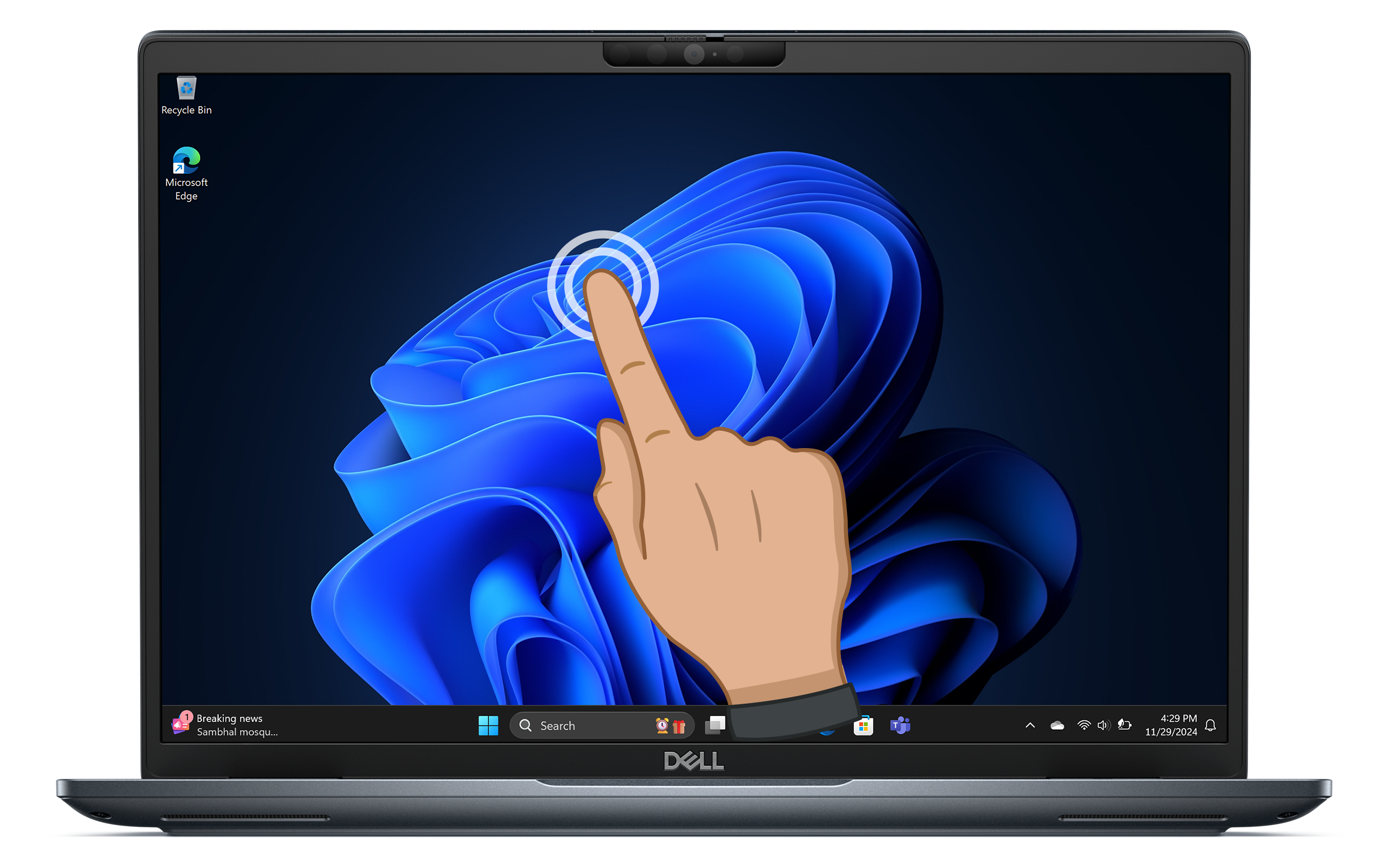
Credit: www.dell.com

Credit: www.youtube.com
Frequently Asked Questions
Why Is My Touch Screen Not Responding Properly?
A touch screen may not respond due to dirt, moisture, or software glitches. Restart your device and clean the screen gently with a microfiber cloth to improve sensitivity.
How Can I Recalibrate My Touch Screen?
Recalibrate your touch screen through device settings or use a calibration app. This helps align touch input with screen response, improving accuracy and fixing responsiveness issues.
Can Software Updates Fix Touch Screen Problems?
Yes, software updates often include bug fixes and improvements. Updating your device’s OS can resolve touch screen glitches and enhance overall performance.
What Should I Do If Touch Screen Freezes?
If your touch screen freezes, try restarting the device. If the issue persists, perform a factory reset after backing up data to restore normal function.
Conclusion
Fixing a touch screen not responding properly can be simple. Start with basic steps like cleaning the screen and restarting the device. Check for software updates and remove any screen protectors that might cause issues. Sometimes, resetting settings or calibrating the screen helps.
If problems continue, professional help may be needed. Remember, small actions often solve the problem quickly. Keep patience and follow these tips to get your touch screen working well again.