Why is My Phone Lagging After Recent Update

Is your phone suddenly slower after the latest update? You’re not alone.
Many people notice their devices lagging right after installing new software. It’s frustrating when your phone, which used to run smoothly, starts freezing or responding late. You might wonder if something went wrong or if your phone is damaged. The good news is, this problem often has simple reasons and easy fixes.
Keep reading to find out why your phone is lagging and how you can get it back to top speed.
Common Causes Of Lag
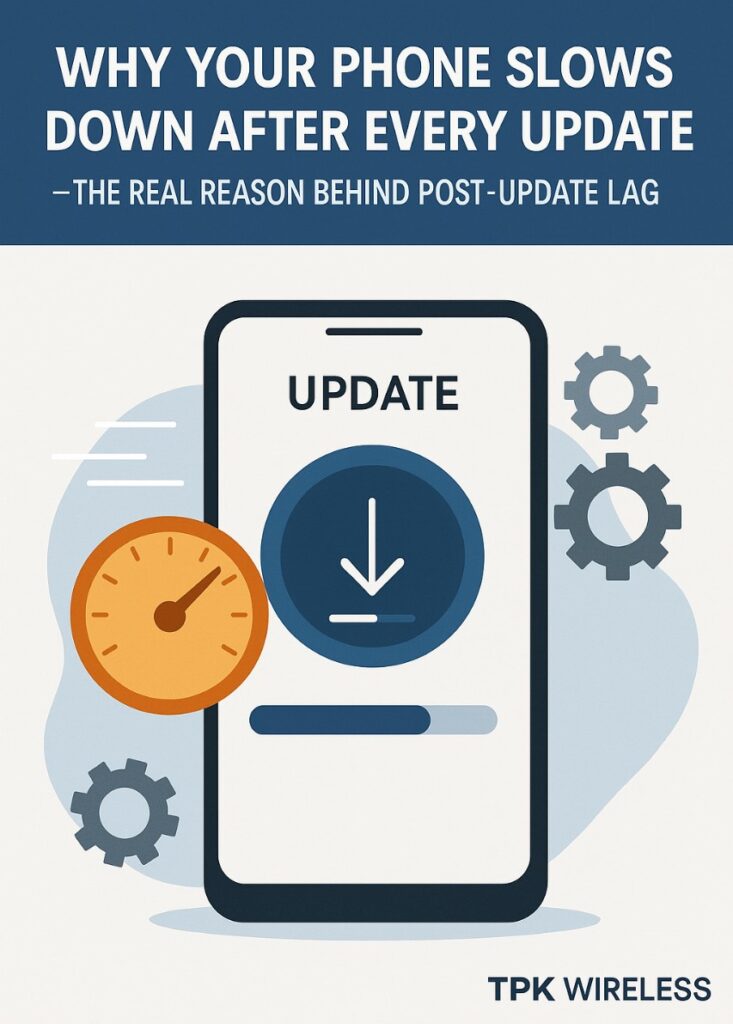
Phone lag after an update is a common problem. Several factors can cause your device to slow down. Understanding these causes helps you fix the issue faster. Below are the main reasons why your phone might lag after an update.
Software Bugs
Updates sometimes bring bugs that affect phone speed. These bugs can cause apps to crash or freeze. They may also drain battery quickly. Developers usually fix bugs in later patches. Until then, bugs can make your phone lag.
Increased Resource Usage
New updates often use more memory and CPU power. Features may run in the background, using resources. This leads to slower performance, especially on older phones. Apps might take longer to open. Increased resource use causes lag during daily tasks.
Compatibility Issues
Some apps or hardware parts may not work well with updates. Older apps might not support the new software. This mismatch causes delays and glitches. Compatibility problems can slow down your phone’s response. Updating apps and system helps reduce these issues.
Credit: tpkwireless.com
Impact Of Background Processes
Background processes run quietly after a phone update. These processes can slow down your device. They use memory and battery without showing clear signs. This often causes lag and delays in opening apps.
Understanding these processes helps in fixing lag. Let’s explore how app updates and system services affect performance.
App Updates Running
After an update, apps may start updating automatically. These updates use internet and processor power. Your phone slows as it works on these tasks. Apps may also refresh data in the background. This keeps them ready but uses extra resources.
Stopping automatic updates or waiting for them to finish can improve speed.
System Services Activity
System services run essential tasks silently. They check for new settings, sync data, and optimize the device. These services can become active right after an update. They use CPU and memory in the background. This can cause your phone to lag or freeze for short times.
Allowing these services to complete their tasks helps your phone return to normal speed.
Storage And Memory Constraints
Storage and memory play a big role in your phone’s speed. After an update, these limits can cause lag. Updates often need extra space and memory to work well. If your phone runs low on storage or RAM, it struggles to keep up with new demands.
Low Storage Space
Updates take up extra space on your phone. Apps also grow larger and need more room. Low storage means your phone has less space to save files and run apps.
This lack of space makes your phone slow. It takes longer to open apps and load data. Deleting unused apps and files frees up space and helps speed up your device.
Ram Limitations
RAM is the memory your phone uses to run apps. Updates often require more RAM to work smoothly. Phones with less RAM will struggle after an update.
When RAM is full, your phone slows down. It swaps data between RAM and storage, which takes time. Closing background apps or restarting your phone can free RAM and reduce lag.
Battery And Performance Settings
Battery and performance settings play a big role in how your phone runs after an update. Sometimes, updates change these settings without clear notice. This can cause your phone to slow down or lag. Understanding these settings helps you see why your phone feels different.
Power Saving Modes
Power saving modes reduce battery use by limiting background tasks. They also lower screen brightness and reduce CPU speed. This helps save battery but can make your phone feel slower. After an update, power saving might turn on automatically. Check your settings to turn it off if your phone lags.
Thermal Throttling
Thermal throttling protects your phone from getting too hot. It lowers the processor speed to cool down the device. Updates may cause your phone to heat up more than before. This triggers thermal throttling and slows your phone. Keep your phone cool and avoid heavy use when it feels hot.
Steps To Fix Lagging
After a recent update, your phone may start lagging due to various reasons. These issues can slow down your device and cause frustration. Following simple steps can help you fix this lag and improve your phone’s speed.
These steps are easy to do and often solve the problem quickly. Start with the simplest fixes and move to more advanced ones if needed.
Restarting The Device
Restarting your phone can clear temporary files and close background apps. This often frees up memory and stops minor glitches. Press and hold the power button, then select restart. Wait for your phone to turn back on and check if it runs smoother.
Clearing Cache
Cached data can slow down your phone after an update. Clearing cache removes old files that may cause conflicts. Go to Settings, find Storage or Apps, and select Clear Cache. This will not delete your personal data but can speed up your phone.
Uninstalling Problematic Apps
Some apps may not work well after an update and cause lag. Identify apps that freeze or slow your phone. Uninstall those apps by holding the app icon and selecting uninstall. Reinstalling them later can help if needed.
Factory Reset
If lagging continues, a factory reset may help. This deletes all data and restores the phone to original settings. Backup important files before resetting. Go to Settings, select System or General Management, then choose Reset and Factory Data Reset. This step should be last if other fixes fail.
Credit: learn.microsoft.com
Preventing Future Lag
Phone lag can be frustrating after updates. Preventing future lag helps keep your phone running smooth. Simple steps can make a big difference. These tips help avoid slowdowns and keep your device fast.
Regular Updates
Keep your phone’s software up to date. Updates often fix bugs that cause lag. Install updates as soon as they are available. This keeps your phone secure and fast. Apps also need updates to work well.
Monitoring App Behavior
Some apps use more power and memory than others. Check which apps slow down your phone. Close or uninstall apps that cause problems. Avoid running many apps at the same time. This reduces lag and saves battery.
Managing Storage Efficiently
Low storage space slows down your phone. Delete unused files, photos, and apps regularly. Use cloud storage to save important data. Clear cache files to free up space. Keeping storage clean helps your phone run faster.

Credit: www.reddit.com
Frequently Asked Questions
Why Is My Phone Slower After The Update?
Phone updates sometimes add new features that demand more resources. Older hardware may struggle to keep up. Background processes can also increase, causing lag. Clearing cache and restarting often helps improve speed.
How Can I Fix Lag After A Phone Update?
Try restarting your phone first. Clear app cache and unused files. Update apps to their latest versions. If lag persists, consider a factory reset, but back up data first.
Does A Recent Update Cause Battery Drain And Lag?
Yes, new updates can temporarily increase battery use and cause lag. This happens as the system optimizes apps and settings. After a day or two, performance usually improves.
Can Uninstalling Apps Reduce Phone Lag After Updates?
Uninstalling unused or heavy apps can free up resources. This may reduce lag and improve speed. Focus on apps that run in the background or use high CPU.
Conclusion
Phone lag after updates happens often. New software can slow devices down. Apps may need time to adjust. Clearing cache and restarting helps a lot. Check for smaller updates or bugs. Removing unused apps frees up space. Battery health can also affect speed.
Patience is key; phones improve over time. Keep your device clean and updated. Small fixes make a big difference. Stay calm and try these simple steps. Your phone should run smoother soon.