How to Improve Posture While Typing on Laptop

Are you spending hours typing on your laptop and feeling aches in your neck, shoulders, or back? Poor posture while working can cause discomfort and even long-term problems.
But the good news is, you don’t have to suffer in silence. By making a few simple changes, you can improve your posture and protect your body from strain. Imagine typing comfortably without pain, staying focused longer, and feeling more energized throughout your day.
Keep reading to discover easy and effective tips that will transform how you work at your laptop—your body will thank you!
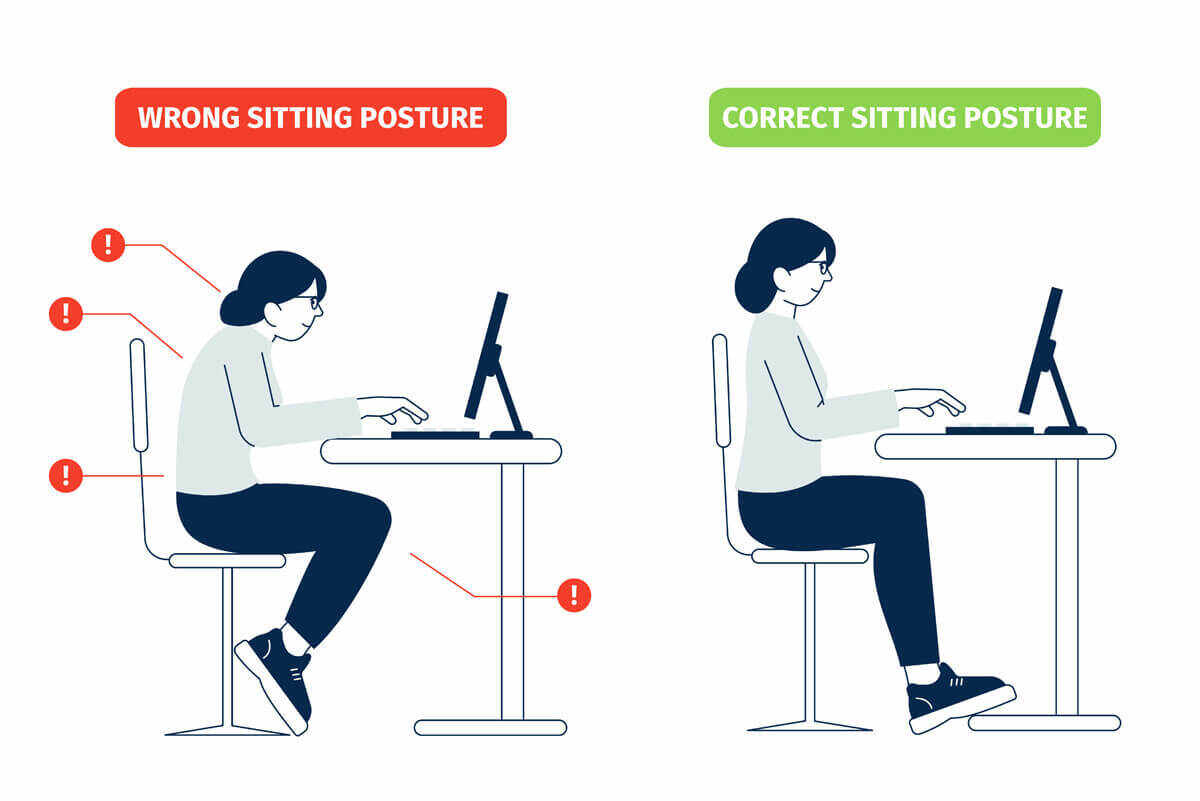
Credit: www.saintalphonsus.org
Common Posture Mistakes
Many people make common posture mistakes while typing on a laptop. These errors cause pain and discomfort. They also reduce productivity and focus. Recognizing these mistakes is the first step to better posture. Fixing them helps keep your body healthy and strong.
Slouching And Hunching
Slouching means leaning forward with a rounded back. Hunching happens when your shoulders lift toward your ears. Both put pressure on your spine and muscles. These habits cause neck and back pain. Sitting upright with shoulders relaxed helps prevent this.
Incorrect Screen Height
Most laptops have screens too low for good posture. Looking down strains the neck and upper back. The top of the screen should be at eye level. Raising your laptop or using an external monitor can fix this. It keeps your head straight and eyes comfortable.
Poor Wrist Position
Typing with wrists bent up or down stresses tendons and joints. This leads to pain and conditions like carpal tunnel. Keep wrists straight and level with the keyboard. Use a wrist rest if needed to maintain a neutral position. This reduces strain and fatigue.
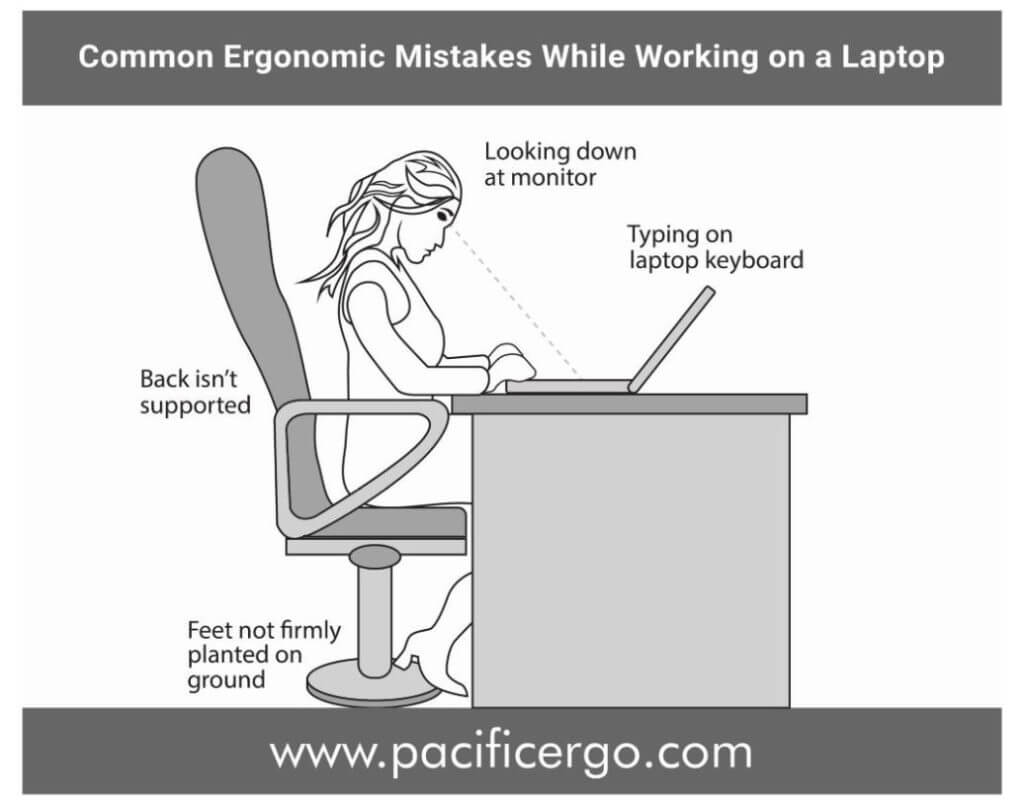
Credit: www.gatewayofindia.ky
Ideal Sitting Position
Maintaining the ideal sitting position is key to improving posture while typing on a laptop. It helps reduce strain on your muscles and joints. Sitting correctly can prevent back pain and increase comfort during long work sessions.
Focus on how your chair, desk, and body parts align. Small changes in your setup make a big difference. Keep your body relaxed but well-supported to avoid tension and fatigue.
Chair And Desk Setup
Choose a chair that supports your lower back. Adjust the height so your eyes are level with the top of the laptop screen. Your desk should allow your elbows to bend at a 90-degree angle. Keep your wrists straight and relaxed above the keyboard. Avoid leaning forward or slouching.
Foot Placement
Keep your feet flat on the floor. Avoid crossing your legs or tucking your feet under the chair. Use a footrest if your feet don’t reach the floor. Proper foot placement helps balance your body weight evenly. It reduces pressure on your lower back.
Back Support
Use the chair’s backrest to support the natural curve of your spine. Sit all the way back in the chair. Avoid slumping or rounding your shoulders. If needed, place a small cushion behind your lower back. Good back support keeps your spine aligned and reduces muscle strain.
Laptop Placement Tips
Proper laptop placement helps keep a good posture while typing. It reduces strain on your neck, shoulders, and back. Small changes in your setup can make a big difference.
Optimal Screen Angle
Set your laptop screen at eye level. Tilt the screen slightly back to reduce glare. This position helps your neck stay straight. Avoid bending your head down for long periods.
Using Laptop Stands
Laptop stands raise your device to a comfortable height. They improve airflow and keep your laptop cool. Choose a stand that fits your desk space and adjusts easily. It helps maintain a healthy posture during long work hours.
External Keyboard And Mouse
Use an external keyboard and mouse with your laptop stand. This setup lets you keep your arms relaxed and close to your body. It prevents wrist strain and encourages a natural hand position. Your laptop screen stays at eye level, while your hands stay comfortable.

Credit: www.goldtouch.com
Ergonomic Accessories
Ergonomic accessories help improve posture while typing on a laptop. They support your body and reduce strain. Using the right tools makes sitting and typing more comfortable. These accessories help keep your spine, wrists, and eyes in a healthy position.
Adjustable Chairs
Adjustable chairs let you change height and back support. Set the chair so your feet rest flat on the floor. Your knees should be at a 90-degree angle. Good back support helps keep your spine straight. Chairs with adjustable armrests reduce shoulder tension. They make long typing sessions less tiring.
Wrist Rests
Wrist rests support your wrists while typing. They keep wrists level with the keyboard. This reduces pressure on tendons and joints. Soft wrist rests prevent pain and discomfort. Place them in front of the keyboard or mouse. They help avoid wrist strain and carpal tunnel syndrome.
Monitor Risers
Monitor risers raise your laptop screen to eye level. This stops you from bending your neck down. Keeping your head straight reduces neck and shoulder pain. Use a riser that fits your desk and laptop size. Proper screen height improves focus and comfort.
Stretching And Movement
Stretching and movement play a key role in improving posture while typing on a laptop. Staying still for long periods can cause stiffness and pain. Moving your body helps reduce muscle tension and keeps blood flowing. Simple stretches can ease discomfort in your neck, shoulders, hands, and wrists. Regular movement also refreshes your mind and improves focus.
Regular Breaks
Take a break every 30 to 45 minutes. Stand up and walk around for a few minutes. This helps loosen tight muscles and resets your posture. Avoid sitting for too long without moving. Set a timer to remind yourself to take breaks. Even short breaks can make a big difference.
Neck And Shoulder Stretches
Gently tilt your head from side to side. Roll your shoulders forward and backward slowly. These stretches relieve tension and prevent stiffness. Keep your movements smooth and avoid sudden jerks. Repeat each stretch 5 to 10 times. Stretching your neck and shoulders helps maintain a healthy posture.
Hand And Wrist Exercises
Stretch your fingers wide and then make a fist. Rotate your wrists in circles to increase flexibility. These exercises reduce strain from typing. Try wrist bends by moving your hand up and down gently. Regular hand and wrist stretches prevent cramps and pain. They keep your hands ready for long typing sessions.
Maintaining Good Habits
Maintaining good habits is key to improving posture while typing on a laptop. Small actions repeated daily make a big difference. Good habits protect your body from strain and pain. They help you stay comfortable and focused during work or study.
Consistent Posture Checks
Check your posture often. Straighten your back and relax your shoulders. Keep your feet flat on the floor. Adjust your screen height to eye level. These checks prevent slouching and neck strain. Set a timer to remind yourself every 30 minutes.
Using Reminders And Apps
Use apps or alarms to remind you to adjust your posture. Some apps track your sitting time and send alerts. They help build awareness and encourage breaks. Simple reminders keep good posture in your mind. Try different apps to find one that suits you.
Creating A Comfortable Workspace
Arrange your workspace to support good posture. Use a chair with back support. Keep your keyboard and mouse close to avoid reaching. Position your laptop so your eyes look straight ahead. A well-set workspace reduces muscle tension and fatigue.
Frequently Asked Questions
How Can I Maintain Good Posture While Typing On A Laptop?
Sit with your back straight and shoulders relaxed. Keep your elbows at 90 degrees and wrists straight. Position the laptop screen at eye level to avoid neck strain. Take regular breaks to stretch and adjust your posture.
What Is The Best Laptop Height For Typing Comfort?
The best laptop height is where the screen is at eye level. Use a laptop stand or external keyboard if needed. This setup reduces neck and shoulder strain and encourages a natural wrist position during typing.
How Often Should I Take Breaks To Improve Posture?
Take a 5-minute break every 30 to 45 minutes. Stand, stretch, and move around to relieve muscle tension. Regular breaks help reset your posture and reduce the risk of repetitive strain injuries.
Can Ergonomic Accessories Improve Typing Posture?
Yes, ergonomic accessories like external keyboards, mouse, and laptop stands help maintain natural hand and wrist positions. These tools reduce strain on your back, neck, and shoulders. Investing in ergonomic gear promotes healthier typing habits.
Conclusion
Good posture helps reduce pain and keeps you comfortable. Small changes make a big difference over time. Adjust your chair, screen, and keyboard for better alignment. Take breaks often to stretch and move around. Your body will thank you with less tiredness and more focus.
Practice these tips daily to build healthy habits. Better posture while typing improves your work and well-being. Keep it simple, stay mindful, and feel the benefits grow.