How to Fix Notification Not Showing on Phone

Are you missing important alerts because your phone’s notifications aren’t showing? It’s frustrating when you expect a message or update but see nothing on your screen.
You rely on notifications to stay connected, informed, and in control. The good news? You don’t have to live with this problem. You’ll discover simple, effective ways to fix notification issues on your phone. Keep reading, and you’ll learn how to get your alerts back—quickly and easily.
Check Notification Settings
Notification problems often start with settings that block alerts. Checking these settings can fix most issues fast. It helps to know where to look and what to change. This section guides you through key steps to check your notification settings carefully.
Enable Notifications For Apps
Open your phone’s Settings app. Find the Notifications section. Scroll to see all apps. Tap each app and turn on Allow Notifications. This lets the app send alerts to your phone. Make sure banners, sounds, and badges are enabled. Each option helps you notice alerts in different ways.
Adjust Do Not Disturb Mode
Do Not Disturb mode stops notifications from showing. Go to Settings and open Do Not Disturb. Check if it is on. If yes, turn it off or adjust the schedule. You can allow calls or messages from certain contacts. This way, important alerts still come through.
Review App-specific Settings
Some apps have their own notification controls. Open the app and look for Settings or Notifications inside. Make sure notifications are turned on there too. Check if alerts are set to show on the lock screen and sound is enabled. This extra step ensures you don’t miss anything.
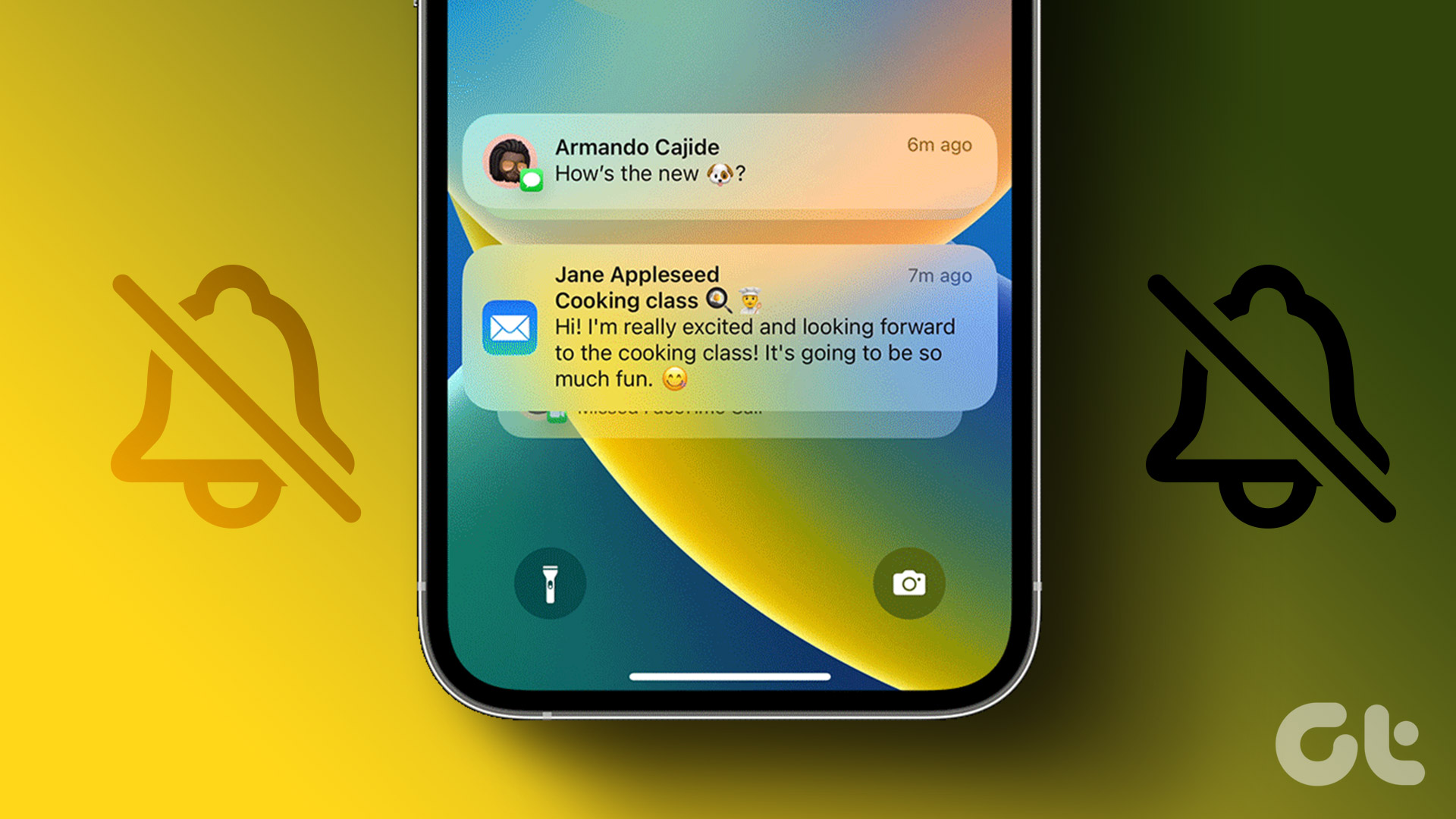
Credit: www.guidingtech.com
Inspect Battery Optimization
Battery optimization can stop notifications from showing on your phone. It saves power by limiting app activity. This can block apps from sending alerts. Checking battery settings helps fix this issue. You can let important apps run freely and show notifications.
Disable Battery Saver For Apps
Battery saver mode restricts apps to save power. Some apps may not send notifications if restricted. Open your phone’s settings and find battery options. Select the app causing notification problems. Turn off battery saver or optimization for that app. This allows the app to run in the background and send alerts.
Manage Background Activity
Background activity lets apps work when not open. Battery optimization may limit this to save power. Go to app settings on your phone. Find the option for background activity or permissions. Enable background activity for apps that need to notify you. This ensures you get notifications even when apps are closed.
Clear App Cache And Data
Clearing the app cache and data can solve notification problems on your phone. Cache stores temporary files that help apps run faster. Sometimes, these files get corrupted and cause issues. Clearing cache removes these files without affecting your app’s settings.
Clearing app data deletes all app information, including settings and login details. It resets the app to its original state. This step can fix deeper problems but requires you to set up the app again.
Steps To Clear Cache
Open your phone’s Settings menu.
Tap on Apps or Applications.
Find and select the app with notification issues.
Tap Storage or Storage & cache.
Press Clear Cache to remove temporary files.
Restart the app and check notifications.
When To Clear Data
Clear data if clearing cache doesn’t fix notifications.
Use this when the app still fails to notify you.
Remember, clearing data will erase all app settings.
Log back into the app after clearing data.
Test if notifications work properly now.

Credit: www.youtube.com
Update Software And Apps
Keeping your phone’s software and apps updated is key to fixing notification problems. Updates often include important bug fixes that affect notifications. Running the latest versions helps your phone work smoothly and sends alerts properly.
Old software or apps might stop notifications from showing. Updates also improve security and add new features. Checking for updates regularly can prevent many common issues with notifications.
Check For System Updates
Go to your phone’s settings menu. Find the option called “System” or “About phone.” Tap on “Software update” or “System update.”
Your phone will search for new updates. If one is available, download and install it. This process may take a few minutes.
Restart your phone after updating. This helps the new software work correctly. System updates fix bugs that can stop notifications from appearing.
Update Individual Apps
Open your phone’s app store. For Android, use Google Play Store; for iPhone, use the App Store.
Go to the “My apps” or “Updates” section. Look for apps with available updates.
Tap “Update” next to each app, especially those that send notifications. Updated apps are less likely to have bugs that block alerts.
Regularly updating apps ensures they work with your phone’s system. This keeps notifications coming through as they should.
Restart And Reset Options
Restarting or resetting your phone can fix many notification problems. These options clear temporary glitches and refresh your phone’s system. Start with simple steps before trying more drastic measures.
Soft Restart Techniques
A soft restart turns your phone off and on again. This clears minor bugs and frees up memory. Press and hold the power button. Then, choose “Restart” or “Power Off” and turn it back on.
Soft restarts do not delete any data. They are safe and quick. Try this method first if notifications stop showing.
Factory Reset Considerations
A factory reset erases all data and restores your phone to original settings. Use this only if other fixes fail. Back up important files before proceeding.
Go to Settings, find “Backup & Reset,” then select “Factory Data Reset.” Follow the instructions carefully. This step can solve deep software issues affecting notifications.
Check Network And Connectivity
Network and connectivity play a big role in phone notifications. If your phone is offline, notifications will not come through. Checking your network settings can solve many notification problems. Start by confirming that your phone connects to the internet properly. A weak or no connection often blocks notifications from arriving.
Wi-fi And Mobile Data Settings
Wi-Fi or mobile data must be active for notifications to work. Check if Wi-Fi is turned on and connected to a strong network. Sometimes, the phone might switch to a weak Wi-Fi signal or none at all. If Wi-Fi is off, turn on mobile data and see if notifications start working. Some apps need internet access to send alerts. Make sure mobile data is enabled and has enough signal strength.
Airplane Mode Impact
Airplane mode stops all connections on your phone. This means no calls, messages, or notifications. Check if airplane mode is on by mistake. If it is on, turn it off. After turning off airplane mode, wait a moment for your phone to reconnect. Notifications should start appearing again once your phone is back online.
Manage Notification Channels
Managing notification channels helps control how apps send alerts. It organizes notifications by type. This makes it easier to see important messages. You can decide which alerts appear and how they behave.
Notification channels give you control over app notifications. Each app can have several channels for different alerts. Adjusting these settings can fix notification issues and improve your phone experience.
Adjust Channel Importance
Every notification channel has an importance level. This level decides if the notification shows on the screen or stays silent. You can set channels to high, medium, or low importance. High importance makes notifications pop up and sound. Medium shows alerts silently. Low may block notifications entirely. Adjust these to match your needs. This helps ensure you don’t miss critical alerts.
Customize Notification Sounds
Notification sounds help identify alerts quickly. Each channel can have a unique sound. Choose sounds that catch your attention without being annoying. You can select from built-in tones or use custom sounds. Changing sounds makes it easier to know which app sends the alert. This prevents missed messages and keeps your phone personalized.

Credit: www.idownloadblog.com
Frequently Asked Questions
Why Are My Phone Notifications Not Showing?
Notifications may be disabled in settings or Do Not Disturb mode could be active. Check app permissions and battery saver settings to ensure notifications are allowed.
How To Enable Notifications On Android Phones?
Go to Settings > Apps & notifications > Notifications. Toggle on notifications for specific apps and disable Do Not Disturb mode to receive alerts.
Why Do Notifications Appear But No Sound Plays?
Sound for notifications might be muted or set to silent. Check volume settings and ensure notification sounds are enabled in app settings.
Can Clearing Cache Fix Notification Issues?
Yes, clearing cache of problematic apps can resolve notification glitches. Go to Settings > Apps > Select app > Storage > Clear Cache.
Conclusion
Fixing phone notifications can be simple with the right steps. Check your settings carefully to ensure notifications are allowed. Restart your phone to clear small glitches. Keep your apps and system updated for best performance. Sometimes, turning off Do Not Disturb helps too.
These tips can bring back your notifications quickly. Stay patient and try each method one by one. Soon, your phone will alert you as it should. No more missed messages or alerts. Easy fixes make a big difference in daily phone use.