How to Fix Overheating While Gaming on Laptop

Is your laptop heating up like a furnace every time you dive into your favorite game? Overheating can slow down your gameplay, cause sudden shutdowns, and even damage your device over time.
But don’t worry—fixing this problem is easier than you think. You’ll discover simple, effective ways to cool down your laptop and keep your gaming smooth and uninterrupted. Ready to stop the heat and get back to winning? Let’s jump right in.

Credit: www.youtube.com
Causes Of Laptop Overheating
Laptop overheating during gaming is a common problem. It can cause slowdowns and damage your device. Understanding what causes this overheating helps in fixing it. Several factors increase the heat inside your laptop. These factors often work together, making the problem worse.
High Cpu And Gpu Usage
Gaming demands a lot from your laptop’s CPU and GPU. They work harder to process graphics and game data. This heavy use creates more heat than usual. Long gaming sessions keep these parts running hot. Without breaks, the temperature rises quickly.
Poor Ventilation
Laptops need good airflow to stay cool. Poor ventilation blocks the heat from escaping. Using a laptop on soft surfaces like beds or couches blocks air vents. Dust and objects near the vents also reduce airflow. Without fresh air, heat builds up inside.
Dust And Debris Build-up
Dust collects inside the laptop over time. It blocks fans and air vents. This reduces the cooling system’s efficiency. Fans may spin slower or stop working properly. Dust causes the laptop to trap heat, leading to overheating.
Outdated Drivers And Software
Old drivers and software can cause overheating. They may not manage hardware well. This leads to higher power use and more heat. Keeping drivers and software updated helps maintain optimal performance. Updates often improve cooling controls and efficiency.
Signs Your Laptop Is Overheating
Overheating can harm your laptop’s parts and lower its speed. Knowing the signs helps you stop damage early. Watch your laptop closely during gaming sessions. Small hints show that the heat is too much. Catching these signs fast keeps your device safe and working well.
Sudden Shutdowns
Your laptop may turn off without warning. This happens to protect its parts from heat. Sudden shutdowns often mean the device is very hot inside. Don’t ignore these unexpected power offs during playtime.
Performance Drops
The game may lag or run slower than usual. Overheating makes the CPU and GPU reduce speed. This slows your whole system to cool down. Notice if your laptop struggles more than before.
Loud Fan Noise
The fan runs louder and faster than normal. It tries hard to push out hot air. Constant loud noise shows the laptop is working to stay cool. Pay attention to unusual or constant fan sounds.
Hot Surface Temperature
The laptop’s body feels very warm or hot to touch. Heat builds up especially near the keyboard or vents. A hot surface means the cooling system is not enough. Avoid using the laptop on soft surfaces that block airflow.
Preventive Measures To Reduce Heat
Keeping your laptop cool during gaming is key to better performance and longer device life. Simple preventive steps can stop overheating before it starts. These measures help your laptop stay at a safe temperature while you play.
Clean Air Vents And Fans
Dust blocks airflow and traps heat inside your laptop. Clean the vents and fans regularly using compressed air or a soft brush. This simple task improves air circulation and lowers the internal temperature.
Use A Cooling Pad
A cooling pad adds extra fans to cool your laptop’s bottom. It helps remove heat faster and keeps your laptop steady on your desk. Cooling pads are affordable and easy to use during long gaming sessions.
Elevate The Laptop
Raising your laptop improves air circulation underneath it. Use a stand or place small objects under the laptop’s edges. This creates space for air to flow and reduces heat buildup.
Update Drivers And Bios
Outdated drivers and BIOS can cause your laptop to overheat. Check the manufacturer’s website for updates. Installing these updates can optimize your laptop’s cooling system and improve performance.
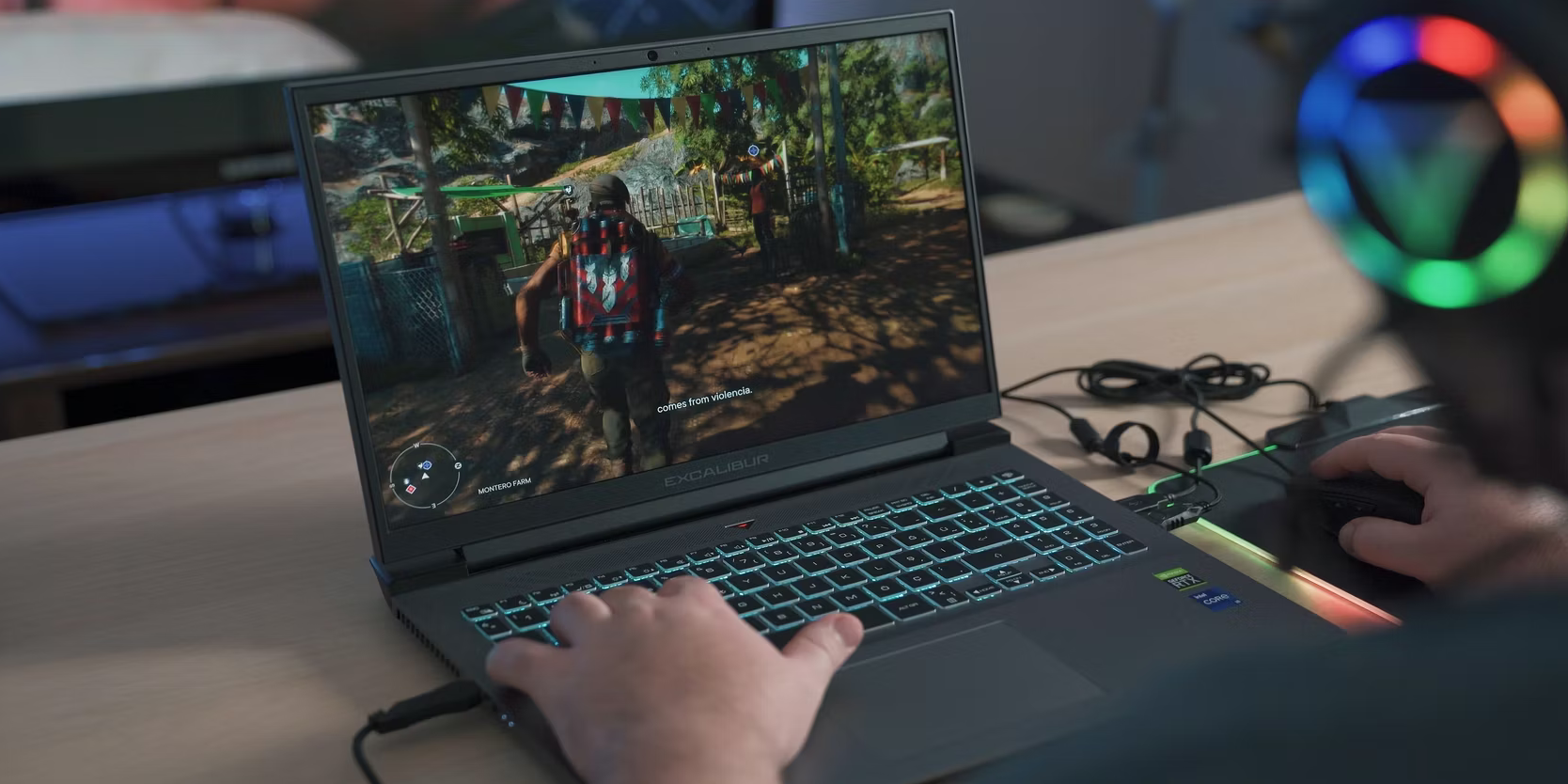
Credit: www.electronicsbazaar.com
Adjusting Gaming Settings
Adjusting your gaming settings can help reduce laptop overheating. Lower settings reduce the work your laptop does. This means less heat and smoother gameplay. Small changes can make a big difference in temperature and performance. Try these simple tips to keep your laptop cool while gaming.
Lower Graphics Quality
Reducing graphics quality lowers the demand on your laptop’s GPU. Choose medium or low settings for textures, shadows, and effects. This change helps your laptop run cooler by using less power. You still get good visuals without pushing your hardware too hard.
Limit Frame Rates
Setting a frame rate limit stops your laptop from working at full speed all the time. A cap of 30 or 60 frames per second is often enough. This reduces heat buildup and saves battery life. It also keeps gameplay smooth without unnecessary strain.
Close Background Applications
Background apps use CPU and memory, increasing heat during gaming. Close all apps you don’t need before starting your game. This frees up resources and lowers the laptop’s temperature. Less multitasking means your laptop can focus on the game and stay cooler.
Advanced Cooling Solutions
Advanced cooling solutions help keep your laptop temperature low during gaming. These methods go beyond basic tips like cleaning vents or adjusting settings. They focus on improving the hardware and adding tools to manage heat better. Such steps can extend your laptop’s life and keep performance steady.
Thermal Paste Replacement
Thermal paste sits between your CPU and its heat sink. Over time, this paste dries out and loses effectiveness. Replacing old thermal paste improves heat transfer. It reduces CPU temperature and prevents overheating. Use quality thermal paste and apply it carefully. This fix requires opening your laptop, so follow guides or get help.
Upgrading Internal Fans
Some gaming laptops allow fan upgrades or replacements. Better fans move more air and cool components faster. Choose fans designed for your laptop model. More powerful fans can reduce heat during long gaming sessions. Check fan speed and noise levels before buying. Proper installation is key to avoid damage.
External Cooling Accessories
Cooling pads and external fans add airflow from outside. Place a cooling pad under your laptop to push cool air inside. Some pads have multiple fans and adjustable speeds. External fans can help if internal fans are weak. These accessories are easy to use and carry. They provide extra cooling without opening your laptop.
When To Seek Professional Help
Overheating can harm your laptop and affect your gaming experience. Some problems need expert care. Knowing when to get professional help can save your device. It also stops small issues from getting worse. Watch for signs that you cannot fix yourself.
Persistent Overheating Issues
If your laptop keeps getting too hot, even after cleaning fans and using cooling pads, it needs a check. Constant overheating shows deeper problems. These might be software bugs or failing hardware parts. Experts can find hidden issues with special tools. They can also update software to reduce heat.
Hardware Damage Risks
Overheating can damage important parts like the CPU or GPU. This damage lowers performance and can cause crashes. If you hear strange noises or see error messages, stop playing. Professionals can open your laptop safely. They will replace or repair damaged parts. Fixing hardware yourself may cause more harm.
Credit: www.stellarinfo.com
Frequently Asked Questions
How Can I Prevent My Laptop From Overheating While Gaming?
Keep your laptop on a hard, flat surface for proper airflow. Clean vents and fans regularly. Use a cooling pad to reduce temperature during gaming sessions.
What Settings Should I Adjust To Reduce Laptop Heat?
Lower your game’s graphics settings. Limit frame rates if possible. Close unnecessary background apps to reduce CPU and GPU load, which helps in controlling heat.
Does Updating Drivers Help With Laptop Overheating Issues?
Yes, updating GPU and chipset drivers optimizes performance and power management. This can reduce overheating by improving how your laptop handles gaming tasks.
Can External Cooling Pads Really Stop Laptop Overheating?
Yes, cooling pads improve airflow and help dissipate heat. They provide extra fans that keep your laptop cooler during intense gaming.
Conclusion
Overheating can harm your laptop and ruin gaming fun. Keep vents clean and use a cooling pad often. Adjust game settings to lower heat from heavy use. Close extra apps to help your laptop breathe. Regular breaks can cool down your device.
Small steps make a big difference in performance. Play smart, keep your laptop cool, and enjoy gaming longer.