How to Fix Touch Screen Not Responding Properly

Is your touch screen acting up and not responding like it should? It’s frustrating when your device won’t react to your taps and swipes, especially when you need it the most.
But don’t worry—you’re not alone, and this problem can often be fixed quickly. You’ll discover simple, effective ways to get your touch screen working properly again. Keep reading, and by the end, you’ll have the tools to take control and bring your device back to life.
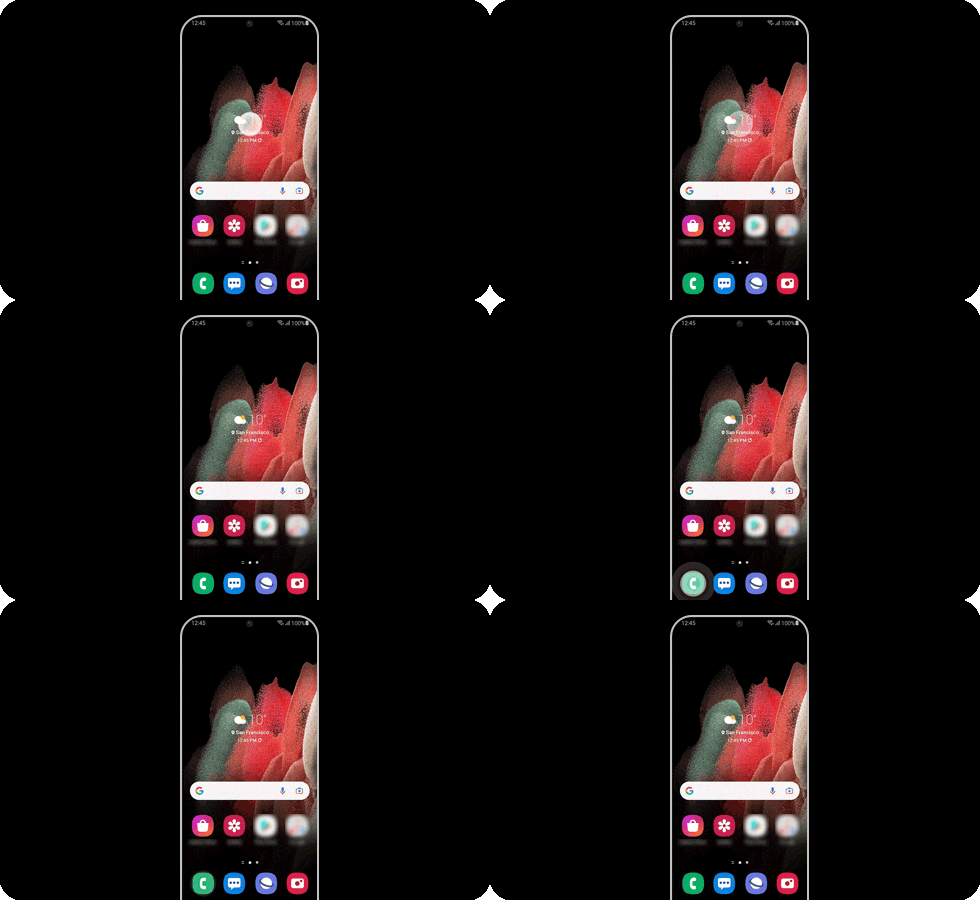
Credit: www.samsung.com
Common Causes Of Touchscreen Issues
Touchscreen problems can frustrate anyone. Understanding common causes helps fix these issues quickly. Many factors affect how a touchscreen responds. Some relate to the software, others to the hardware or environment.
Software Glitches
Software glitches often cause unresponsive screens. Apps may freeze or crash, affecting touch input. Sometimes, the operating system needs an update or restart. Clearing app caches and closing background apps can help. Bugs in the software may block touch signals temporarily.
Hardware Damage
Physical damage is a major cause of touchscreen failure. Dropping your device or pressure on the screen can break sensors. Cracks or dents can stop touch detection in some areas. Hardware wear over time also reduces screen sensitivity. Repair or replacement might be necessary if damage is severe.
Screen Protector Interference
Screen protectors can sometimes block touch sensitivity. Thick or poorly fitted protectors create gaps between finger and screen. Low-quality materials may interfere with touch signals. Removing or changing the protector often restores normal touch function. Choose thin, high-quality protectors for better performance.
Dirt And Moisture Effects
Dirt, dust, and moisture reduce touchscreen accuracy. Oils from fingers can build up and block signals. Water drops create interference or cause erratic responses. Cleaning the screen with a soft, dry cloth can improve touch response. Avoid using harsh chemicals that may damage the screen.

Credit: www.youtube.com
Basic Troubleshooting Steps
Basic troubleshooting helps fix many touch screen problems quickly. These steps check simple issues first. They often solve the problem without needing expert help. Follow these easy methods to make your device work well again.
Restart Your Device
Restarting the device clears temporary glitches. Press and hold the power button. Choose restart or power off, then turn it back on. This refreshes the system and may fix touch screen issues.
Clean The Screen
Dirt and oils can block touch signals. Use a soft, lint-free cloth to wipe the screen gently. Avoid harsh cleaners. Cleaning removes dust and smudges that stop the screen from responding.
Remove Screen Protector
Screen protectors sometimes affect touch sensitivity. Take off the protector carefully. Check if the screen responds better without it. If yes, consider replacing the protector with a thinner or better quality one.
Check For Software Updates
Outdated software can cause touch screen problems. Go to settings and find software updates. Download and install any updates available. Updates improve device performance and fix bugs affecting the touch screen.
Advanced Fixes For Touchscreen Problems
Advanced fixes can solve tough touchscreen problems. Basic steps may not always work. This section covers deeper methods to restore your device’s touch response. These techniques require careful attention but often bring good results.
Calibrate The Touchscreen
Calibration adjusts how the screen reads your touch. It helps if the screen reacts slowly or inaccurately. Most devices have a calibration tool in settings. Follow the instructions to tap specific points. This process improves touch precision and response.
Reset Device Settings
Resetting device settings clears errors that affect the touchscreen. It does not erase personal data like photos or apps. This reset returns system settings to default. Check your device’s settings menu to find this option. It can fix software conflicts causing touch issues.
Boot Into Safe Mode
Safe Mode runs your device with only essential apps. This helps identify if third-party apps cause the problem. Restart your device and hold the correct button to enter Safe Mode. Test the touchscreen in this mode. If it works well, uninstall recent apps that may cause trouble.
Factory Reset As Last Resort
Factory reset erases all data and restores original settings. Use this only when other steps fail. Back up important files before proceeding. This reset removes software bugs deeply affecting the touchscreen. After reset, set up your device as new for the best results.
Hardware Repair Options
Hardware repair options can solve many touchscreen problems. These options fix physical issues that software cannot. Understanding these choices helps you decide the best step.
Inspect For Physical Damage
Check your device for cracks or dents. Look closely at the screen surface. Damage can block touch signals. Sometimes dirt or debris causes issues too. Clean the screen gently with a soft cloth. Avoid using harsh chemicals that can worsen damage.
Replace The Touchscreen Digitizer
The digitizer senses your touch on the screen. If it breaks, touch may not work correctly. Replacing the digitizer often fixes the problem. This repair involves removing the old part and installing a new one. Use compatible parts to avoid further issues. This option requires some technical skill or tools.
Seek Professional Repair Services
Many repair shops specialize in touchscreen fixes. Professionals can diagnose and repair hardware issues quickly. They have tools and parts for accurate repairs. Choosing a trusted service ensures quality work. This option saves time and reduces risks. Professionals can also offer warranty on repairs.
Preventing Future Touchscreen Issues
Preventing touchscreen issues helps keep your device working smoothly. Small habits protect your screen and avoid future problems. Simple care can extend your touchscreen’s life.
Use Quality Screen Protectors
Choose screen protectors made from strong materials. Cheap protectors may cause touch issues or bubble easily. A good protector guards against scratches and damage. It keeps the screen sensitive and smooth to touch.
Keep Screen Clean And Dry
Wipe the screen gently with a soft cloth every day. Dirt and oils block touch signals and cause lag. Avoid using wet hands on the screen. Moisture can harm the screen and reduce its response.
Avoid Extreme Temperatures
Heat and cold can damage the screen’s touch sensors. Keep your device away from direct sunlight or freezing places. Sudden temperature changes may cause cracks or screen failure. Store your device in a room temperature environment.
Handle Device Carefully
Drop or pressure can break the touchscreen easily. Use a sturdy case to protect your phone or tablet. Avoid carrying it loosely in bags with sharp objects. Hold your device firmly to prevent accidental falls.

Credit: www.diyfixtool.com
Frequently Asked Questions
Why Is My Touch Screen Not Responding At All?
A non-responsive touch screen may result from dirt, software glitches, or hardware damage. Clean the screen, restart the device, and check for updates. If the problem persists, hardware repair might be necessary.
How Can I Fix A Lagging Touch Screen?
Lagging often stems from overloaded memory or outdated software. Close unused apps, clear cache, and update your device. Restarting the device can also improve touch screen responsiveness.
Does Screen Protector Affect Touch Screen Sensitivity?
Yes, some screen protectors reduce sensitivity. Use high-quality, thin protectors designed for your device. Adjust touch sensitivity settings if available to improve performance.
Can A Software Update Fix Touch Screen Issues?
Software updates often fix bugs causing touch screen problems. Always keep your device updated to ensure optimal performance and responsiveness.
Conclusion
Fixing a touch screen not responding can be simple. Start with basic checks like cleaning the screen and restarting the device. Updating software often solves many issues. If problems continue, consider resetting settings or checking for hardware damage. Small steps can save time and money.
Stay patient and follow each step carefully. Your device can work smoothly again with a little effort. Don’t ignore touch screen problems early. Act quickly to avoid bigger troubles later. Keep your device updated and clean for best results. Easy fixes often bring big improvements.