Why Does My Screen Dim Automatically

Have you ever noticed your screen suddenly dimming without warning? It can be frustrating, especially when you’re trying to focus or watch something important.
But why does this happen? Understanding the reasons behind your screen’s automatic dimming can help you take control and stop those annoying interruptions. You’ll discover the common causes and easy fixes to keep your screen bright exactly when you need it.
Keep reading to find out how to make your device work the way you want.
Credit: www.idownloadblog.com
Common Causes Of Screen Dimming
Screen dimming can be frustrating. It affects your viewing experience and productivity. Many factors cause your screen to dim automatically. Understanding these helps you control or prevent unwanted dimming. Below are common reasons why your screen brightness changes without warning.
Battery Saver Mode
Battery saver mode helps extend your device’s battery life. It reduces screen brightness to save power. When your battery is low, this mode turns on automatically. The screen dims to use less energy and keep your device running longer.
Ambient Light Sensors
Many devices have sensors that detect light in your environment. These sensors adjust the screen brightness based on surrounding light. In bright rooms, the screen brightens. In dark rooms, it dims to reduce eye strain. This automatic adjustment helps improve visibility and comfort.
Display Timeout Settings
Display timeout settings control how long your screen stays on without use. When time runs out, the screen dims before turning off. This feature saves power and prevents screen burn-in. You can change the timeout length in your device’s settings.
Power Management Features
Power management helps balance performance and battery life. It may lower screen brightness during heavy tasks or low battery. These features work silently in the background. Their goal is to keep your device running efficiently without interruption.
Effects Of Software And Apps
Software and apps play a big role in how your screen brightness changes. Many times, they control the screen to save battery or improve performance. This section explains how different software parts can dim your screen without you noticing.
Background Apps Impact
Apps running in the background use your phone’s power. Some apps lower screen brightness to save battery while running. Others dim the screen to reduce overheating. Background apps can also change brightness based on activity or notifications. This makes the screen dim automatically without your input.
Operating System Updates
Updates to your phone’s operating system often change screen settings. New software can add features that control brightness automatically. These updates may improve battery life by dimming the screen at certain times. Sometimes, updates fix bugs that caused brightness problems. Your screen may dim more after these updates because of new settings.
Third-party App Influence
Many third-party apps control screen brightness for better user experience. Some apps dim the screen to reduce eye strain in dark places. Other apps adjust brightness based on the content you watch or read. These apps run in the background and change brightness without asking. It is important to check app permissions to stop unwanted screen dimming.
Hardware Factors
Hardware issues often cause a screen to dim by itself. These problems come from parts inside your device that control the screen’s brightness. Understanding these can help you find the right fix faster.
Sensor Malfunctions
Many devices use light sensors to adjust screen brightness. These sensors detect the light around you. If the sensor breaks or gets dirty, it sends wrong signals. The screen may dim too much or too little. Cleaning the sensor or replacing it can solve this.
Screen Aging
Over time, screens lose their brightness. The backlight, which lights up the screen, becomes weaker. This makes the display look dimmer even at full brightness. Older screens may need repair or replacement to restore brightness.
Connection Issues
Loose or damaged cables inside your device can cause dimming. These cables carry power and signals to the screen. A bad connection may reduce the power reaching the backlight. Checking and fixing cables often improves screen brightness.
Adjusting Screen Brightness Settings
Adjusting screen brightness settings helps control how bright your device’s display appears. It affects eye comfort and battery life. Understanding these settings gives you control over your screen’s behavior. You can stop it from dimming unexpectedly. Here are some simple ways to manage your screen brightness.
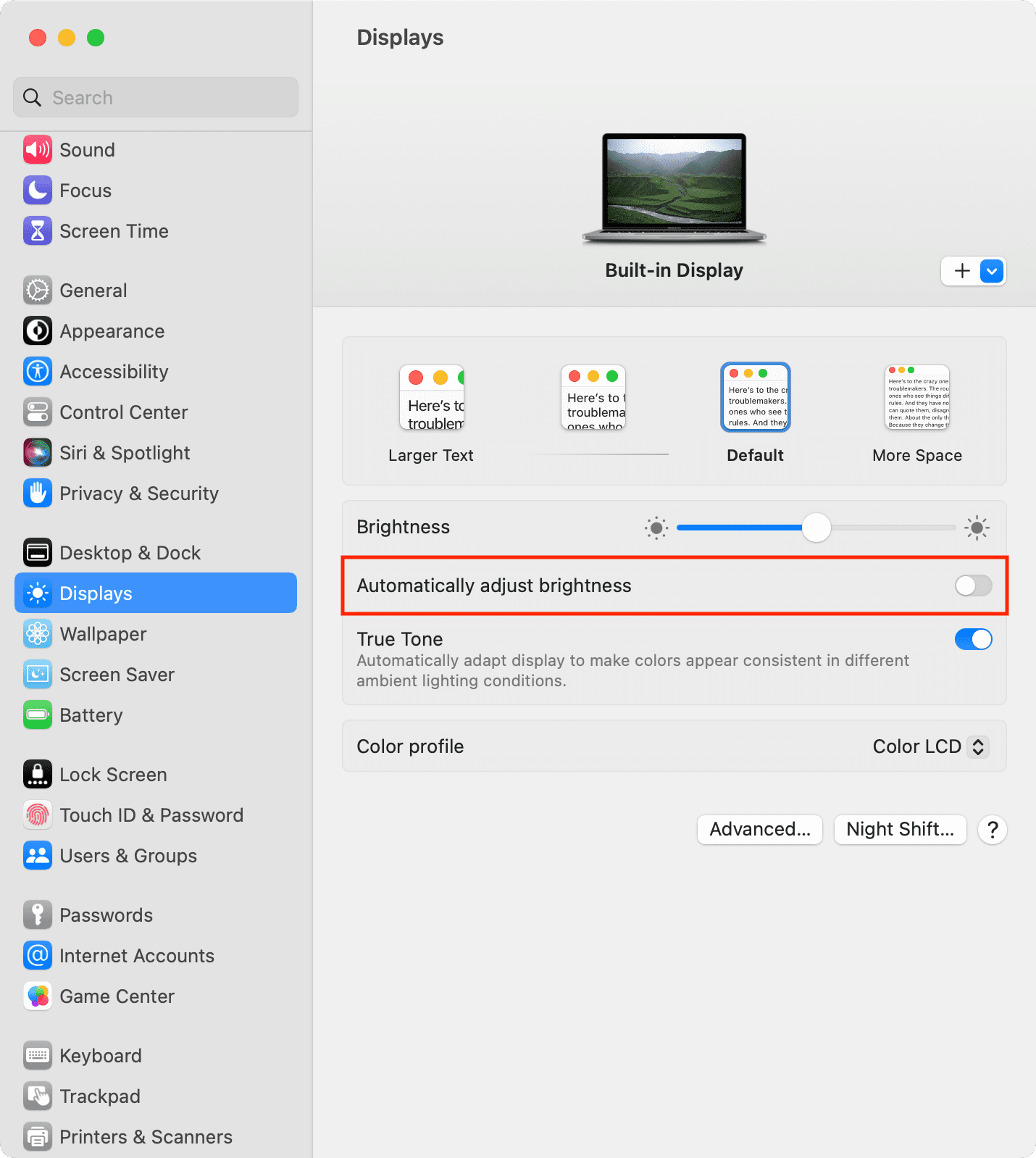
Disabling Auto-brightness
Auto-brightness changes your screen brightness based on surrounding light. It can dim the screen in dark rooms. Turning this off stops automatic dimming. Go to your device’s settings and find the display options. Look for “Auto-Brightness” or “Adaptive Brightness.” Switch it off to keep brightness steady.
Manual Brightness Controls
Manual brightness lets you set the light level yourself. Use the brightness slider in your device’s control panel. Slide it up to brighten or down to dim. This setting stays until you change it again. Manual control avoids surprise dimming during your use.
Using Night Mode
Night Mode changes screen colors to warmer tones at night. It reduces blue light to help your eyes. This mode may also lower brightness slightly. You can schedule Night Mode to turn on automatically. This keeps your screen easy on the eyes in the dark.
Troubleshooting Screen Dimming
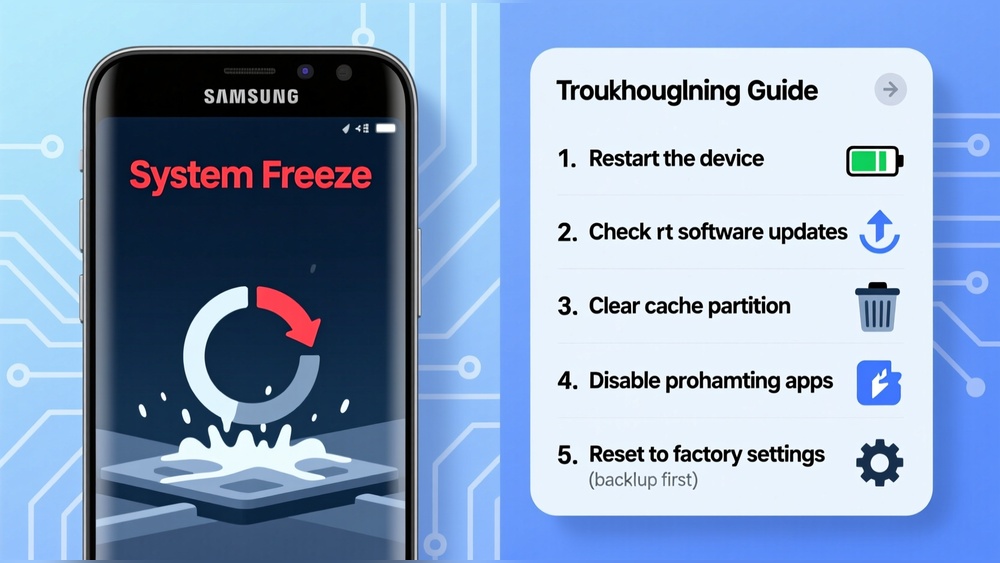
Screen dimming can be annoying and affect your device use. Troubleshooting helps find the cause fast. It can be a simple fix or a setting issue. Follow these steps to solve the problem yourself.
Restarting Your Device
Restarting refreshes your device’s system. It clears temporary glitches that may cause dimming. Turn your device off and wait 10 seconds. Turn it back on. Check if the screen brightness improves. This step often solves many screen problems.
Checking For Software Updates
Software updates fix bugs and improve performance. An outdated system can cause screen dimming. Go to your device’s settings and find software updates. Download and install any available updates. Updated software may stop the screen from dimming automatically.
Resetting Display Settings
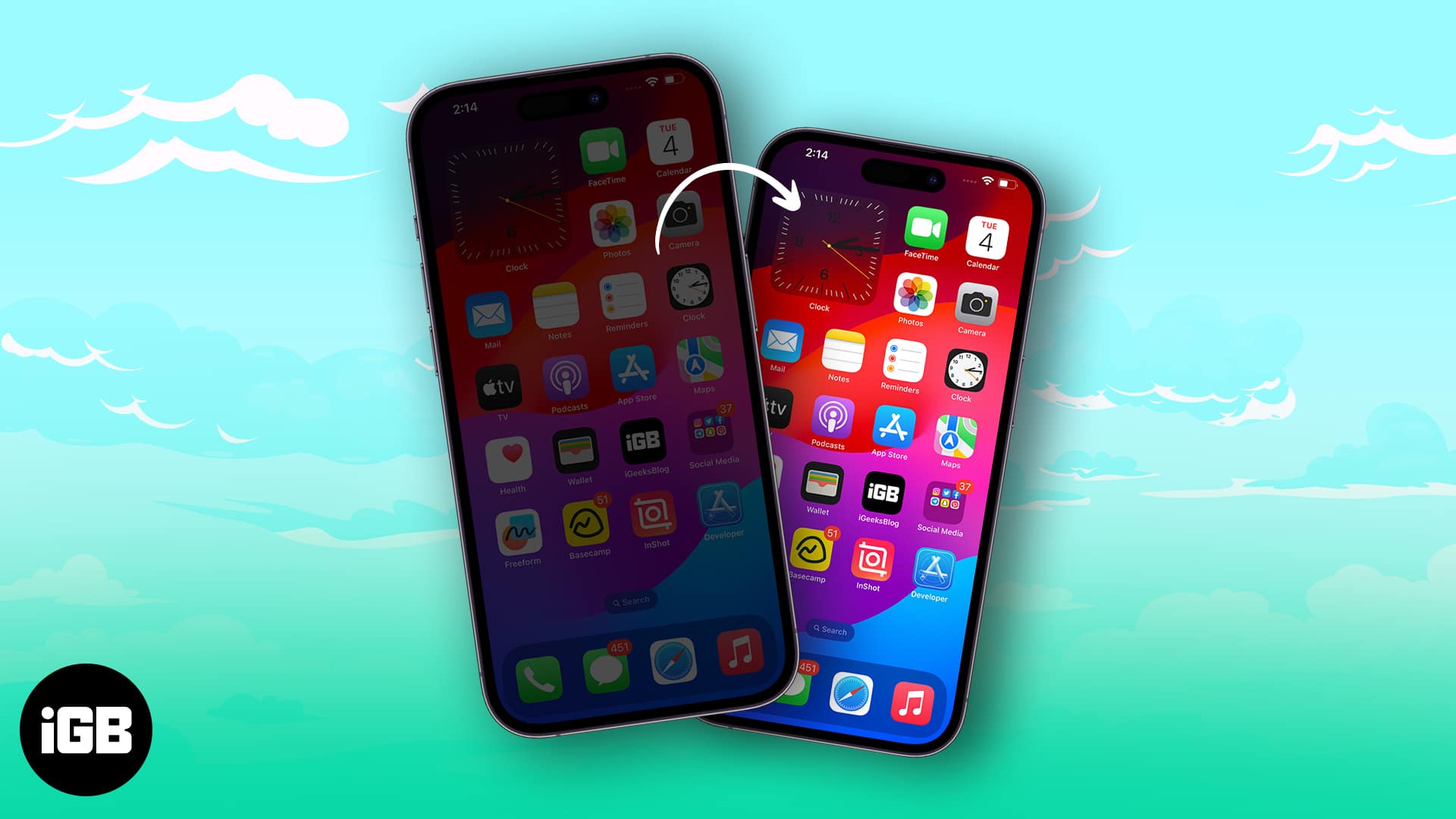
Resetting display settings returns brightness to default. Custom settings can trigger unwanted dimming. Open display settings on your device. Find the option to reset or restore defaults. Confirm the reset and watch if the screen stays bright. This clears any wrong settings causing the issue.
Credit: www.igeeksblog.com
Preventing Unwanted Dimming
Unwanted screen dimming can disrupt your work and entertainment. It often happens without warning, causing frustration. Preventing this issue helps keep your screen bright and clear. Simple steps can stop your screen from dimming at the wrong times. Here are some ways to control this problem effectively.
Optimizing Power Settings
Check your device’s power or battery settings first. Many devices dim the screen to save power. Adjust the brightness and timeout settings to suit your needs. Set the screen to stay brighter for longer periods. Disable any automatic brightness features if they cause problems. These changes help maintain a steady screen brightness.
Managing App Permissions
Some apps can control your screen brightness. Review which apps have permission to change display settings. Remove or limit permissions for apps that dim your screen unexpectedly. Keep only trusted apps with this control. This stops apps from dimming the screen without your consent.
Regular Device Maintenance
Keep your device updated with the latest software. Updates often fix bugs related to screen brightness. Restart your device regularly to clear temporary glitches. Clean the screen and sensors to ensure they work well. Good maintenance helps prevent unwanted dimming and other issues.

Credit: www.reddit.com
Frequently Asked Questions
Why Does My Screen Dim Automatically At Night?
Your screen dims at night to reduce eye strain and save battery. This feature adjusts brightness based on ambient light or time settings.
How To Stop My Screen From Dimming Automatically?
To stop auto-dimming, disable adaptive brightness or power-saving mode in settings. This prevents your device from adjusting screen brightness automatically.
Does Screen Dimming Save Battery Life?
Yes, dimming your screen reduces power consumption. Lower brightness uses less energy, extending your device’s battery life significantly.
Can Screen Dimming Affect My Device’s Performance?
Screen dimming does not affect performance. It only adjusts brightness to improve visibility and save energy without slowing your device.
Conclusion
Automatic screen dimming helps save battery and reduce eye strain. It reacts to light changes or system settings. You can adjust these settings to fit your needs. Knowing why your screen dims stops confusion and frustration. Small tweaks make your device easier to use.
Pay attention to battery saver and brightness controls. Stay comfortable and keep your screen clear all day. Understanding this simple feature improves your device experience.