How to Clear Cache Without Deleting Data

Have you ever noticed your device slowing down, but worried that clearing the cache might erase important data? You’re not alone.
Many people think clearing cache means losing files, photos, or settings—but that’s not true. Imagine boosting your device’s speed and freeing up space without touching your precious data. Sounds great, right? You’ll learn simple, step-by-step ways to clear your cache safely and effectively.
Keep reading to discover how to make your device run smoother without any risk to your information.
What Cache Does
Cache is a small storage space on your device. It keeps temporary files from apps and websites. These files help load content faster. Cache saves data like images, scripts, and videos. This way, you don’t wait long for the same content.
Cache improves your device’s speed and performance. It reduces data usage by reusing stored files. This makes browsing and app use smoother. Cache is essential for a better digital experience.
How Cache Speeds Up Your Device
Cache stores parts of apps and websites locally. This means your device loads them quickly next time. It avoids downloading the same data repeatedly. This saves time and makes apps more responsive.
Cache And Data Usage
Cache limits the amount of data your device downloads. It reuses saved files instead of fetching new ones. This helps users with limited data plans. It also reduces network congestion.
Why Cache Is Different From Data
Cache only holds temporary files. Data includes your personal info and app settings. Clearing cache does not erase your saved passwords or preferences. This keeps your important data safe.

Credit: setapp.com
Why Clear Cache Only
Clearing cache helps fix many device and app issues. It removes temporary files without affecting your personal data. Cache stores bits of information to make apps load faster. Over time, cache can become outdated or corrupted. This can slow down your device or cause errors.
Clearing only the cache keeps your settings and files safe. It frees up space and boosts performance. You avoid losing important data like passwords, photos, or documents. This makes clearing cache a safe way to refresh apps and systems.
What Is Cache And Why Does It Matter?
Cache is temporary storage for app data. It helps apps open quickly and run smoothly. Cached data includes images, scripts, and other files. This reduces the need to download the same data repeatedly.
How Cache Affects Device Performance
Too much cache can slow your device. Old cache files may cause app crashes or bugs. Clearing cache removes these files and frees memory. Your device can then work faster and more reliably.
Difference Between Clearing Cache And Deleting Data
Clearing cache removes only temporary files. Deleting data erases app settings and personal info. Clearing cache is safe and keeps your data intact. Deleting data resets the app like new.
When To Clear Cache Only
Clear cache if apps load slowly or behave oddly. It helps fix glitches without losing your info. Use cache clearing before deleting data or reinstalling apps. It is a simple first step in troubleshooting.
Cache Clearing Methods
Clearing cache helps improve device speed and fix loading issues. You can clear cache without deleting important data. Different devices and apps have unique ways to clear cache safely. This section explains simple methods for browsers, mobile apps, and computers.
Browser Cache
Browsers store cache to load sites faster. Clear cache in settings without losing passwords or bookmarks. Open browser settings and find the privacy or history section. Choose “clear browsing data” and select only cache or images. Confirm to remove cache files while keeping other data safe.
App Cache On Mobile
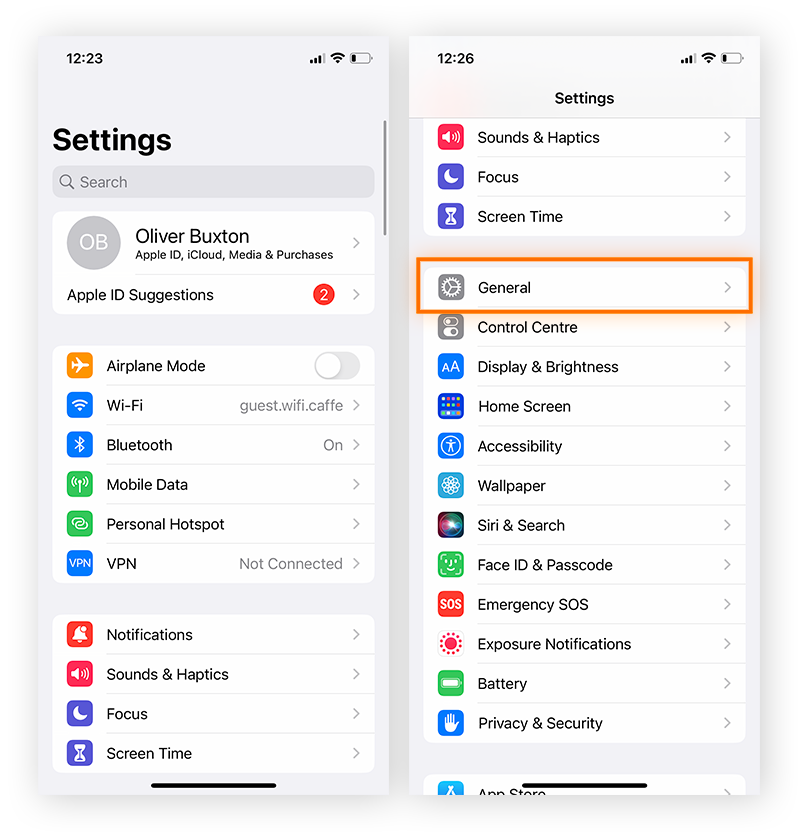
Mobile apps save cache to speed up loading. Clear cache in app settings without deleting app data or login info. Go to phone settings and open the apps list. Select the app and tap “clear cache.” This removes temporary files and keeps your personal data intact.
System Cache On Windows
Windows stores cache to improve system performance. Use the built-in Disk Cleanup tool to clear cache safely. Search for Disk Cleanup in the start menu and open it. Select the drive and check “Temporary files” or “Thumbnails.” Click OK to delete cache without affecting your documents.
System Cache On Mac
Mac stores system cache for faster operations. Clear cache manually to avoid deleting personal files. Open Finder and press Shift + Command + G. Type ~/Library/Caches and press Enter. Delete the contents of the folders carefully. Restart your Mac to apply changes.
Credit: www.avast.com
Using Third-party Tools
Using third-party tools helps clear cache without deleting important data. These tools target only temporary files, leaving your personal files safe. They are easy to use and save time. Many tools work on Windows, Mac, and Android devices.
These apps scan your system and find cache files quickly. You can select which cache to remove. This method keeps your apps and settings intact. It improves device speed and frees up space.
How To Choose The Right Tool
Pick a tool with good reviews and regular updates. Check if it supports your device and operating system. Avoid tools that ask for too many permissions. Look for clear instructions and a simple interface.
Step-by-step Guide To Using Third-party Tools
Download and install the tool from a trusted source. Open the app and run a scan to find cache files. Review the list and select only cache items to delete. Click the clear or clean button to remove cache. Restart your device for best results.
Benefits Of Using Third-party Cache Cleaners
These tools clear cache quickly and safely. They save time compared to manual cleaning. They reduce the risk of deleting important files. Many tools offer additional features like junk file removal. They help keep your device running smoothly.
Tips To Manage Cache Efficiently
Managing cache efficiently helps keep your device fast and responsive. It saves space without losing important data. Good cache management reduces app slowdowns and errors. It keeps your system clean and organized.
Try these simple tips to handle cache smartly. They help clear cache safely and improve device performance.
Clear Cache For Specific Apps
Focus on apps that use much storage. Clear cache only for apps with large cache sizes. This frees up space without deleting app data. It keeps app settings and files intact.
Use Built-in Cache Management Tools
Many devices have tools to manage cache easily. Use these tools to clear cache step-by-step. They help avoid accidental data loss. Follow instructions carefully for best results.
Clear Cache Regularly But Not Too Often
Clear cache at regular intervals to keep device smooth. Avoid clearing cache too often. Frequent clearing can slow down apps as they rebuild cache. Find a balance that suits your device use.
Restart Device After Clearing Cache
Restarting helps apply cache changes fully. It refreshes system memory and clears temporary files. Restart after cache clearing for better performance.

Credit: www.reddit.com
Frequently Asked Questions
How To Clear Cache Without Deleting Personal Data?
Clearing cache removes temporary files without affecting personal data like photos or contacts. Use app settings to clear cache only, preserving your important data safely.
Why Clear Cache Without Deleting App Data?
Clearing cache boosts app performance by removing junk files. It keeps app settings and user info intact, avoiding data loss while freeing storage space.
Can Clearing Cache Improve Device Speed?
Yes, clearing cache removes outdated files that slow down your device. It refreshes apps and system processes, helping your device run smoother without deleting essential data.
Is It Safe To Clear Cache Regularly?
Yes, clearing cache regularly is safe and recommended. It prevents storage buildup and keeps apps responsive without risking loss of personal or app data.
Conclusion
Clearing cache without deleting data keeps your apps running smoothly. It helps fix slow loading and frees up space safely. You don’t lose important files or settings by doing this. Regular cache clearing improves device speed and performance. Small steps can make a big difference over time.
Try it today to keep your device healthy and fast. Easy to do, quick results. A simple way to maintain your phone or computer well.