How to Fix Apps Crashing on Android Phone

Are your favorite apps crashing on your Android phone just when you need them most? It’s frustrating, right?
You open an app, and suddenly it closes without warning. This problem can slow you down and spoil your experience. But don’t worry—there are simple ways you can fix this yourself. Keep reading, and you’ll discover easy steps that will get your apps running smoothly again.
You’re just a few minutes away from solving this annoying issue for good.
Common Causes Of App Crashes
Apps crashing on Android phones can be very frustrating. Understanding the common causes helps fix the problem faster. Many app crashes happen due to simple issues that are easy to solve. Below are the main reasons why apps stop working properly.
Insufficient Memory
Android phones need enough memory to run apps smoothly. When memory is low, apps may crash or freeze. Running many apps at once uses more memory. Closing unused apps can free memory and reduce crashes.
Outdated Apps
App developers update apps to fix bugs and improve performance. Using old versions can cause crashes. Updating apps regularly keeps them compatible with your phone’s system. Check the Play Store for the latest app versions.
Corrupted Cache
Apps store temporary data called cache to work faster. Sometimes, this cache becomes corrupted. Corrupted cache can cause apps to crash unexpectedly. Clearing the cache often solves this issue quickly.
Software Bugs
Bugs are errors in the app code. These bugs can cause the app to close suddenly. Developers release updates to fix bugs. Using the latest app version reduces crashes caused by bugs.
Compatibility Issues
Some apps may not work well with certain phone models or Android versions. Compatibility problems cause frequent crashes. Checking app requirements before installing helps avoid this issue. Updating your phone software can improve compatibility.
Credit: www.avast.com
Quick Fixes To Try
Apps crashing on your Android phone can be frustrating. Quick fixes often solve these problems fast. Trying simple steps saves time and avoids stress. Here are some easy methods to try before seeking expert help.
Restart Your Phone
Restarting your phone refreshes its system. This clears temporary glitches that cause apps to crash. Hold the power button and tap “Restart.” Wait for your phone to turn back on. Open the app again to check if it works.
Update The App
App crashes often occur due to outdated versions. Open the Google Play Store and go to “My apps & games.” Find the crashing app and tap “Update.” New updates fix bugs and improve performance. After updating, launch the app to see if the issue is fixed.
Clear App Cache And Data
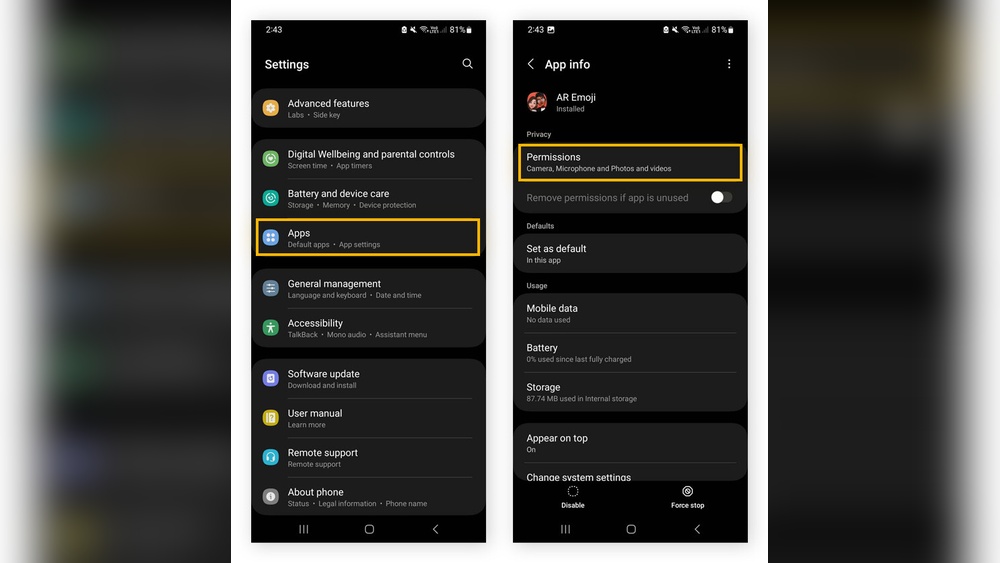
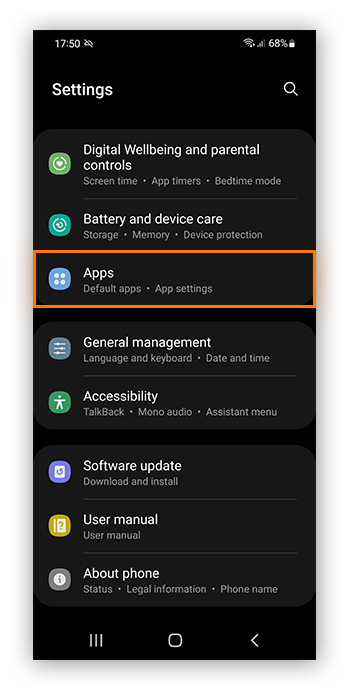
Cached files can become corrupted and cause crashes. Go to Settings > Apps > [App Name]. Tap on “Storage,” then select “Clear Cache.” If problems continue, tap “Clear Data.” This resets the app but may delete saved information. Try opening the app again after clearing.
Check For System Updates
System updates improve phone stability and compatibility. Open Settings and scroll to “System” or “Software Update.” Tap “Check for updates” and install any available. Updated systems support apps better and reduce crashes. Restart the phone after updating and test the app.
Advanced Troubleshooting Steps
Advanced troubleshooting steps help fix app crashes that basic fixes can’t solve. These steps dig deeper into your Android system. They target hidden problems causing apps to stop working. Follow these methods carefully to restore your apps.
Uninstall And Reinstall The App
Uninstalling removes all app data and settings. Reinstalling gives the app a fresh start. It can fix corrupted files causing crashes. Go to Settings, then Apps. Find the problematic app and tap Uninstall. After that, open Google Play Store and download the app again.
Reset App Preferences
Resetting app preferences restores default settings for all apps. It does not delete app data. This step can fix disabled apps or wrong permissions. To reset, open Settings and tap Apps. Tap the menu icon and select Reset app preferences. Confirm the action and restart your phone.
Free Up Storage Space
Low storage can cause apps to crash or freeze. Delete unused files, photos, or apps to free space. Use Storage settings to check available space. Clear cache for apps that use too much storage. More free space helps apps run smoothly and prevents crashes.
Boot Into Safe Mode
Safe Mode disables third-party apps temporarily. It helps check if other apps cause the problem. To enter Safe Mode, hold the power button. Then press and hold Power Off until a prompt appears. Tap OK to reboot in Safe Mode. Test the app. Restart normally to exit Safe Mode.

Credit: www.avg.com
Preventing Future App Crashes
Stopping apps from crashing again saves time and frustration. It helps your phone run smoother and keeps your apps working well. Simple steps can prevent many problems before they start. Follow these tips to keep your Android apps stable and reliable.
Keep Apps Updated
App developers fix bugs and improve performance in updates. Use the Google Play Store to check for updates often. Updated apps have fewer errors and run better on your phone. Turn on automatic updates to save time and avoid missing updates.
Manage Background Processes
Too many apps running at once can slow your phone. This makes apps crash more often. Close apps you do not use to free up memory. Use the phone’s settings to see which apps use the most resources. Limit background activity for apps that drain power or memory.
Avoid Beta Versions
Beta apps are test versions that may have bugs. They can cause crashes or other issues. Use stable versions for daily use to keep your phone safe. Switch back to the official app version if you face problems with beta releases.
Regularly Clear Cache
Cached data helps apps load faster but can cause errors over time. Clear cache in the app settings to remove old files. This frees space and fixes minor glitches. Make clearing cache a habit for apps that crash often.
When To Seek Professional Help
Knowing when to seek professional help can save time and frustration. Some app crashes need expert skills to fix. Avoid wasting effort on fixes that won’t solve the problem. Recognize the signs that show it’s time to get help.
Persistent Crashes After Fixes
Sometimes, apps keep crashing even after you try common fixes. Clearing cache, updating apps, or restarting your phone might not work. Persistent crashes suggest a deeper problem. Experts can check your phone’s system or app code. They find issues that are hard to detect alone.
Hardware-related Issues
App crashes can stem from hardware problems. Damaged memory or faulty processors affect app performance. Physical damage from drops or water can cause issues. Professionals can test hardware and repair components. This fixes crashes that software updates cannot resolve.
Contacting App Support
App developers offer support for app problems. Contacting them helps if crashes are app-specific. They provide updates or patches to fix bugs. Support teams guide you through troubleshooting steps. Getting help from developers improves app stability and performance.

Credit: www.avg.com
Frequently Asked Questions
Why Do Apps Keep Crashing On My Android Phone?
Apps crash due to outdated software, low memory, or corrupted cache. Conflicting apps or insufficient storage can also cause crashes. Regular updates and clearing cache help maintain stability.
How Can I Stop Apps From Crashing On Android?
Clear app cache, update apps, and restart your phone. Ensure enough storage and avoid running too many apps simultaneously. These steps improve app performance and reduce crashes.
Does Clearing Cache Fix App Crashes On Android?
Yes, clearing cache removes corrupted temporary files causing crashes. It refreshes app data without deleting personal information, often resolving performance issues quickly.
Will Updating Android Os Prevent App Crashes?
Updating the OS fixes bugs and compatibility issues. It enhances system stability and app performance, reducing the chances of apps crashing unexpectedly.
Conclusion
Apps crashing on Android can be frustrating. Try clearing the app cache first. Restart your phone to refresh its system. Keep your apps and Android updated for better stability. Uninstall and reinstall the problem app if crashes continue. Check your phone’s storage; low space can cause issues.
Sometimes, a simple reset fixes many problems. Stay patient and follow these easy steps. Your apps should work smoothly again soon.