How to Fix Echo During Video Calls

Have you ever been in an important video call when suddenly your voice bounces back as an annoying echo? It can be frustrating and distracting, making it hard to focus or get your message across.
But don’t worry—fixing echo during video calls is easier than you think. You’ll discover simple, effective tips that anyone can use to solve echo problems fast. Keep reading to ensure your next call sounds clear and professional every time.
Common Causes Of Echo
Echo during video calls can be distracting and reduce call quality. It happens when sound from speakers is picked up by the microphone. This sound loop creates a repeated echo effect. Understanding common causes helps fix echo problems fast.
Microphone And Speaker Placement
Placing your microphone too close to your speakers causes echo. Sound from speakers goes straight into the mic. Keep a good distance between them. Using headphones can stop echo by isolating sound.
Audio Settings Issues
Incorrect audio settings can cause echo. Some apps have echo cancellation features turned off. Check audio settings and enable noise suppression. Lower speaker volume to reduce sound feedback.
Network Latency Effects
Slow or unstable internet can cause audio delays. Delays cause sound to repeat as echo. Use a strong, wired connection when possible. Close background apps to improve network speed.
Hardware Problems
Faulty microphones or speakers may create echo. Old or damaged devices often cause sound issues. Test with another device to find the problem. Replace hardware if echo persists despite other fixes.

Credit: www.youtube.com
Quick Echo Fixes
Echo during video calls can be distracting and frustrating. Quick fixes help reduce or stop the echo fast. These simple steps improve sound quality for everyone on the call. Try these easy tips to enjoy clearer conversations.
Mute When Not Speaking
Muting your microphone stops your voice from bouncing back. It helps reduce echo and background noise. Keep your mic off unless you talk. This keeps the call clear for all participants.
Use Headphones
Headphones stop sound from speakers reaching your microphone. This prevents the echo effect. Use any headphones or earbuds you have. They create a private sound loop and improve call quality.
Lower Speaker Volume
High volume makes sound bounce around the room. Lower your speaker volume to reduce echo. A softer sound stops your mic from picking up speaker noise. Find a comfortable volume that still lets you hear.
Close Other Audio Sources
Other devices or apps playing sound can cause echo. Close music players, videos, or notifications on your device. This stops extra sounds from mixing into your call. Keep your audio focused on the video call app.
Adjusting Software Settings
Adjusting software settings can solve echo problems during video calls. The settings control how your microphone and speakers work together. Fixing them stops sound from bouncing back and causing echoes. These changes take only a few minutes.
Check Microphone And Speaker Selection
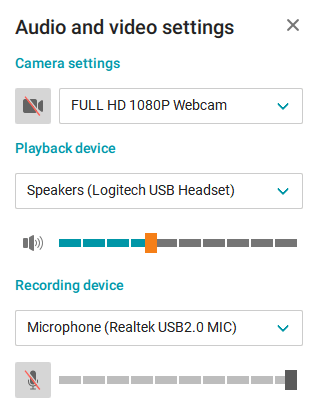
Choose the right microphone and speaker in your video call app. Sometimes, the app uses the wrong devices by default. Open audio settings and pick the devices you use. This step avoids sound looping from incorrect device use.
Enable Echo Cancellation Features
Many video call apps have echo cancellation options. Turn this feature on to reduce echo automatically. It lowers the chance of hearing your voice twice. Find this setting in the audio or call preferences menu.
Update Video Call Applications
Keep your video call app updated. New updates fix bugs and improve sound quality. An outdated app may cause echo or other audio issues. Check for updates regularly and install them quickly.
Reset Audio Configurations
If echo continues, reset your audio settings to default. This clears wrong adjustments causing echo. Open the app’s audio settings and find the reset option. After resetting, test the call sound again.

Credit: theinventory.com
Improving Hardware Setup
Improving your hardware setup can reduce echo during video calls. Echo often happens because microphones pick up sound from speakers. Small changes in how you arrange your devices can make a big difference. This section explains simple steps to improve your hardware for clearer sound.
Position Microphone Away From Speakers
Keep your microphone far from your speakers. This stops sound from the speakers reaching the microphone. Move the microphone to the side or use a headset with a built-in mic. This setup lowers the chance of echo during calls.
Test With Different Audio Devices
Try different headphones or microphones to find the best sound. Sometimes built-in microphones cause echo. External devices often have better sound quality. Testing helps you see which device works best for your space.
Use External Microphones
External microphones often reduce echo better than built-in ones. They capture your voice clearly and block background noise. USB or headset microphones are good choices. They improve call quality and make conversations easier to hear.
Replace Faulty Equipment
Old or broken audio equipment can cause echo. Check your cables, microphones, and speakers for damage. Replace any device that looks worn out or does not work well. New equipment often fixes echo problems quickly.
Network And Environment Tips
Echo during video calls can be distracting and reduce call quality. Network and environment play a big role in causing echo. Small changes in your internet setup and room can help fix echo problems. Focus on creating a stable and quiet environment for your calls.
Ensure Stable Internet Connection
A weak internet connection can cause sound delays and echoes. Use a wired connection if possible. Wi-Fi signals can be unstable and cause interruptions. Close other apps that use the internet during calls. This keeps your connection steady and clear.
Minimize Background Noise
Background noise can cause echoes and disturb the call. Turn off fans, air conditioners, and other noisy devices. Ask others nearby to keep quiet while you are on a call. Use headphones with a built-in microphone to reduce noise pickup.
Use A Quiet Room
Rooms with hard surfaces cause sound to bounce around. This creates echo during calls. Choose a room with soft furniture, curtains, or carpets. These absorb sound and reduce echo. Close doors and windows to limit outside noise.
Limit Other Bandwidth Usage
Other devices using the same internet can slow your connection. Pause downloads, streaming, or online games during calls. Ask family members to reduce their internet use temporarily. This helps keep your call audio smooth and echo-free.
Credit: trueconf.com
Advanced Troubleshooting
Advanced troubleshooting helps solve echo issues that basic steps miss. These methods dig deeper into your system and software. They focus on technical fixes and detailed checks.
Following these steps can clear echo problems and improve call quality. The process requires patience and careful attention to your device settings.
Update Audio Drivers
Outdated audio drivers often cause echo and sound problems. Visit your computer’s device manager or manufacturer website. Download and install the latest audio drivers available for your device. Restart your computer after updating. This refreshes audio settings and can remove echo.
Check For Software Conflicts
Multiple apps using audio can conflict and cause echo. Close all unnecessary programs during your video call. Disable audio enhancements in your sound settings. Sometimes, background apps interfere with your microphone or speakers. Checking and stopping these apps can fix echo problems.
Consult Support Forums
Many users share solutions for echo issues on support forums. Search for your device or software name plus “echo problem.” Read through tips and fixes shared by others. You might find a simple solution specific to your setup. Support forums offer real-world advice and tested fixes.
Contact Technical Support
If the echo persists, technical support can help. Reach out to your device or software provider. Explain your issue and the steps you tried. They can guide you through advanced fixes or repair options. Professional help ensures your problem is solved correctly.
Frequently Asked Questions
What Causes Echo During Video Calls?
Echo during video calls is usually caused by audio feedback. This happens when your microphone picks up sound from your speakers and repeats it, creating a loop. Poor audio settings or using multiple devices in the same room can also cause echo problems.
How Can I Reduce Echo On Video Calls?
To reduce echo, use headphones instead of speakers. Lower your speaker volume and mute when not speaking. Also, check your microphone and speaker settings to ensure they are properly configured to avoid audio feedback.
Does Microphone Placement Affect Echo On Calls?
Yes, microphone placement impacts echo. Keep the microphone away from speakers to prevent sound from looping back. Positioning the mic closer to your mouth and speakers farther away helps reduce echo effectively.
Can Software Settings Fix Video Call Echo?
Yes, many video call apps have echo cancellation features. Enable these settings in your app’s audio preferences. Updating your app and audio drivers can also improve echo issues during calls.
Conclusion
Fixing echo during video calls improves your experience a lot. Check your microphone and speaker settings first. Use headphones to stop sound from bouncing back. Keep your software updated for best results. Move to a quieter room if possible. Small changes make a big difference.
Clear audio helps you stay focused and understood. Try these simple tips to enjoy smooth, echo-free calls every time. Easy steps, better conversations.