How to Fix Fast Battery Drain After Update

Is your phone’s battery suddenly draining faster after an update? You’re not alone, and it can be really frustrating when your device won’t last through the day.
But don’t worry—there are simple steps you can take right now to fix this problem and get your battery life back on track. Keep reading, and you’ll discover easy solutions that work, helping you avoid constant charging and get the most out of your device again.
Common Causes Of Battery Drain
Battery drains fast after an update can be frustrating. Several common causes often lead to this problem. Understanding these causes helps you fix the issue quickly. Here are the main reasons your battery may drain faster after an update.
Background App Activity
Apps run in the background even when you are not using them. After an update, some apps may restart automatically. This uses more battery power than usual. Some apps also update themselves or sync data constantly. This background activity drains your battery fast.
System Update Bugs
Updates aim to improve your device but can have bugs. Some bugs cause high battery usage by system processes. These bugs may make the phone work harder than needed. As a result, battery drains quickly until the bug is fixed.
Settings Changes
Updates sometimes change your phone settings without notice. Brightness may increase or location services may turn on. These settings use more power and drain battery faster. Checking and adjusting settings can save battery life.
Battery Health Issues
Old batteries hold less charge after updates. Updates may demand more from your battery than before. If your battery health is poor, it drains fast after an update. Checking battery health helps identify if replacement is needed.
Credit: support.google.com
Quick Fixes To Save Battery
Fast battery drain after an update can be frustrating. Simple steps can help save your battery quickly. These quick fixes will improve battery life without much effort. Try them to see immediate results.
Restart Your Device
Restarting your device closes background processes that use power. It clears temporary files and refreshes the system. This simple step often fixes battery drain problems after updates.
Close Unnecessary Apps
Apps running in the background drain battery even if you are not using them. Check your open apps and close those you do not need. This reduces power use and extends battery life.
Adjust Screen Brightness
The screen uses a lot of battery power. Lower the brightness to save energy. Set brightness to a comfortable but lower level to reduce battery drain.
Enable Battery Saver Mode
Battery saver mode limits background activity and reduces power use. Turn it on to extend your battery life. This mode works well after updates that cause fast battery drain.
Optimize Settings After Update
After a software update, some settings may change and cause your battery to drain faster. Optimizing your phone’s settings can help save battery life. Simple adjustments will make your device run smoother and last longer between charges.
Manage App Permissions
Apps often ask for permissions to use phone features. Some permissions let apps run in the background, using more battery. Review app permissions and turn off those not needed. This limits background activity and saves power.
Turn Off Location Services
Location services use GPS and other tools to find where you are. This can drain your battery quickly. Turn off location services for apps that don’t need it. Only allow location access when using the app actively.
Disable Unused Connectivity Features
Wi-Fi, Bluetooth, and mobile data use energy even when not in use. Switch off Wi-Fi and Bluetooth if you don’t need them. Turn off mobile data when connected to Wi-Fi to save battery. This reduces unnecessary power consumption.
Update Apps To Latest Versions
App updates often fix bugs that cause battery drain. Keep your apps updated to improve performance. Visit your app store and install the latest versions. Updated apps use battery more efficiently and run better.
Check For System And App Updates
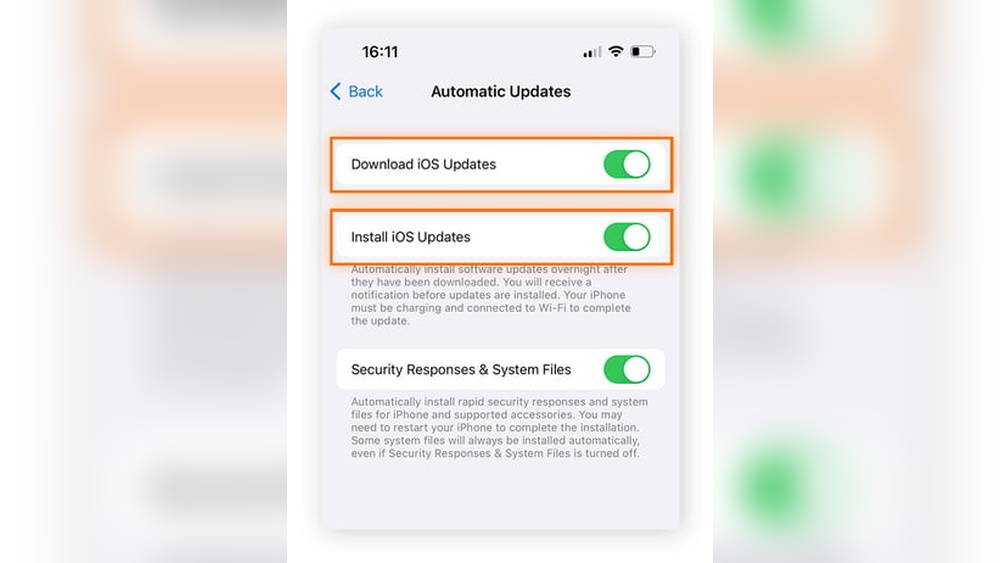
After a system update, battery drain can become a problem. One simple fix is to check for new updates. Updates often include patches that improve battery life. Apps also need updates to work well with the new system. Regular updates keep your device running smoothly and save battery power.
Install Patch Updates
System updates may have bugs that cause battery drain. Developers release patch updates to fix these bugs. Check your device settings for any new patch updates. Install these updates as soon as they are available. Patches improve system stability and reduce battery use. Keeping your system updated helps your phone last longer between charges.
Update Battery-intensive Apps
Apps can drain your battery if they are not updated. Some apps use more power after a system update. Visit your app store to find updates for these apps. Updating apps fixes bugs and improves compatibility. This lowers the app’s battery use on your device. Regular app updates help maintain good battery life.
Advanced Troubleshooting Steps
Advanced troubleshooting steps can help fix fast battery drain after an update. These steps go beyond basic fixes and target deeper issues. Follow each method carefully to improve battery life.
Clear Cache Partition
Clearing the cache partition removes temporary system files. These files may cause battery drain after an update. Turn off your device first. Enter recovery mode by pressing specific buttons. Use volume keys to find “Wipe Cache Partition.” Select it with the power button. Wait for the process to finish. Restart your device to see if battery life improves.
Reset Network Settings
Network settings can cause battery drain if they are corrupted. Resetting them can help. Go to your device’s settings menu. Find “Reset” or “System” options. Tap “Reset Network Settings.” This will erase Wi-Fi, Bluetooth, and mobile data settings. Reconnect to your networks afterward. Check if your battery lasts longer.
Perform Factory Reset
Performing a factory reset erases all data and settings. This step fixes severe battery issues caused by software errors. Backup important data before proceeding. Go to settings and find “Reset” or “Backup & Reset.” Choose “Factory Data Reset.” Confirm your choice and wait for the device to restart. Set up your phone as new. This often solves battery problems after updates.
Monitor Battery Usage
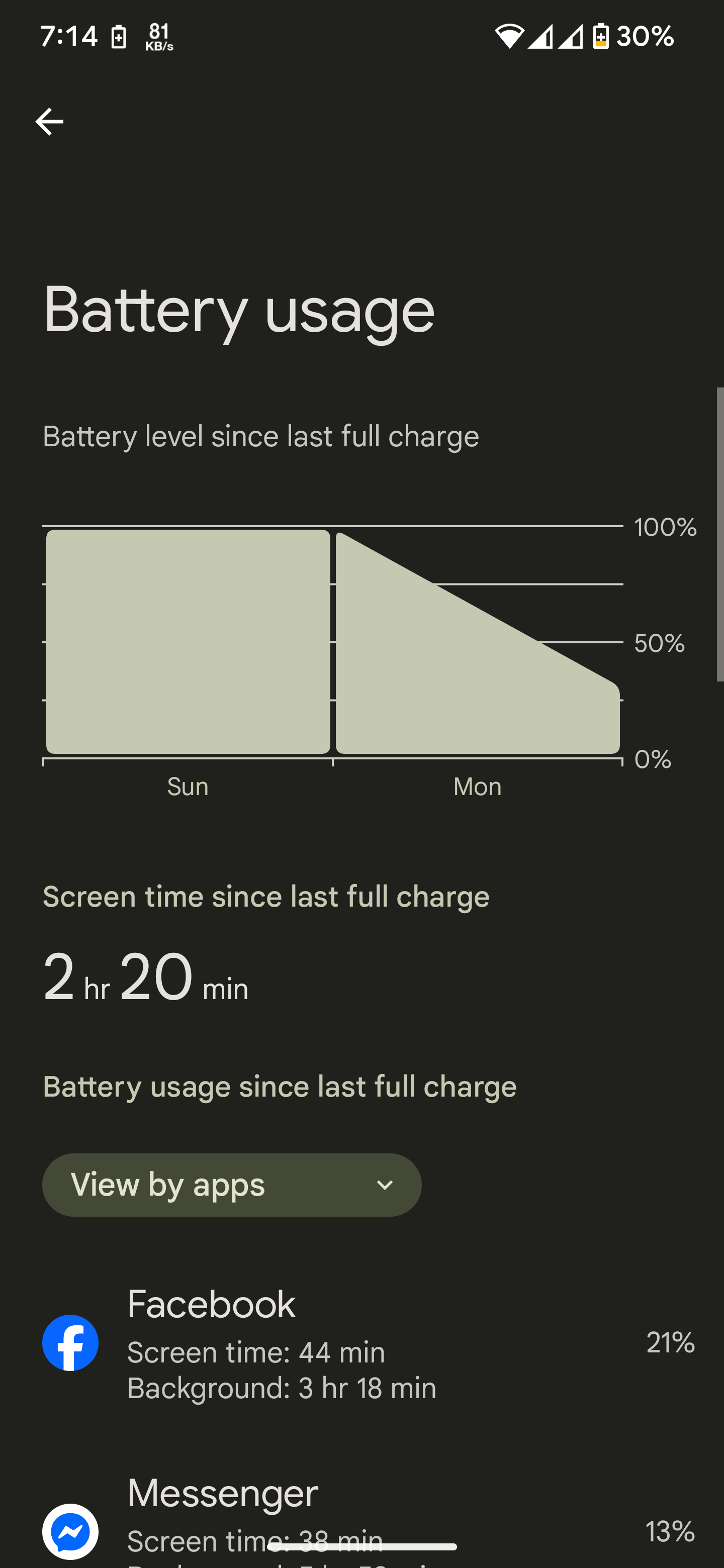
Monitoring your battery usage helps find the cause of fast battery drain after an update. It shows which apps or services use the most power. This information guides you to take the right steps and save battery life.
Use Built-in Battery Stats
Most smartphones have built-in battery stats in settings. Open the battery section to see detailed usage. It lists apps and system features that consume power. Check for apps using more battery than usual. Stop or uninstall those apps to improve battery life.
Look for unusual background activity or screen-on time. These can drain battery fast after updates. Use the battery stats regularly to track changes. This helps catch battery problems early.
Third-party Battery Monitoring Apps
Third-party apps offer deeper battery usage insights. These apps track power use over time and alert you. They help identify hidden battery drains. Some apps show CPU and network usage affecting battery.
Choose apps with good reviews and simple interfaces. Use these tools to get extra details beyond built-in stats. They help manage battery better and extend device usage.
Prevent Future Battery Drain Issues
Preventing future battery drain is key to keeping your device running longer. Small habits can make a big difference in battery health. Following simple steps helps maintain battery life after updates.
Regularly Update Software
Keep your device software up to date. Updates often fix bugs that cause battery drain. New versions improve power management. Check for updates every week or two.
Avoid Beta Versions
Beta software can have errors and bugs. These issues often increase battery use. Use only official and stable releases. This reduces unexpected battery problems.
Limit Background Processes
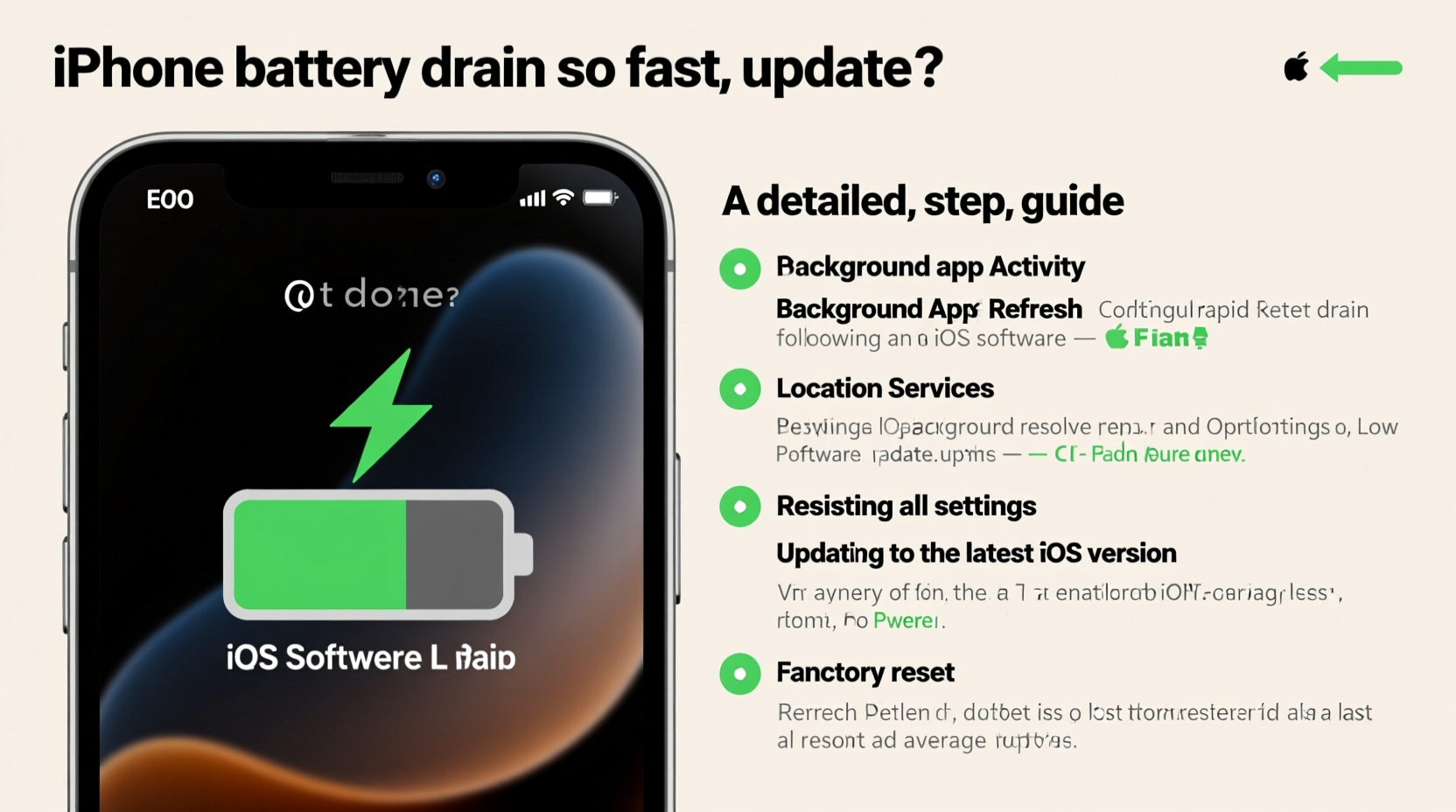
Many apps run in the background without your knowledge. They consume battery power continuously. Close apps not in use. Disable unnecessary background refresh in settings.
Credit: www.alibaba.com

Credit: www.youtube.com
Frequently Asked Questions
Why Does My Battery Drain Fast After An Update?
Battery drain after an update occurs due to new software processes running in the background. Updates can also change power settings or cause app incompatibility, leading to higher battery use.
How Can I Check Battery Usage After An Update?
Go to your device’s battery settings to see detailed battery usage. Identify apps or services consuming the most power since the update. This helps you target and manage power-hungry apps effectively.
What Are Quick Fixes For Fast Battery Drain Post-update?
Restart your device and close unused apps. Disable unnecessary background apps and turn off features like Bluetooth or location when not needed. These steps help reduce battery consumption instantly.
Should I Reset My Device To Fix Battery Drain?
Resetting can help if other methods fail. It clears glitches or corrupted files causing the drain. Always back up data before performing a factory reset to avoid data loss.
Conclusion
Fixing fast battery drain after an update is possible. Start by checking your apps and settings. Closing unused apps saves power. Lowering screen brightness helps too. Restarting your device can clear temporary issues. Keep your software updated for better performance.
Monitor battery use to spot problem apps. Small changes make a big difference. Stay patient and try these steps one by one. Your battery life will improve with time. Don’t let updates drain your device’s power. Take control and keep your phone lasting longer.