How to Fix Internet Lag During Video Calls

Is your video call freezing just when you’re about to speak? That annoying internet lag can ruin important meetings and casual chats alike.
You want clear, smooth conversations without interruptions or delays. Luckily, you don’t have to settle for frustrating calls anymore. You’ll discover simple, effective ways to fix internet lag during your video calls. Keep reading, and you’ll learn how to take control of your connection and enjoy seamless, uninterrupted calls every time.
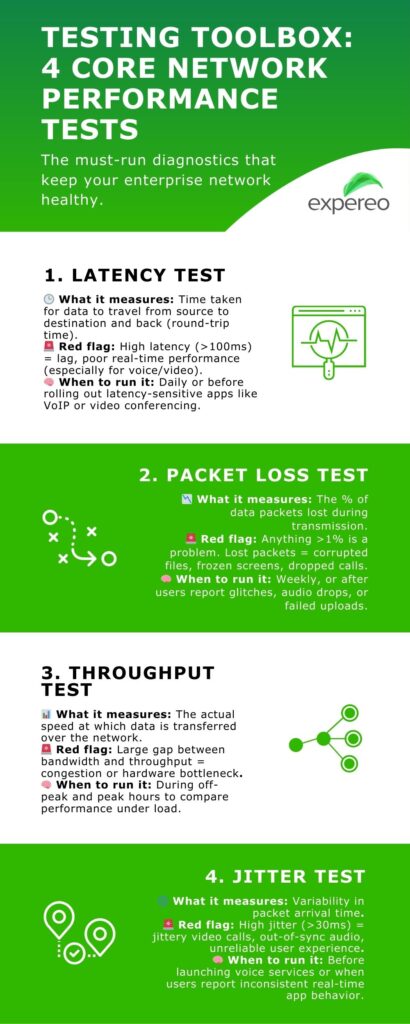
Credit: www.expereo.com
Common Causes Of Internet Lag
Internet lag during video calls can disrupt communication and cause frustration. Understanding the common causes helps fix these issues effectively. Many factors affect your connection quality and speed.
Identifying the root cause allows better troubleshooting and smoother calls. Below are some typical reasons behind internet lag.
Network Congestion
Network congestion happens when many devices use the internet at the same time. This overload slows down your connection. Streaming videos, downloading files, or online gaming can cause congestion. Peak hours often bring more traffic and slower speeds.
Hardware Limitations
Old or low-quality routers and modems may struggle to handle fast internet. Devices with outdated network cards also cause slow connections. Limited processing power in your computer or phone can affect video call performance.
Software Issues
Outdated apps or operating systems can cause lag during calls. Background programs might use bandwidth without your knowledge. Incorrect settings in video call software can reduce call quality and speed.
Wi-fi Signal Interference
Wi-Fi signals can weaken due to walls, furniture, or distance from the router. Other electronic devices like microwaves or cordless phones may interfere with the signal. Weak signals cause delays and poor video quality in calls.

Credit: www.reddit.com
Optimizing Your Network Setup
Optimizing your network setup is key to reducing internet lag during video calls. A strong network makes calls smoother and clearer. Simple changes can improve connection speed and stability.
Use Wired Connections
Wired connections are faster and more reliable than Wi-Fi. Use an Ethernet cable to connect your computer directly to the router. This reduces interference and signal loss. It gives you a steady internet connection for video calls.
Update Router Firmware
Router manufacturers release updates to improve performance and security. Check your router’s settings to see if updates are available. Installing the latest firmware can fix bugs and boost speed. Keep your router software up to date for better call quality.
Position Router Strategically
Place your router in a central, open area of your home. Avoid walls, metal objects, and other electronics nearby. Higher positions often work better than floors. Good placement helps Wi-Fi signals reach your device clearly and reduces lag.
Limit Bandwidth Usage
Other devices and apps use bandwidth during video calls. Pause downloads, streaming, and online games while calling. Ask others to limit internet use during important meetings. This frees up bandwidth, making your video call smoother.
Configuring Device Settings
Configuring your device settings can reduce internet lag during video calls. Simple changes help improve call quality and connection speed. Focus on three key areas to optimize your device performance.
Close Background Applications
Running many apps at once slows down your device. Close apps you do not need during a video call. This frees up memory and processing power. Your video call will run smoother and use less internet data.
Adjust Video Call Quality
Lowering video quality reduces data use and lag. Check your video call app settings for video quality options. Choose a lower resolution like 480p or 360p if your connection is slow. This keeps the call stable and clear enough to see and hear well.
Update Device Drivers
Outdated drivers can cause video and audio problems. Update your device drivers regularly to fix bugs and improve performance. Visit your device manufacturer’s website or use built-in update tools. Updated drivers help your device handle video calls better and reduce lag.
Improving Wi-fi Performance
Improving Wi-Fi performance can greatly reduce internet lag during video calls. A strong and stable Wi-Fi signal helps maintain clear audio and video. Small changes to your Wi-Fi setup can make a big difference in your call quality. Focus on optimizing your Wi-Fi network for faster and more reliable connections.
Change Wi-fi Channels
Wi-Fi networks often use the same channels, causing signal interference. Changing your Wi-Fi channel can reduce this interference. Use your router’s settings to select a less crowded channel. This step helps improve signal strength and reduces lag during video calls.
Use Wi-fi Extenders
Wi-Fi signals weaken over distance and through walls. Wi-Fi extenders boost your signal in hard-to-reach areas. Place extenders between your router and your video call device. This setup helps maintain a strong connection throughout your home.
Switch To 5ghz Band
The 5GHz Wi-Fi band offers faster speeds and less interference. Most modern routers support dual-band networks. Connect your device to the 5GHz band for better video call performance. Keep in mind, 5GHz covers shorter distances than 2.4GHz.
Troubleshooting Software And Apps
Internet lag during video calls often comes from software problems. Fixing these issues can improve call quality fast. Check your video call app first. Small problems inside the app can cause big delays. Follow these simple steps to troubleshoot software and apps.
Restart Video Call Application
Close the video call app completely. Open it again after a few seconds. Restarting clears temporary bugs inside the app. This step often improves call speed and quality. It’s a quick fix that works well.
Clear Cache And Data
Cache stores temporary files to make apps faster. Old cache can slow down the app. Clear the cache to remove these files. If problems continue, clear the app data. This resets the app to default settings. It can fix deeper issues causing lag.
Check For Updates
Outdated apps may cause lag during calls. Check the app store for updates. Install the latest version of your video call app. Developers often fix bugs in new updates. Keeping apps updated helps maintain smooth video calls.
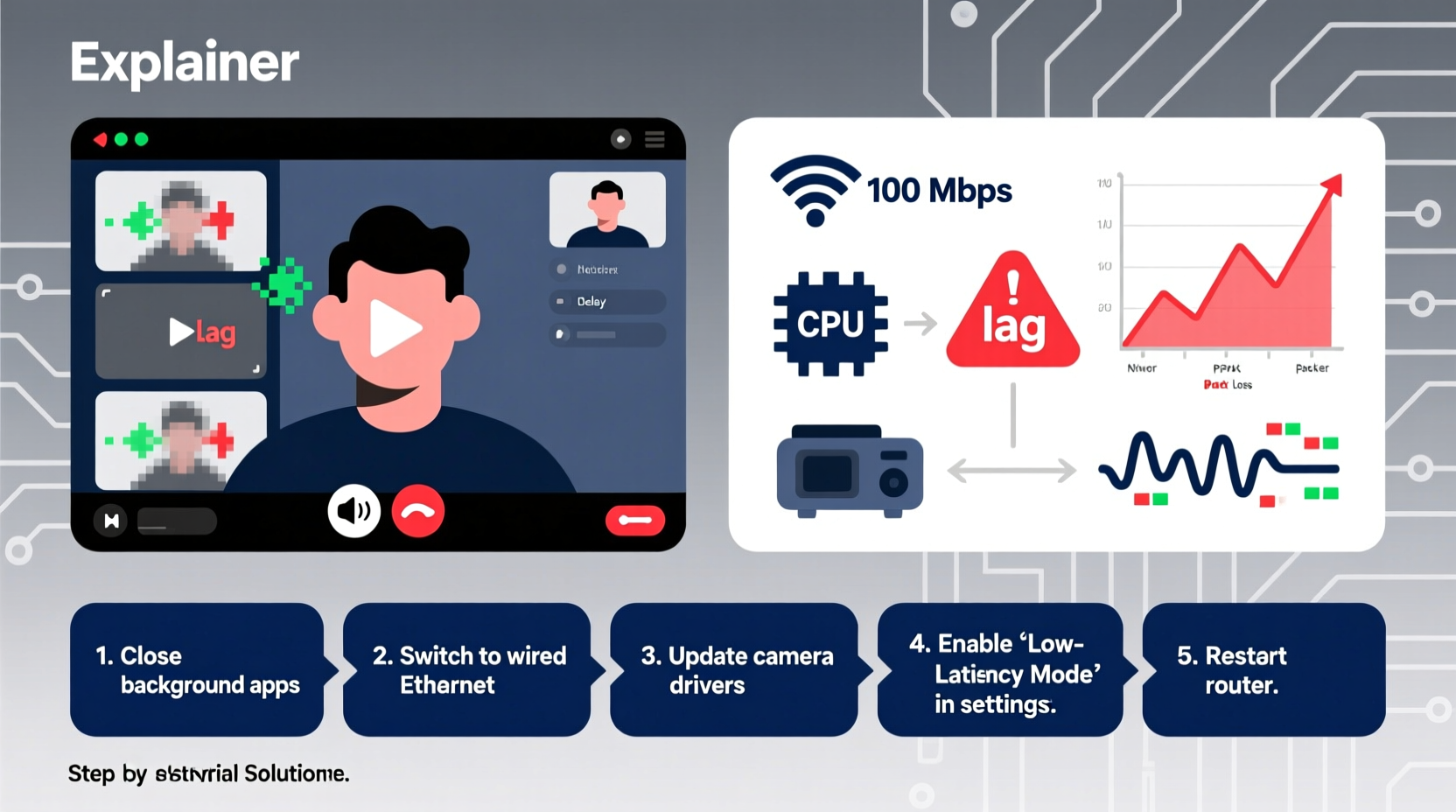
Credit: www.alibaba.com
Advanced Network Solutions
Advanced network solutions help improve video call quality. They focus on managing and optimizing your internet connection. These solutions reduce lag, improve speed, and create a smoother call experience. Simple fixes might not work for all cases. Advanced methods give more control over your network performance.
Set Up Quality Of Service (qos)
Quality of Service prioritizes video call traffic on your network. This means your calls get the bandwidth they need first. QoS settings are found in many modern routers. Access your router’s control panel to enable QoS. Assign high priority to video call apps like Zoom or Skype. This reduces lag caused by other devices using the internet.
Upgrade Internet Plan
Sometimes your internet speed limits video call quality. Upgrading your plan increases bandwidth and reduces lag. Choose plans with higher upload and download speeds. Faster internet handles video and audio data better. Check with your internet service provider for options. A small upgrade can make a big difference in call stability.
Use A Vpn For Stability
A VPN can improve connection stability in some cases. It routes your internet traffic through a secure server. This can avoid congestion on your usual path. Choose a VPN service with fast servers near your location. A VPN also protects your privacy during calls. Test different servers to find the most stable connection.
Frequently Asked Questions
What Causes Internet Lag During Video Calls?
Internet lag during video calls often results from slow bandwidth, high network traffic, or weak Wi-Fi signals. Device performance and outdated software can also contribute to lag issues.
How Can I Improve Wi-fi For Smoother Video Calls?
Place your router centrally and avoid obstructions. Use 5GHz Wi-Fi for better speed and reduce connected devices during calls.
Does Closing Background Apps Reduce Video Call Lag?
Yes, closing background apps frees up bandwidth and device resources. This helps your video call run more smoothly without interruptions.
How Does Updating Software Fix Video Call Lag?
Updating software improves performance and fixes bugs. It enhances compatibility with video call platforms, reducing lag and improving call quality.
Conclusion
Fixing internet lag during video calls improves your experience greatly. Try checking your connection speed first. Close other apps using the internet. Move closer to your Wi-Fi router for a stronger signal. Restart your router if problems continue. Use a wired connection for more stability.
Adjust video call settings to lower quality if needed. These steps help reduce delays and keep conversations smooth. Clear audio and video make communication easier and less stressful. Keep these tips in mind for better video calls every time.