How to Fix Laptop Stuck on Loading Screen

Is your laptop stuck on the loading screen, leaving you frustrated and unsure what to do next? You’re not alone, and the good news is that this problem is often fixable without needing an expert.
You’ll discover simple, step-by-step solutions to get your laptop back up and running quickly. Keep reading, because each tip is designed to save you time, stress, and money. Don’t let a frozen screen stop you—let’s fix it together.
Common Causes Of Loading Screen Freeze
Many laptops freeze on the loading screen due to common problems. Identifying the cause helps fix the issue faster. Several factors can stop your laptop from starting properly.
Hardware Issues
Hardware problems often cause loading screen freezes. Faulty RAM or a failing hard drive can stop the boot process. Loose cables inside the laptop may also disrupt hardware functions. Overheating components sometimes lead to startup failures. Checking hardware is a key step in troubleshooting.
Software Conflicts
Software conflicts can block the laptop from loading Windows. Conflicting drivers or recently installed programs may cause errors. Updates that do not install correctly can also create problems. Safe mode helps diagnose and fix software issues. Removing or updating conflicting software often solves the freeze.
Corrupted System Files
System files are essential for a smooth startup. Corruption can happen due to sudden shutdowns or bad updates. Damaged files prevent Windows from loading fully. Tools like System File Checker can repair these files. Keeping system files intact ensures proper laptop function.
Malware Infections
Malware can interfere with your laptop’s startup process. Viruses or malicious programs may corrupt important system files. They can also slow down or freeze the loading screen. Running antivirus scans helps find and remove malware. Protecting your laptop from malware keeps it running well.
Credit: www.asurion.com
Initial Troubleshooting Steps
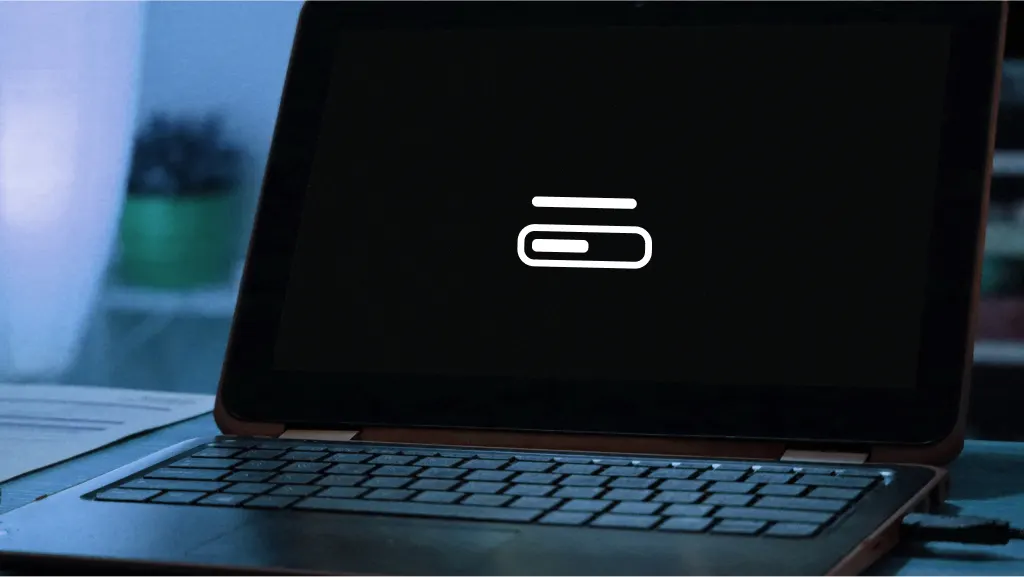
When your laptop gets stuck on the loading screen, try some simple steps first. These initial troubleshooting steps can fix common problems quickly. Follow these easy actions before seeking expert help. They help find the cause and often restore normal startup.
Perform A Hard Reboot
Press and hold the power button for about 10 seconds. This forces the laptop to turn off completely. Wait a few seconds, then press the power button again to restart. This clears temporary glitches that may block the loading process.
Disconnect External Devices
Remove all USB drives, printers, and other devices connected to the laptop. Sometimes, external devices cause startup conflicts. After disconnecting, restart the laptop. This step isolates hardware problems linked to peripherals.
Boot Into Safe Mode
Safe Mode loads only essential drivers and software. It helps check if third-party programs cause the issue. To enter Safe Mode, restart the laptop and press the F8 key repeatedly. Choose Safe Mode from the menu. If the laptop boots here, uninstall recent apps or updates.
Repairing System Files
Repairing system files is a key step to fix a laptop stuck on the loading screen. System files control how Windows runs. Corrupted files can cause startup problems. Repairing these files can restore normal operation. This process does not delete personal data. It focuses on fixing core Windows files.
Using System File Checker
System File Checker (SFC) scans and repairs missing or damaged system files. Open Command Prompt as an administrator. Type sfc /scannow and press Enter. The tool will check all protected files. It replaces corrupted files with a cached copy. This scan may take some time. Wait until the process reaches 100%. Restart your laptop after the scan finishes. This can solve many loading screen issues.
Running Dism Tool
Deployment Image Servicing and Management (DISM) fixes deeper system image problems. Open Command Prompt as an administrator. Enter the command DISM /Online /Cleanup-Image /RestoreHealth. This checks the Windows image for corruption. It downloads necessary files from Microsoft servers. The process may take several minutes. Let it complete without interruption. Restart your laptop to apply the fixes. DISM works well with SFC to repair system files.
Credit: www.easeus.com
Fixing Boot Configuration
Fixing the boot configuration can solve many problems that cause a laptop to get stuck on the loading screen. The boot configuration controls how your laptop starts up. If it becomes damaged or incorrect, the system may fail to load properly. Repairing the boot configuration often brings the laptop back to normal without losing data.
This section covers two key steps: repairing the bootloader and resetting the BIOS to default. Both steps help fix errors in the startup process. Follow these methods carefully to improve your laptop’s chance of starting correctly.
Repairing Bootloader
The bootloader helps your laptop find the operating system. If the bootloader is corrupted, the laptop may freeze on the loading screen. Repairing it can fix this issue.
To repair the bootloader, you need a Windows installation disk or USB drive. Boot your laptop from this media. Choose the option to repair your computer. Then select “Startup Repair” or use the command prompt to run boot repair commands like bootrec /fixmbr and bootrec /fixboot. These commands rebuild the bootloader and fix errors.
After the repair, restart your laptop and check if it boots normally.
Resetting Bios To Default
The BIOS controls the hardware settings of your laptop. Sometimes, wrong BIOS settings cause boot issues. Resetting BIOS to default can fix these problems.
Turn off your laptop and then turn it on. Press the BIOS key (often F2, F10, DEL, or ESC) repeatedly to enter BIOS setup. Find the option to reset BIOS settings to default. Save and exit BIOS.
This resets all hardware settings to factory defaults. It can clear errors that stop the laptop from loading the operating system. After resetting, your laptop should start more smoothly.
Addressing Hardware Problems
Hardware problems can cause your laptop to get stuck on the loading screen. Checking the physical parts helps find hidden issues. Start by looking at the hard drive and RAM. Both are key for your laptop’s smooth operation. Fixing hardware faults often clears the loading problem.
Checking Hard Drive Health
The hard drive stores all your files and system data. A failing hard drive can slow down or stop the boot process. Run a disk check tool to scan for errors. Use software like CHKDSK on Windows or Disk Utility on Mac. These tools find bad sectors and fix minor problems.
Listen for strange noises from the hard drive. Clicking or grinding sounds may signal a hardware failure. Back up important files right away. Consider replacing the hard drive if errors persist or the laptop remains stuck.
Testing Ram For Errors
RAM stores temporary data for running programs. Faulty RAM can cause freezing or loading issues. Use memory testing tools such as MemTest86 or Windows Memory Diagnostic. These tools scan your RAM for errors during startup.
Remove and reseat RAM modules to ensure good connection. If errors appear, try testing one RAM stick at a time. Replace any defective RAM modules. Healthy RAM helps your laptop boot smoothly and run faster.

Credit: www.youtube.com
Reinstalling Or Resetting Windows
Reinstalling or resetting Windows can fix a laptop stuck on the loading screen. This process restores system files and settings to normal. It removes errors that block the startup. There are different ways to reinstall or reset Windows, depending on your needs. Choose the method that fits your situation best.
Performing A System Restore
System Restore lets you go back to a previous point in time. It fixes problems caused by recent changes. This method does not delete your personal files. It only removes recent apps and updates that cause issues. To start, access the Advanced Startup Options. Select System Restore and pick a restore point. Follow the instructions to complete the process.
Resetting Windows Without Losing Files
This option reinstalls Windows but keeps your personal files safe. It removes apps and resets settings to default. Choose Reset this PC from the Advanced Startup menu. Select Keep my files to protect your documents. The process takes some time but often solves loading issues. After resetting, reinstall any missing apps manually.
Clean Installation Options
A clean install deletes everything and installs Windows fresh. This method removes all files, apps, and settings. Use this only if other methods fail or data is backed up. Create a bootable USB with the Windows Media Creation Tool. Boot your laptop from the USB and follow the setup steps. This process ensures a fully clean system and often fixes startup problems.
Preventive Tips To Avoid Loading Issues
Preventing laptop loading issues saves time and stress. Simple daily habits keep your laptop running smoothly. These tips reduce the chances of getting stuck on loading screens. Follow these steps to keep your laptop healthy and fast.
Regular Software Updates
Keep your operating system and apps up to date. Updates fix bugs and improve performance. Ignoring updates can cause software conflicts and loading delays. Set your laptop to update automatically. This ensures you always have the latest fixes.
Maintaining Antivirus Protection
Run antivirus software to protect your laptop from malware. Viruses can slow down or freeze your system. Scan your laptop regularly for threats. Update your antivirus program to catch new viruses. A clean laptop boots faster and runs better.
Monitoring Hardware Health
Check your laptop’s hard drive and memory regularly. Faulty hardware can cause loading problems. Use built-in tools to scan your disk for errors. Replace or repair parts if you find issues. Healthy hardware supports a smooth startup every time.
Frequently Asked Questions
Why Is My Laptop Stuck On The Loading Screen?
A laptop can freeze on the loading screen due to software issues, corrupted files, or hardware problems. It often happens after an update or a system crash. Identifying the cause helps in choosing the right fix, such as restarting, safe mode, or hardware checks.
How Can I Fix A Laptop Stuck On Startup?
To fix a laptop stuck on startup, try restarting it first. If that fails, boot into Safe Mode to troubleshoot. You can also run startup repair or system restore. Checking hardware connections and removing external devices may resolve the issue.
Can A Virus Cause Laptop Loading Screen Issues?
Yes, viruses and malware can corrupt system files, causing the laptop to freeze on the loading screen. Running a full antivirus scan in Safe Mode can detect and remove threats. Keeping your system updated and using reliable security software prevents such problems.
Is It Safe To Force Shut Down A Stuck Laptop?
Force shutting down a stuck laptop is safe if it’s unresponsive. Hold the power button for 5-10 seconds until it powers off. Use this method only as a last resort, as it may cause data loss or file corruption.
Conclusion
Fixing a laptop stuck on the loading screen is possible with patience. Start by trying simple steps like restarting or disconnecting devices. Check for hardware problems or corrupted files next. Sometimes, a safe mode boot helps to diagnose issues. Keep your laptop updated to avoid future problems.
Small fixes often save time and money. Remember, slow loading can mean different things. Stay calm and follow each step carefully. Your laptop can work smoothly again with these tips. Don’t give up—solutions are within reach.