How to Fix Notification Not Showing on Phone

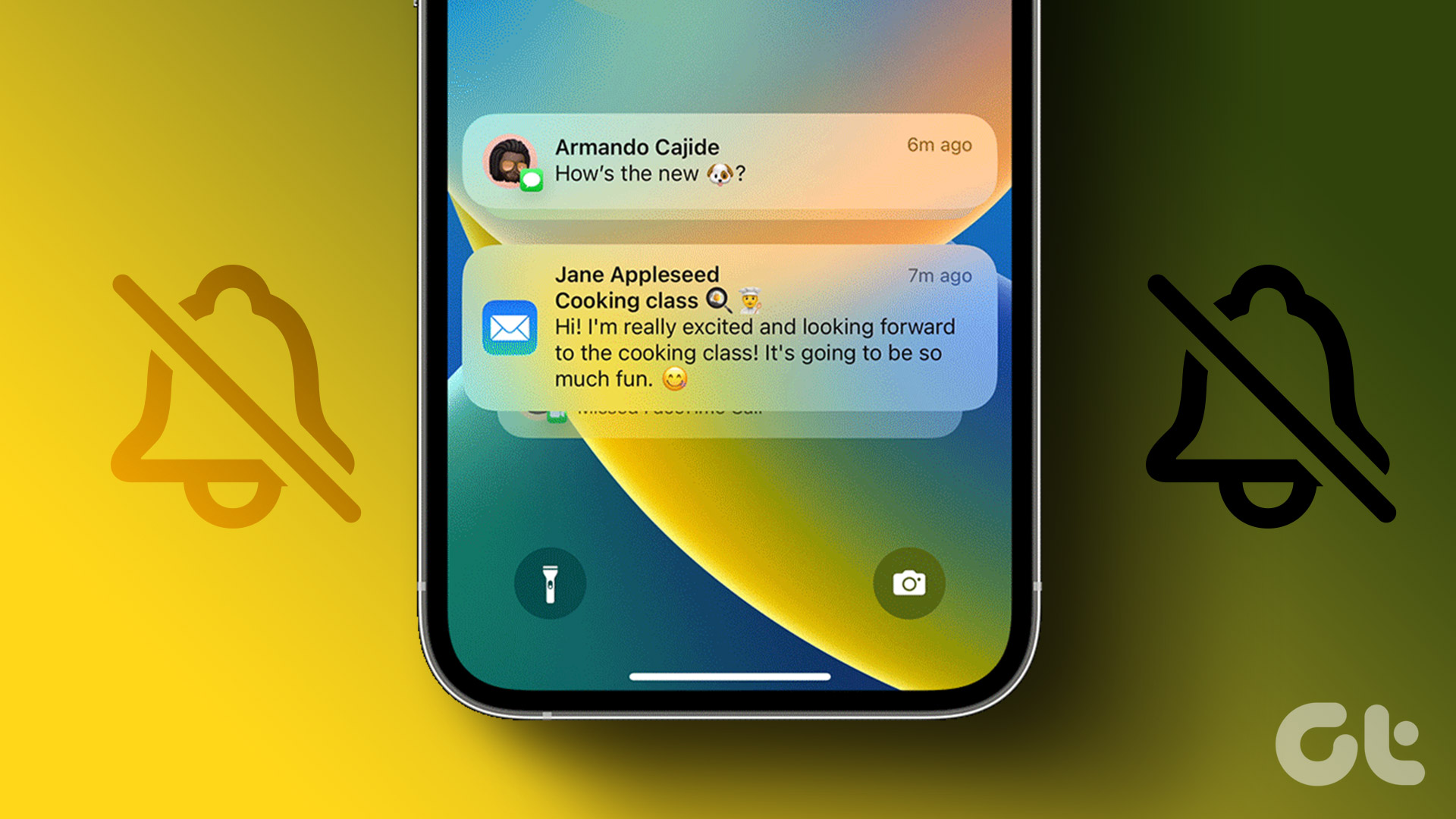
Are you missing important alerts because your phone notifications aren’t showing up? It can be frustrating when messages, calls, or app updates slip past unnoticed.
But don’t worry—fixing this problem is easier than you think. You’ll discover simple and effective steps to get your notifications working again. Keep reading to take back control and never miss a crucial update on your phone.

Credit: www.idownloadblog.com
Check Notification Settings
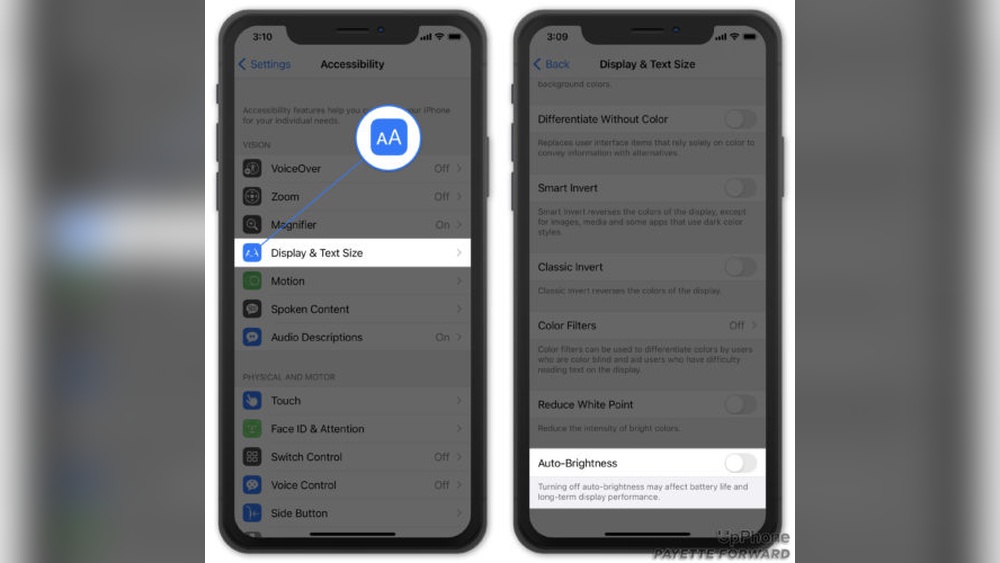
Notifications keep you updated on important messages and alerts. Sometimes, notifications do not appear because settings are off. Checking notification settings can fix this problem fast. Adjusting these settings ensures you never miss alerts again.
Enable Notifications For Apps
Open your phone’s Settings. Find the Notifications or Apps section. Select the app you want notifications from. Make sure the toggle for notifications is turned on. Without this, the app cannot send alerts to your phone.
Adjust Notification Sound And Vibrations
Sounds and vibrations help you notice notifications quickly. In the notification settings, check sound options. Choose a tone that you can hear clearly. Turn on vibration if you want a physical alert. This helps you catch notifications even when silent.
Review Do Not Disturb Mode
Do Not Disturb mode stops notifications temporarily. Check if this mode is active on your phone. If it is, turn it off or adjust settings. You can allow some notifications even in Do Not Disturb mode. This keeps important alerts coming through.

Credit: www.youtube.com
Inspect App Permissions
Sometimes, notifications do not show because the app lacks the right permissions. Checking app permissions helps make sure the phone lets the app send alerts. It is simple to fix this by adjusting settings. This step often solves notification issues quickly.
Allow Notifications Access
First, open your phone’s settings. Find the list of apps installed. Tap the app that fails to show notifications. Look for the option named “Notifications.”
Make sure the toggle to allow notifications is turned on. Without this, the app cannot send alerts to your screen. Also, check if the app can show notifications on the lock screen. Enable sounds and badges if available.
Manage Background App Refresh
Background app refresh lets apps update content in the background. If it is off, notifications may not arrive on time. Go to your settings and find “Background App Refresh.”
Turn on background refresh for the app with notification problems. This lets the app run quietly in the background. It helps the app check for new alerts and send notifications fast.
Clear App Cache And Data
Clearing app cache and data often fixes notification issues on your phone. Cache stores temporary files that help apps run faster. Sometimes, this cache becomes corrupted or too full, causing problems. Clearing cache removes these files without deleting important information.
Clearing app data resets the app to its original state. It deletes all app settings, accounts, and files stored within the app. Use this step only if clearing cache does not solve the problem. This can fix deeper app issues affecting notifications.
Steps To Clear Cache
Open your phone’s Settings. Tap on “Apps” or “Applications.” Find the app causing notification issues. Tap on the app name. Tap “Storage.” Tap “Clear Cache.” Restart the app and check notifications.
When To Clear Data
Clear data if clearing cache does not fix the issue. This step removes all app settings and login details. Backup important app data before clearing it. Go to Settings > Apps > select the app > Storage > Clear Data. Reopen the app and log in again. Check if notifications start working.
Update Software And Apps
Keeping your phone’s software and apps updated is key to fixing notification problems. Updates often include bug fixes that solve notification issues. They also improve how apps work with your phone’s system.
Older versions of software or apps may stop notifications from showing. Updating ensures your phone runs smoothly and alerts come through on time.
Check For System Updates
Go to your phone’s settings menu. Look for the “System” or “About phone” section. Tap on “Software Update” or “System Update.”
Your phone will check for new updates. Download and install any available updates. This process can fix hidden bugs that block notifications.
Restart your phone after updating. This helps the new system work properly and improves notification delivery.
Update Individual Apps
Open the app store on your phone. Search for the apps that don’t show notifications. Check if updates are available for them.
Tap “Update” on each app that needs it. Updated apps work better with your phone’s system. They fix bugs that may stop notifications.
Regularly updating apps keeps your phone alert system smooth. It also adds new features and security improvements.
Restart And Reset
Restarting and resetting are simple ways to fix notification issues on your phone. These steps refresh the system and clear minor bugs. They often solve the problem quickly without needing complex fixes.
Restart Your Phone
Turn your phone off and wait about 10 seconds. Then, turn it back on. This clears temporary glitches that stop notifications from showing. Restarting refreshes your phone’s system and apps. It helps apps run smoothly and send alerts on time.
Reset App Preferences
Resetting app preferences restores all app settings to default. This step does not delete any app data or files. It turns back on notifications if they were accidentally blocked. It also resets disabled apps and permissions. This fix can solve notification problems caused by wrong settings.
Check Battery Optimization Settings
Battery optimization settings can stop notifications from appearing on your phone. These settings save power by limiting app activity in the background. This often blocks notifications from reaching you.
Check these settings to make sure your important apps can send alerts. Adjusting battery optimization helps notifications show up properly. The process is simple and quick.
Disable Battery Saver For Apps
Battery saver mode restricts apps to save energy. This can block notifications from working. To fix this, turn off battery saver for the apps you want alerts from.
Go to Settings, then Battery. Find Battery Saver or Battery Optimization. Choose the apps that miss notifications. Set them to “Not optimized” or “Allowed.”
Review Power Management Settings
Power management can stop apps from running in the background. This stops notifications from appearing. Check your phone’s power or device care settings.
Look for any special power modes or app sleep lists. Remove apps from these lists to allow notifications. This keeps your phone awake for alerts.
Troubleshoot Specific Apps
Sometimes, the problem of notifications not showing is limited to one app. Troubleshooting specific apps can save time and fix the issue quickly. Focus on the apps that do not send notifications. Check their settings and reinstall them if needed. This approach often resolves the problem without affecting other apps.
Reinstall Problematic Apps
Uninstall the app causing notification issues. Reinstalling it refreshes the app files and settings. This can fix bugs that stop notifications from appearing. After reinstalling, open the app and allow all necessary permissions. Test the notifications again to see if they work.
Check App-specific Notification Settings
Open the app’s settings menu. Find the notification options and check if they are enabled. Some apps have their own notification controls separate from phone settings. Make sure alerts, sounds, and banners are turned on. Adjust settings to allow notifications on the lock screen and in the notification center.
Factory Reset As Last Resort
Sometimes, notification issues on your phone do not fix with common methods. A factory reset can solve deep software problems. It erases all data and restores the phone to its original state. Use this step only if nothing else works. Be careful and prepare before resetting.
Backup Your Data
Backing up your data is very important. Save photos, contacts, and important files. Use cloud services or transfer files to a computer. Check that all important data is copied. Without backup, data will be lost forever after reset.
Perform Factory Reset
Open your phone settings and find the reset option. Choose “Factory Data Reset” or similar wording. Confirm your choice to start the process. The phone will erase all information and restart. Set up the phone again and check notifications.
Credit: www.guidingtech.com
Frequently Asked Questions
Why Are My Phone Notifications Not Showing?
Notifications may be disabled in settings or Do Not Disturb mode might be on. Check app permissions and system settings to ensure notifications are allowed.
How To Enable Notifications On Android Phones?
Go to Settings > Apps & notifications > Notifications. Turn on notifications for specific apps and disable any battery optimization blocking alerts.
How To Fix Iphone Notifications Not Appearing?
Check Settings > Notifications. Enable Allow Notifications for apps. Also, ensure Focus or Do Not Disturb modes are off for alerts to show.
Can App Updates Affect Notification Visibility?
Yes, outdated apps can cause notification issues. Always update apps to the latest version for smooth notification delivery.
Conclusion
Fixing phone notifications is easier than you might think. Start by checking your settings carefully. Make sure apps have permission to send alerts. Restarting your phone often solves many issues. Keep your software updated for best results. Small changes can bring big improvements.
Stay patient and try each step slowly. Soon, your notifications will show up properly. You’ll stay connected without missing important alerts. Keep these tips handy for future reference.