How to Fix System Running Out of Memory Error

Are you constantly seeing the “System Running Out of Memory” error? It can be frustrating when your computer slows down or crashes just when you need it most.
But don’t worry—you’re not alone, and this problem can be fixed. You’ll discover simple, effective steps to stop this error from ruining your work or gaming experience. Keep reading, and you’ll learn how to get your system running smoothly again in no time.
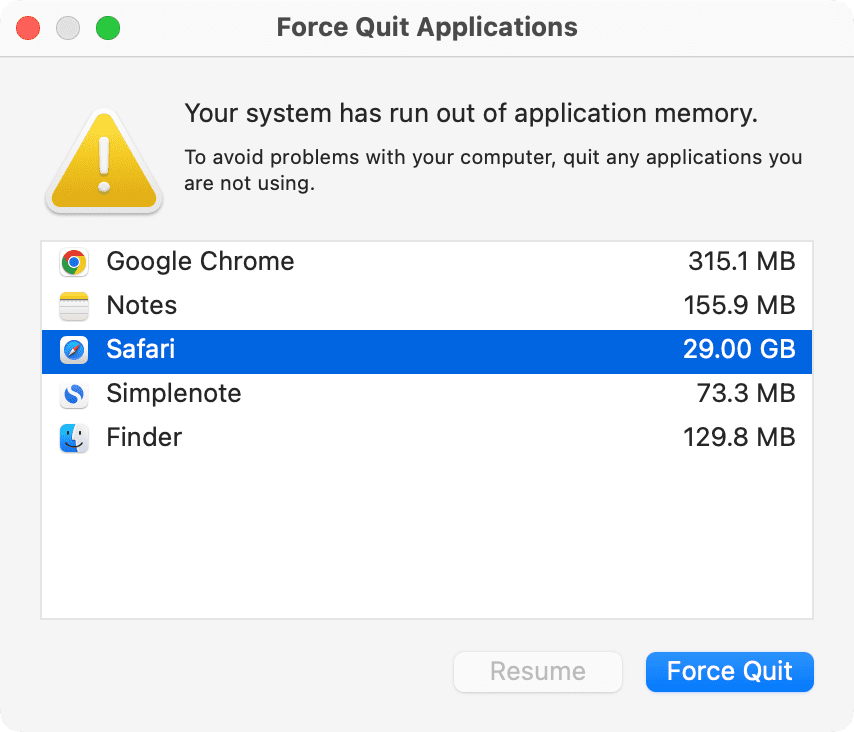
Credit: www.idownloadblog.com
Causes Of Memory Errors
Memory errors happen when your system runs out of available memory. This can stop programs from working or cause your computer to slow down. Several reasons can cause these errors. Understanding these causes helps fix the problem faster.
Insufficient Ram
RAM is the short-term memory of your computer. It holds data for active programs. If your computer has low RAM, it cannot handle many tasks at once. Running many apps at the same time can quickly use up all the RAM. This shortage leads to memory errors.
Memory Leaks
A memory leak happens when a program does not release memory after using it. The memory stays occupied even if the program no longer needs it. Over time, this reduces available memory for other apps. Memory leaks cause your system to slow down and crash.
Background Processes
Background processes run without your direct control. Many apps and system services use memory in the background. Too many background tasks can consume a lot of memory. This leaves little memory for the programs you want to use.
Malware Impact
Malware can use your system’s memory to run harmful tasks. It often hides and uses memory without your knowledge. This reduces available memory for normal programs. Malware also slows your computer and causes memory errors.

Credit: www.youtube.com
Checking Memory Usage
Checking memory usage helps find the cause of the system running out of memory error. It shows which programs or processes use the most memory. This information helps decide what to close or change to free up memory. Monitoring memory regularly keeps your system stable and fast.
Using Task Manager
Task Manager shows current memory use on your PC. Open it by pressing Ctrl + Shift + Esc. Click the “Processes” tab to see each app’s memory use. Sort by memory to find heavy users. End tasks that use too much memory to free space. Task Manager also shows overall memory usage in the “Performance” tab.
Resource Monitor Insights
Resource Monitor offers detailed memory data. Access it from Task Manager’s “Performance” tab or type “resmon” in the Start menu. The “Memory” section breaks down used, standby, and free memory. It also lists processes and their exact memory consumption. Use this tool to spot memory leaks or unusual use by apps.
Third-party Tools
Third-party tools provide advanced memory tracking features. Programs like Process Explorer or RAMMap give deeper insights. They show hidden memory use and system cache details. These tools help identify stubborn apps causing memory problems. Many are free and easy to use for better memory management.
Freeing Up Memory
Freeing up memory helps your system run smoother and faster. It stops the error that says your system is running out of memory. Simple steps can clear space and boost performance. Let’s explore easy ways to free memory on your computer.
Closing Unnecessary Applications
Open only the programs you need. Extra apps use memory and slow down your system. Check your taskbar and close apps not in use. Use Task Manager on Windows or Activity Monitor on Mac to see which apps use most memory. Closing heavy apps frees up lots of space quickly.
Disabling Startup Programs
Some programs start automatically when you turn on your computer. These use memory even if you don’t need them right away. Disable unneeded startup programs to save memory. On Windows, use Task Manager’s Startup tab. On Mac, go to System Preferences > Users & Groups > Login Items. Removing unnecessary startup apps speeds up your system and frees memory.
Clearing Cache And Temporary Files
Cache and temporary files take up memory on your device. These files build up over time and slow your system down. Clear them regularly to free memory. Use built-in tools like Disk Cleanup on Windows or CleanMyMac on Mac. Browsers also store cache; clearing browser cache helps too. Removing these files creates more free space for your system to work well.
Upgrading System Memory
Upgrading your system memory is a direct way to fix the “running out of memory” error. More RAM helps your computer handle more tasks at once. It can speed up programs and reduce crashes caused by low memory. This upgrade is simple and effective for improving system performance.
Choosing The Right Ram
Check your computer’s specifications first. Find out the type and speed of RAM it supports. Match the new RAM with these details. Choose the right size based on your needs. More RAM is better for heavy tasks like video editing or gaming. For basic use, 8GB often works well.
Installation Tips
Turn off your computer and unplug it. Open the case carefully to access RAM slots. Handle the new RAM by the edges to avoid damage. Align the RAM with the slot and press it in firmly. Make sure the clips snap into place. Close the case and reconnect all cables before turning on.
Verifying Upgrade Success
Start your computer and open system settings. Check the total RAM listed to confirm the upgrade. Run a memory test tool to ensure the new RAM works correctly. Notice if your system runs smoother and faster. These checks help confirm the upgrade fixed the memory error.
Optimizing Virtual Memory
Optimizing virtual memory helps your computer handle more data without slowing down. Virtual memory uses part of your hard drive as extra RAM. This helps when your physical memory is full. Adjusting virtual memory settings can fix the “system running out of memory” error.
Adjusting Page File Settings
The page file is the space on your hard drive used for virtual memory. You can change its size to improve performance. Open your system settings and find the virtual memory or page file section. Set a custom size instead of letting the system manage it. Increase the initial and maximum size to a value 1.5 to 3 times your RAM. Save changes and restart your computer to apply new settings.
Benefits Of Virtual Memory
Virtual memory allows your system to run more programs at once. It prevents crashes caused by low physical memory. It also helps applications load smoothly without using too much RAM. Virtual memory extends your computer’s multitasking ability. This makes your system more stable and reliable during heavy use.
When To Increase Virtual Memory
Increase virtual memory if you see memory errors often. Slow performance during multitasking can also signal low virtual memory. Running large programs or many apps at the same time may need more virtual memory. Check your system notifications for warnings about low memory. Increasing virtual memory can reduce errors and improve speed.
Preventing Memory Leaks
Memory leaks cause your system to lose available memory over time. Small leaks grow and slow your computer. Fixing leaks stops the “running out of memory” error. Preventing leaks keeps your system fast and stable. Focus on simple steps to control and reduce leaks.
Updating Software Regularly
Software updates fix bugs that cause memory leaks. Developers release patches to improve memory use. Install updates for your operating system and apps. Regular updates reduce errors and improve performance. Set automatic updates for continuous protection.
Monitoring Problematic Applications
Some apps use memory inefficiently or leak memory. Watch apps that slow your system or crash often. Use task manager to check memory use per app. Close or reinstall apps that consume too much memory. Avoid running many heavy apps at once.
Using Memory Diagnostic Tools
Memory tools detect leaks and faulty RAM. Run memory diagnostics to find hidden problems. Use built-in tools like Windows Memory Diagnostic or third-party apps. These tools help identify leaks early. Fix detected issues to keep memory healthy.
Handling Malware And Viruses
Malware and viruses often cause your system to run out of memory. They use resources without your knowledge. Cleaning these threats helps free up memory. It also keeps your system safe and fast.
Running Full System Scans
Start by running a full system scan with your antivirus software. This scan checks every file and program on your computer. It finds hidden malware that slows down your system. Use a trusted antivirus program for better results. Schedule scans regularly to catch threats early.
Removing Threats
Once the scan finishes, review the detected threats. Delete or quarantine all malware and viruses immediately. Some threats hide in files you use daily. Removing them frees memory and improves speed. Restart your computer after removal for full effect.
Maintaining Security Software
Keep your security software up to date at all times. Updates add new virus definitions and fix bugs. Updated software catches the latest malware threats. Enable automatic updates for convenience. Running outdated security programs risks missing dangerous threats.

Credit: www.reddit.com
Frequently Asked Questions
What Causes The System Running Out Of Memory Error?
This error occurs when your computer’s RAM is fully used. Running too many programs or memory-heavy applications can trigger it. It may also indicate memory leaks or insufficient virtual memory settings. Identifying the cause helps apply the right fix effectively.
How Can I Free Up Memory On My Computer?
Close unused applications and browser tabs to free RAM. Restarting your computer clears temporary files and memory cache. You can also increase virtual memory or upgrade RAM for better performance. These steps help prevent memory errors and improve system speed.
Does Increasing Virtual Memory Fix Memory Errors?
Yes, increasing virtual memory can help when physical RAM is insufficient. It uses hard drive space as temporary memory, reducing errors. However, it is slower than RAM, so upgrading RAM is a better long-term solution for frequent errors.
Can Malware Cause Memory Running Out Errors?
Malware can consume system resources, leading to memory errors. It often runs hidden processes that use excessive RAM. Running a full antivirus scan and removing malware helps resolve these issues and improves overall system performance.
Conclusion
Fixing a system running out of memory error helps keep your computer fast. Close unused programs to free up memory quickly. Restart your device to clear temporary data. Increase virtual memory if your system allows it. Regularly check for software updates to improve performance.
Clean up unnecessary files to save space. These simple steps reduce memory errors and improve your experience. Stay patient and follow each step carefully. Your system will run smoother with less memory trouble.