How to Fix Unstable Wifi Connection at Home

Is your WiFi dropping just when you need it most? Frustrating, right?
You rely on your internet for work, streaming, and staying connected. But when your connection keeps cutting out, it feels like your whole day is on hold. The good news? You don’t have to live with slow or unstable WiFi.
You’ll discover simple, effective ways to fix your home WiFi and keep it steady. Keep reading, and take back control of your internet—starting now.
Common Causes Of Wifi Instability
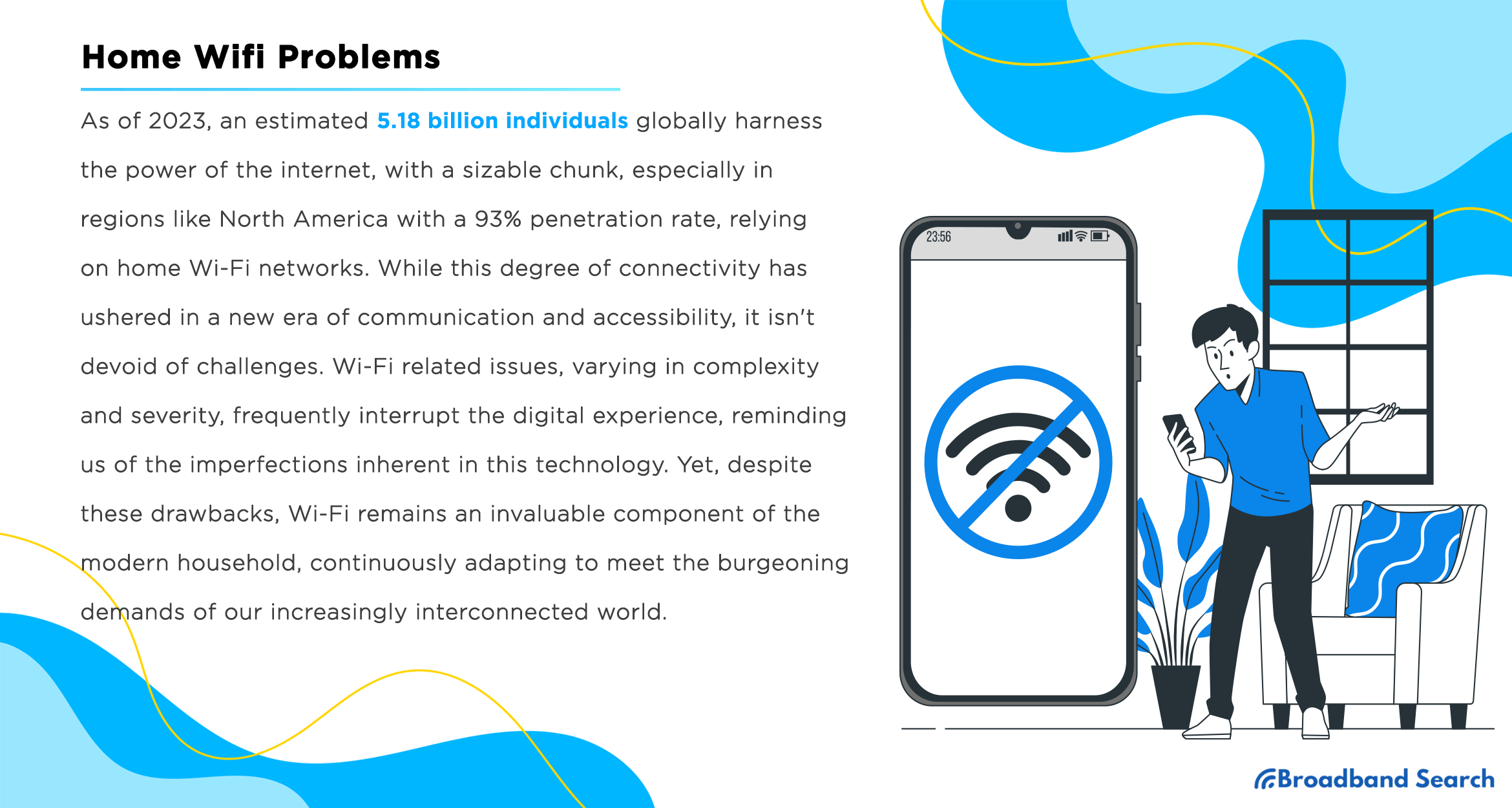
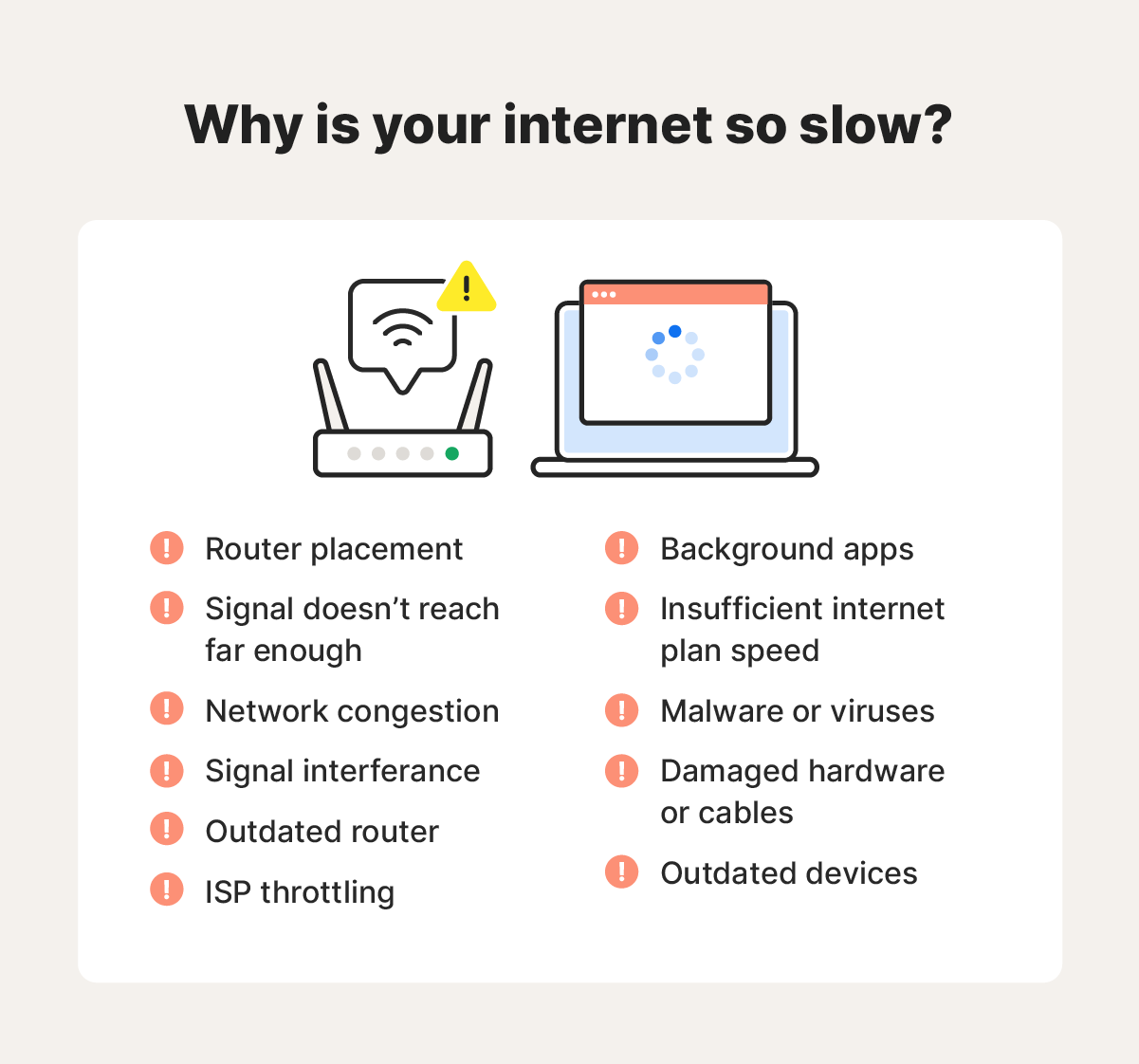
Wifi instability often frustrates users at home. Many factors can cause weak or dropping signals. Understanding these causes helps fix the problem faster. This section covers the common reasons behind unstable wifi connections.
Signal Interference
Other electronic devices can block wifi signals. Microwaves, cordless phones, and baby monitors use similar frequencies. Thick walls and metal objects also weaken signals. These interruptions cause slower speeds and frequent disconnects.
Router Placement
Where you place your router matters a lot. Routers in corners or behind furniture limit signal reach. Placing routers near windows or open areas improves coverage. Keep routers away from thick walls or appliances that block signals.
Outdated Firmware
Routers need regular updates to work well. Old firmware can cause bugs and slow performance. Check your router’s settings to find updates. Installing new firmware improves stability and security.
Device Limitations
Some devices can only handle low wifi speeds. Older phones and laptops may struggle with modern routers. Too many devices connected at once can overload the network. This causes slow internet and dropped connections.
Credit: www.broadbandsearch.net
Troubleshooting Router Issues
Troubleshooting router issues is a key step to fix an unstable WiFi connection at home. The router is the main device that sends internet signals to your devices. Problems with it can cause slow or dropped connections. Simple actions can often solve these problems quickly.
Restarting The Router
Restarting the router is the easiest way to fix many WiFi issues. Turn off the router and unplug it from the power source. Wait for about 30 seconds. Plug it back in and turn it on. This helps clear temporary glitches and refreshes the connection. Most routers take a minute or two to fully restart. Check if the WiFi connection improves after the restart.
Updating Router Firmware
Router firmware controls how the device works. Old or outdated firmware can cause connection problems. Check the router’s settings page to see if updates are available. Download and install the latest firmware from the manufacturer’s website. Updating firmware can improve speed, security, and stability. Make sure not to turn off the router during the update process.
Resetting To Factory Settings
Resetting the router to factory settings fixes deeper software problems. Find the small reset button on the router. Use a paperclip to press and hold it for 10-15 seconds. The router will reboot and return to its original state. You will lose all custom settings like WiFi name and password. Set up the router again and test the WiFi connection after the reset.
Optimizing Wifi Signal
Optimizing your WiFi signal improves speed and reduces drops. Small changes can make a big difference. Focus on where and how your router works best.
Choosing The Right Location
Place your router in a central spot in your home. Avoid corners or rooms with thick walls. Keep it away from metal objects and electronics that cause interference. Height matters. Put the router on a shelf or table, not on the floor.
Using Wifi Extenders And Mesh Systems
Wifi extenders boost signal to weak areas. They catch the signal and send it further. Mesh systems use multiple devices to cover large spaces. Each device talks to the others for a strong, steady connection everywhere.
Changing Wifi Channels
Wifi signals use channels to avoid interference. Many routers use the same default channel. Switch to a less crowded channel for better performance. Use apps or tools to find the best channel for your area.
Credit: au.norton.com
Improving Device Connectivity
Improving device connectivity is key to a stable WiFi connection at home. Devices need to communicate well with your router. A few simple steps can help your gadgets connect better. This reduces interruptions and speeds up your internet.
Updating Network Drivers
Network drivers allow your device to talk to the WiFi network. Old drivers can cause slow or unstable connections. Check your device for driver updates often. Use your device’s settings or the manufacturer’s website. Updated drivers fix bugs and improve performance.
Managing Background Apps
Many apps run in the background and use internet data. These apps can slow down your WiFi. Close apps that are not needed. Check your device’s task manager or settings. This frees up bandwidth for important tasks and keeps your connection smooth.
Connecting To 5ghz Band
Most routers offer two bands: 2.4GHz and 5GHz. The 5GHz band is faster and less crowded. Devices connected to 5GHz often get better speeds. Check your device’s WiFi settings to switch to 5GHz. This reduces interference and improves connection quality.
Advanced Solutions
Advanced solutions can improve your wifi connection stability significantly. These steps go beyond basic fixes and target root causes of weak signals and interruptions. They often require some technical knowledge but bring lasting results.
Upgrading Your Router
Old routers may not support the latest wifi standards. New models offer better range and faster speeds. Choose a router with dual-band or tri-band capabilities. This reduces congestion on your network. Place the router in a central location for best coverage.
Switching To Wired Connections
Wired connections offer more stability than wireless. Use Ethernet cables for devices that stay in one place. This reduces interference and increases speed. It is ideal for gaming, streaming, or work computers. A simple cable can fix many connection problems.
Securing Your Network
Unsecured networks allow others to use your wifi. This slows down your internet and causes drops. Set a strong password using WPA3 security. Change default router passwords to prevent unauthorized access. Regularly check connected devices and remove unknown ones.

Credit: www.vecteezy.com
Frequently Asked Questions
How Can I Improve My Wifi Signal Strength At Home?
Place your router in a central, open area. Avoid walls and metal objects. Use WiFi extenders or mesh networks to boost coverage. Update your router’s firmware regularly for better performance.
Why Does My Wifi Keep Disconnecting Randomly?
Random disconnections often result from interference, outdated firmware, or router overload. Restart your router and reduce connected devices. Change the WiFi channel to avoid interference from neighbors.
How Do I Identify Wifi Interference Sources?
Common interference sources include microwaves, cordless phones, and neighboring WiFi networks. Use WiFi analyzer apps to detect crowded channels. Position your router away from electronic devices to reduce signal disruption.
Can Updating Router Firmware Fix Unstable Wifi?
Yes, updating router firmware can fix bugs and improve connectivity. Check the manufacturer’s website for updates. Always follow instructions carefully to avoid issues during the update process.
Conclusion
Fixing unstable WiFi at home is possible with some easy steps. Check your router placement and keep it away from walls. Restart your modem and router regularly to refresh the connection. Update your router’s firmware for better performance. Limit the number of devices using WiFi at the same time.
Use a WiFi extender if your signal is weak in some rooms. These simple tips can improve your internet speed and stability quickly. Enjoy smoother streaming, browsing, and working from home without constant drops. WiFi problems don’t have to slow you down.