How to Reduce Overheating While Using Laptop

Is your laptop heating up too quickly and slowing you down? Overheating can damage your device and cut your productivity short.
But what if you could keep your laptop cool and running smoothly without spending a fortune? You’ll discover simple, effective ways to reduce overheating and protect your laptop’s health. Keep reading to learn easy tips that anyone can use—your laptop will thank you!

Credit: www.wikihow.com
Causes Of Laptop Overheating
Laptop overheating happens for many reasons. Knowing the causes helps prevent damage and improve performance. Overheating can slow your laptop or cause sudden shutdowns. It can also shorten the device’s life. Understanding the common causes is the first step to keep your laptop cool and safe.
Poor Ventilation
Laptops need space for air to flow. Poor ventilation blocks the air vents. This traps heat inside the laptop. Using a laptop on a soft surface like a bed or pillow can block vents. Always use a flat, hard surface to help airflow. Good ventilation keeps the laptop cooler for longer.
Dust Accumulation
Dust builds up inside laptops over time. It settles on fans and vents. Dust blocks airflow and stops fans from spinning well. This causes heat to stay inside the laptop. Regular cleaning removes dust and keeps air moving. A clean laptop stays cooler and runs better.
High Cpu Usage
Running many programs uses the laptop’s CPU more. High CPU usage creates extra heat. Heavy tasks like gaming or video editing increase heat quickly. Closing unused programs lowers CPU load. This helps reduce heat and keeps the laptop stable.
Malfunctioning Fans
Fans cool the laptop by pushing hot air out. If fans break or slow down, heat builds up inside. Faulty fans can cause overheating and damage parts. Listen for strange noises or no fan sound. Repair or replace bad fans to keep your laptop cool.
Preventive Measures
Preventive measures help stop your laptop from getting too hot. These steps keep your device cool and working well. Taking care of your laptop prevents damage and slows down performance.
Use On Hard Surfaces
Place your laptop on a flat, hard surface. Soft surfaces block air vents and trap heat. Avoid using laptops on beds, couches, or blankets. A desk or table works best to keep airflow open.
Clean Air Vents Regularly
Dust and dirt can clog air vents quickly. Use a soft brush or compressed air to clean vents. Do this every few weeks to allow proper airflow. Clean vents help your laptop cool down faster.
Limit Intensive Tasks
Running many heavy programs causes laptops to heat up. Close unused apps and tabs to reduce load. Avoid long gaming sessions or video editing without breaks. Light tasks keep the laptop cooler for longer.
Update Software
Keep your laptop software up to date. Updates often fix bugs that cause overheating. Updated drivers improve hardware efficiency and cooling. Regular updates help your laptop run smoothly and stay cool.
Cooling Accessories
Cooling accessories help keep your laptop’s temperature down. They improve airflow and stop the device from getting too hot. Using these tools can extend your laptop’s life and make it work better.
Laptop Cooling Pads
Laptop cooling pads sit under your laptop. They have fans that push air up to cool the bottom. This helps stop heat build-up and keeps your laptop running smoothly. Cooling pads are easy to carry and use anywhere.
External Fans
External fans can blow air directly at your laptop. They add extra cooling power, especially in hot rooms. These fans are small and can fit on your desk. They help lower the temperature fast during heavy use.
Thermal Paste Replacement
Thermal paste sits between the CPU and its heat sink. Over time, it can dry out and lose effectiveness. Replacing old thermal paste improves heat transfer and cools the CPU better. This step needs care but greatly reduces overheating.
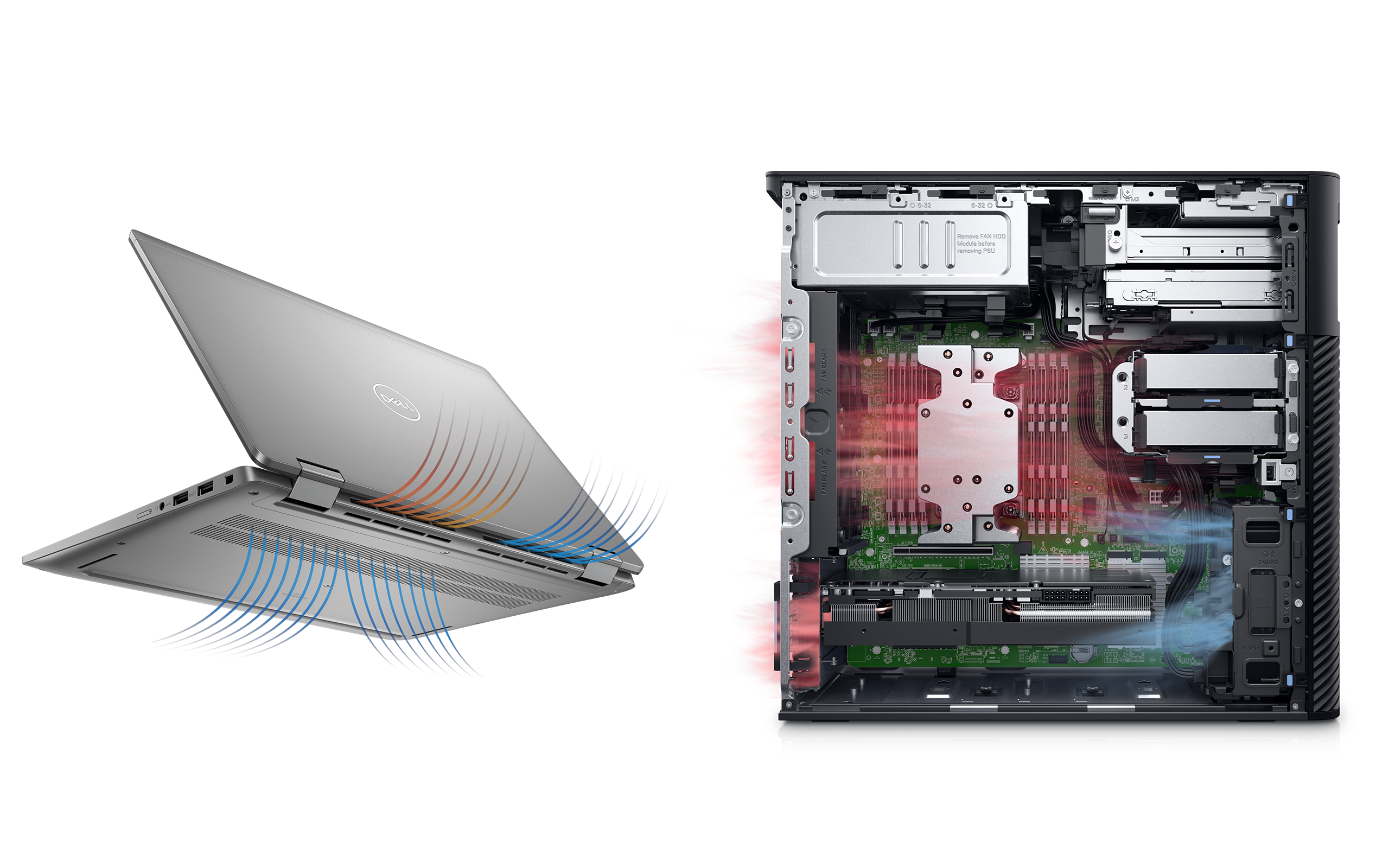
Credit: www.dell.com
Optimizing Power Settings
Optimizing power settings helps reduce laptop overheating. It controls how much energy your laptop uses. Lower energy use means less heat is produced. This keeps your laptop cooler for longer.
Adjusting power settings also saves battery life. It stops your laptop from working too hard. You can balance performance and temperature easily.
Adjust Performance Modes
Change your laptop’s performance mode to lower heat. Use “Balanced” or “Power Saver” instead of “High Performance.” These modes reduce CPU speed and power use.
Lower CPU speed means less heat and longer battery life. You can switch modes in the system settings or control panel. This simple step helps keep your laptop cool during use.
Manage Background Processes
Close unnecessary apps running in the background. Many programs use CPU and memory, causing heat. Use Task Manager to find and stop these processes.
Less background activity means your laptop uses less power. This reduces heat and improves performance. Keep only the apps you need open to stay cool.
Hardware Maintenance Tips
Proper hardware care is key to stop your laptop from getting too hot. Keeping parts clean and working well helps the laptop run cool. Small checks and upgrades can make a big difference in temperature.
Check Fan Operation
The fan pushes hot air out of your laptop. Dust and dirt can block it. Check if the fan spins freely and is not noisy. Listen for unusual sounds. Clean the fan gently using compressed air. Avoid opening the laptop if unsure. A working fan keeps the system cool and safe.
Upgrade Hardware Components
Old parts can cause overheating. Upgrading to better parts helps reduce heat. Consider replacing the hard drive with a solid-state drive (SSD). SSDs produce less heat and work faster. Adding more RAM can lower the load on your laptop. This stops the processor from working too hard. Newer cooling pads or cooling stands also help lower heat.
Credit: www.reddit.com
Frequently Asked Questions
How Can I Prevent My Laptop From Overheating?
Use a cooling pad and keep air vents clear. Avoid using the laptop on soft surfaces. Regularly clean dust from fans to improve airflow.
What Are Common Causes Of Laptop Overheating?
Blocked vents, heavy software use, and dust buildup are common causes. Poor ventilation and high ambient temperatures also contribute to overheating.
Does Updating Software Help Reduce Laptop Heat?
Yes, updating software can optimize system performance. It fixes bugs and improves hardware efficiency, which helps reduce overheating issues.
Can Overheating Damage My Laptop’s Hardware?
Yes, prolonged overheating can damage internal components. It shortens the laptop’s lifespan and may cause sudden shutdowns or data loss.
Conclusion
Keeping your laptop cool helps it work better and last longer. Use a clean, flat surface to avoid blocking air vents. Regularly remove dust to prevent overheating. Lower screen brightness and close unused programs to reduce heat. A cooling pad can also help in hot weather.
Small steps make a big difference in stopping your laptop from getting too hot. Stay mindful of these tips for smooth, safe laptop use every day.