How to Stop Battery Drain When Phone is Idle

Is your phone’s battery dropping even when you’re not using it? It’s frustrating to pick up your device only to find it nearly dead.
You might think this is normal, but there are simple steps you can take to stop battery drain when your phone is idle. Imagine having your phone ready to go whenever you need it, without constantly worrying about charging. Keep reading, and you’ll discover easy tricks to save your battery life and keep your phone powered up longer.
Credit: www.reddit.com
Common Causes Of Battery Drain
Battery drain while your phone is idle can be frustrating. Many factors cause this issue. Knowing these common causes helps you save battery life easily. Below are the main reasons your phone loses power when not in use.
Background Apps
Apps running in the background use battery power constantly. Some apps refresh data or send notifications even when you do not open them. These background activities drain your battery fast. Closing or limiting these apps can reduce battery drain.
Screen Settings
The screen is one of the biggest battery users. Brightness set too high wastes power. Long screen timeout times keep the display on longer than needed. Using dark mode or lowering brightness helps save battery.
Connectivity Features
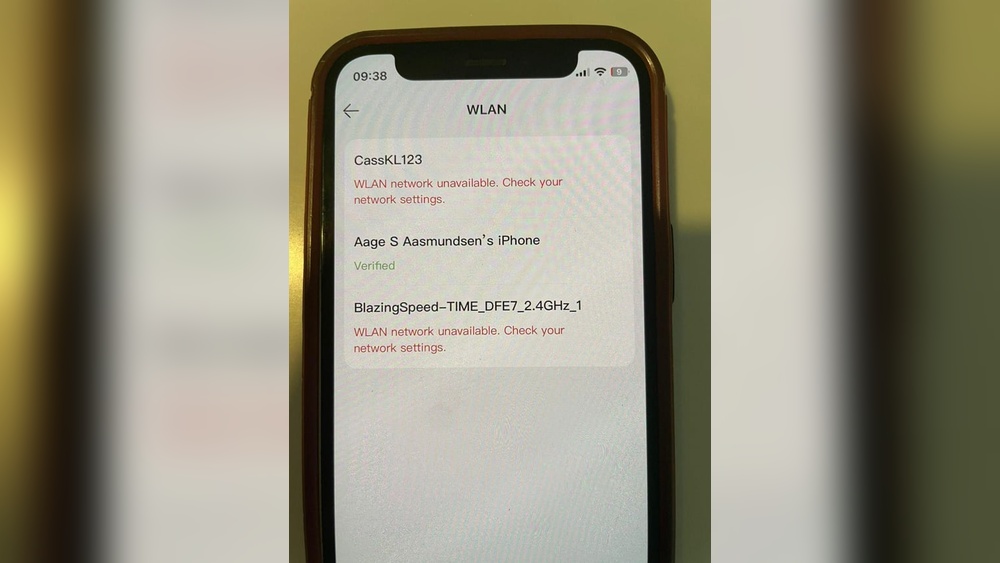
Wi-Fi, Bluetooth, and mobile data consume battery even when idle. Constant searching for signals uses power. Turning off unused connectivity options prevents unnecessary battery drain.
System Updates
System updates often run in the background automatically. These updates can use extra power during download and installation. Delaying updates or updating on Wi-Fi saves battery during idle times.

Credit: www.reddit.com
Optimize App Usage
Optimizing app usage is a key step to reduce battery drain when your phone is idle. Apps running in the background use power even if you do not open them. Controlling app activity helps save battery and keeps your phone ready for use longer.
Close Unused Apps
Apps left open in the background consume battery. Close apps you do not use often. On most phones, swipe up or use the task manager to close them. This simple step stops apps from running and saves power.
Restrict Background Activity
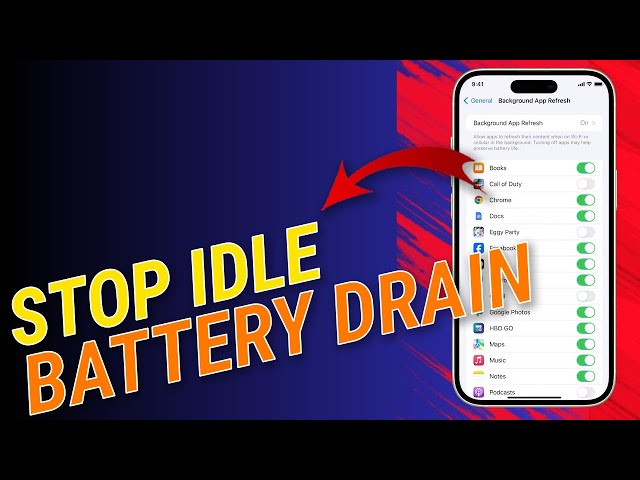
Some apps run in the background without your knowledge. Restrict background activity for apps that do not need constant updates. This setting is usually found in your phone’s battery or app settings. It limits power use and extends battery life.
Manage App Notifications
Notifications can wake your phone and drain battery. Turn off notifications for apps that are not important. This prevents the screen from lighting up and saves energy. Manage notifications in your phone’s settings easily.
Adjust Phone Settings
Adjusting your phone settings helps reduce battery drain when idle. Small changes make a big difference. These settings control how your phone uses power during inactivity. Simple tweaks save energy and extend battery life.
Lower Screen Brightness
Screen brightness uses a lot of battery. Lower it to the minimum comfortable level. Automatic brightness can adjust based on light but may use more power. Manual control often saves more energy. Dimming the screen reduces battery drain significantly.
Enable Battery Saver Mode
Battery saver mode limits background activity and reduces power use. It slows down apps that run when the phone is idle. This mode also lowers screen brightness and turns off some features. Turning it on helps your phone last longer without charging.
Turn Off Unnecessary Connectivity
Wireless connections like Wi-Fi, Bluetooth, and GPS drain battery if left on. Switch off Wi-Fi and Bluetooth when not in use. Disable location services unless needed for apps. Turning off these features stops your phone from searching for signals constantly.
Credit: www.youtube.com
Use Power Management Tools
Power management tools help control battery use when your phone is idle. They stop apps and processes from draining energy in the background. Using these tools can extend your phone’s battery life significantly. Let’s explore built-in and third-party options.
Built-in Battery Monitors
Most smartphones have built-in battery monitors. They show which apps use the most power. You can find these in your phone settings under “Battery” or “Power.” These monitors often suggest ways to save energy. For example, they might recommend closing apps or turning off features. Some phones offer a “Battery Saver” mode. This mode limits background activity and reduces screen brightness. It helps slow battery drain when the phone is not in use.
Third-party Battery Apps
Third-party apps provide extra control over power usage. They offer detailed reports on battery consumption. Some apps let you set custom rules to limit background processes. Others can automatically adjust settings based on your phone’s activity. Choose apps with good reviews and simple interfaces. Avoid apps that use too much battery themselves. These tools help you manage your phone’s energy use better than default settings. They keep your battery healthy and lasting longer during idle times.
Maintain Battery Health
Maintaining battery health is key to reducing battery drain when your phone is idle. Healthy batteries hold charge longer and work efficiently. Taking simple steps can extend your battery’s life and keep your phone ready for use.
Avoid Extreme Temperatures
Heat and cold damage batteries quickly. Keep your phone away from direct sunlight or freezing places. High temperatures cause the battery to age faster. Cold can reduce battery performance temporarily. Store your phone in a cool, dry spot for best results.
Regular Charging Habits
Charge your phone before it drops below 20%. Avoid letting it drain completely. Frequent short charges are better than full cycles. Unplug the phone once it reaches 80-90%. Overcharging can stress the battery and reduce its lifespan.
Update Software And Apps
Keeping your phone’s software and apps up to date helps reduce battery drain. Updates often include fixes that improve battery life. They stop apps and system features from using too much power when your phone is idle.
Install Latest Os Updates
Operating system updates improve how your phone manages power. These updates fix bugs that cause battery drain. Install them as soon as they are available. Updated software runs more efficiently and saves battery. Check your phone’s settings for system updates regularly.
Keep Apps Updated
App developers release updates to fix bugs and improve performance. Old app versions may run in the background and use extra battery. Updating apps stops unnecessary battery use. Enable automatic updates or update apps manually through your app store. This keeps your phone running smoothly and saves battery power.
Frequently Asked Questions
How Can I Reduce Battery Drain When Phone Is Idle?
To reduce idle battery drain, disable background apps and location services. Lower screen brightness and enable battery saver mode for best results.
Why Does My Phone Battery Drain Quickly When Not In Use?
Battery drain occurs due to background apps, push notifications, and network activity. Disabling these features helps maintain battery life during idle periods.
Which Settings Help Stop Battery Drain On Idle Phones?
Turn off Wi-Fi, Bluetooth, and mobile data when idle. Activate airplane mode or use power-saving modes to minimize battery usage.
Does Closing Apps Prevent Battery Drain When Idle?
Yes, closing unused apps stops background processes, reducing battery consumption. Regularly clear recent apps for better idle battery performance.
Conclusion
Stopping battery drain when your phone is idle saves power and extends usage. Close apps running in the background and turn off unnecessary features. Lower screen brightness and disable Wi-Fi or Bluetooth if not needed. Use battery saver mode to limit power use.
Keep your phone’s software updated for better efficiency. Small changes make a big difference in battery life. Try these tips daily and enjoy longer phone use without frequent charging. Simple habits help your phone last longer and keep you connected.