Why Does Mouse Clicking Cause Hand Fatigue

Have you ever noticed your hand feeling tired or sore after just a short time of clicking your mouse? You’re not alone.
That constant clicking might seem harmless, but it can quickly lead to hand fatigue. Understanding why this happens can help you avoid discomfort and keep your hand feeling fresh throughout the day. You’ll discover the surprising reasons behind mouse-clicking fatigue and simple tips to protect your hand from pain.
Keep reading—you’ll want to know how to make your work or gaming sessions much more comfortable.
Mouse Clicking Mechanics
The mechanics of mouse clicking involve precise movements of your fingers and hand. Each click may seem simple, but it requires a complex coordination of muscles and joints. Understanding these mechanics helps explain why hand fatigue happens during long computer use.
Repeated clicking places stress on small muscles and tendons. Over time, this stress can cause discomfort or tiredness in your hand. Let’s explore how finger and hand movements work together during mouse clicking and which muscles are involved.
Finger And Hand Movements
Mouse clicking mainly uses your index finger. It moves down to press the mouse button. Your thumb and other fingers stabilize the mouse. They keep it steady on the desk.
The wrist holds the hand in position. It allows smooth finger movement. Each click requires a quick, small motion. Repeating this motion many times causes strain.
Muscle Engagement
Small muscles in the fingers contract to press the button. These muscles work hard during rapid clicking. The muscles in the palm and wrist also support the hand’s position.
Continuous muscle use without rest leads to fatigue. Muscles get tired and lose strength. This fatigue can cause pain or cramping in the hand. Proper breaks and hand posture reduce this risk.

Credit: www.amazon.com
Common Causes Of Hand Fatigue
Hand fatigue from mouse clicking is a common problem for many users. It happens because of certain habits and physical issues. Understanding these causes helps reduce pain and improve comfort.
Repetitive Strain
Clicking the mouse many times causes small muscles to tire. These muscles get overused and sore. Repeated motion without breaks leads to stiffness and pain. Over time, this strain can cause long-lasting discomfort.
Poor Posture
Sitting or holding your arm incorrectly adds stress to your hand. Slouching or leaning forward forces your muscles to work harder. This position strains your wrist and fingers during clicking. Good posture supports hand health and reduces fatigue.
Improper Grip
Grabbing the mouse too tightly tires hand muscles quickly. Holding it loosely can cause extra movements, also tiring muscles. Using the wrong grip changes how force spreads across your hand. Finding a natural, relaxed grip helps prevent fatigue.
Impact Of Mouse Design
The design of a computer mouse plays a big role in hand fatigue. Poor design forces your hand to work harder. This can cause pain and tiredness after some time.
Good mouse design supports your hand and reduces strain. It helps you click without using too much force. The right shape and button feel make a big difference.
Ergonomic Features
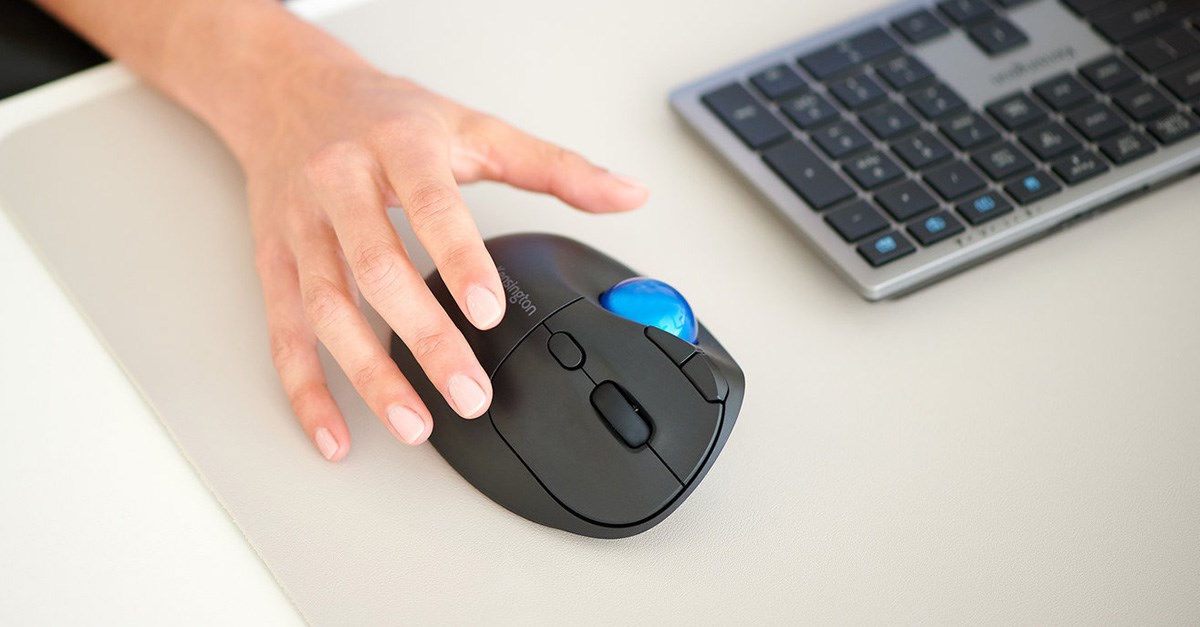
Ergonomic mouse designs fit the natural shape of your hand. They reduce awkward wrist and finger positions. This lowers muscle strain and tension.
Some ergonomic mice have curves and contours that support your palm. They keep your hand relaxed during use. This helps prevent fatigue over long periods.
Button Resistance
Button resistance means how hard you press to click. High resistance requires more finger force. This tires your hand faster.
Mice with lighter button resistance reduce finger effort. They make clicking easier and less tiring. Choosing a mouse with soft buttons can help reduce hand fatigue.
Credit: www.kensington.com
Health Risks Linked To Clicking
Using a mouse for long periods can cause more than just tired hands. Repeated clicking can lead to health problems. These issues affect the nerves and tendons in the hand and wrist. Understanding these risks helps you protect your hands.
Carpal Tunnel Syndrome
Carpal Tunnel Syndrome happens when a nerve in the wrist gets squeezed. Clicking the mouse too much can cause swelling in this area. The swelling puts pressure on the nerve. This leads to pain, numbness, or tingling in the hand. It can make simple tasks hard to do. Rest and proper wrist position can reduce symptoms.
Tendonitis
Tendonitis is the inflammation of tendons. Clicking a mouse a lot can irritate the tendons in your fingers and wrist. This causes pain and stiffness. The tendons become sore and swollen. Moving your hand might feel uncomfortable. Taking breaks and stretching can help ease the pain.
Preventive Measures
Preventing hand fatigue from mouse clicking requires simple, smart steps. These steps help reduce strain and keep your hands comfortable. Small changes make a big difference over time.
Ergonomic Adjustments
Use a mouse that fits your hand size well. A mouse too big or too small causes extra effort. Place your mouse close to your keyboard. This avoids stretching your arm too far.
Keep your wrist straight while clicking. Bent wrists increase muscle tension and pain. Use a mouse pad with wrist support to reduce pressure. Adjust your chair height to keep your forearm level with the desk. This position helps your hand stay relaxed.
Regular Breaks And Exercises
Take short breaks every 30 minutes. Stop clicking and stretch your fingers and wrists. Simple exercises like wrist circles and finger stretches improve blood flow. Moving your hands often lowers muscle fatigue.
Shake your hands gently to relax muscles. Regular breaks help prevent stiffness and soreness. Make these breaks part of your daily routine for lasting relief.
Alternative Input Devices
Using a mouse for clicking can cause hand fatigue. The repeated movements strain muscles and joints. Alternative input devices reduce this strain. These tools offer different ways to interact with your computer. They help prevent discomfort and improve comfort during long use.
Trackballs And Touchpads
Trackballs stay in one place. You move the ball with your fingers. This reduces wrist movement and stress. Touchpads use finger gestures to control the pointer. They require less hand movement than a mouse. Both devices lower the chance of hand fatigue. Users can work longer without pain.
Voice Commands
Voice commands let you control the computer by speaking. You can open files, type, and click without using your hands. This method avoids any hand movement at all. It is useful for people with hand pain or disabilities. Voice control can speed up tasks and reduce strain.

Credit: ru.microless.com
Frequently Asked Questions
Why Does Mouse Clicking Cause Hand Fatigue?
Mouse clicking causes hand fatigue due to repetitive finger movements and muscle strain. Continuous clicking can tire small muscles and tendons, leading to discomfort and pain over time.
How Can I Reduce Hand Fatigue From Mouse Use?
To reduce hand fatigue, take frequent breaks, stretch your fingers, and use ergonomic mice. Adjust your grip and maintain proper wrist posture while clicking.
Can Poor Mouse Design Increase Hand Fatigue?
Yes, poorly designed mice can increase hand fatigue by forcing unnatural hand positions. Ergonomic designs support the hand and reduce strain during prolonged use.
Is Hand Fatigue From Mouse Clicking A Sign Of Injury?
Hand fatigue can signal early strain or repetitive stress injury. Persistent pain or numbness should be evaluated by a healthcare professional to prevent worsening.
Conclusion
Mouse clicking can strain your hand muscles and tendons. Repeated motions cause tension and discomfort. Poor posture and grip make fatigue worse. Taking breaks and stretching helps reduce pain. Using an ergonomic mouse eases pressure on your hand. Paying attention to your hand’s comfort prevents long-term problems.
Simple changes can make a big difference in how you feel. Keep your hand relaxed for better comfort and health. Don’t ignore hand fatigue; act early to protect your hand.