Why Does My Screen Dim Automatically

Have you ever noticed your screen suddenly dimming without warning? It’s frustrating, especially when you’re in the middle of something important.
You might wonder, “Why does my screen dim automatically? ” The answer isn’t always obvious, but understanding it can save you from constant interruptions and eye strain. Keep reading, and you’ll discover the simple reasons behind this behavior—and how you can take control of your screen’s brightness for a better viewing experience.
Credit: www.idownloadblog.com
Common Causes
Many devices dim their screens automatically. This can feel frustrating or confusing. Understanding the common causes helps you control your screen brightness better. Often, the dimming is a feature meant to save power or protect your eyes. Below are the main reasons why your screen dims on its own.
Power Saving Settings
Power saving modes reduce screen brightness to save battery life. Your device lowers brightness when battery levels drop. This helps extend the time before you need to recharge. These settings activate automatically or can be turned on manually.
Ambient Light Sensor
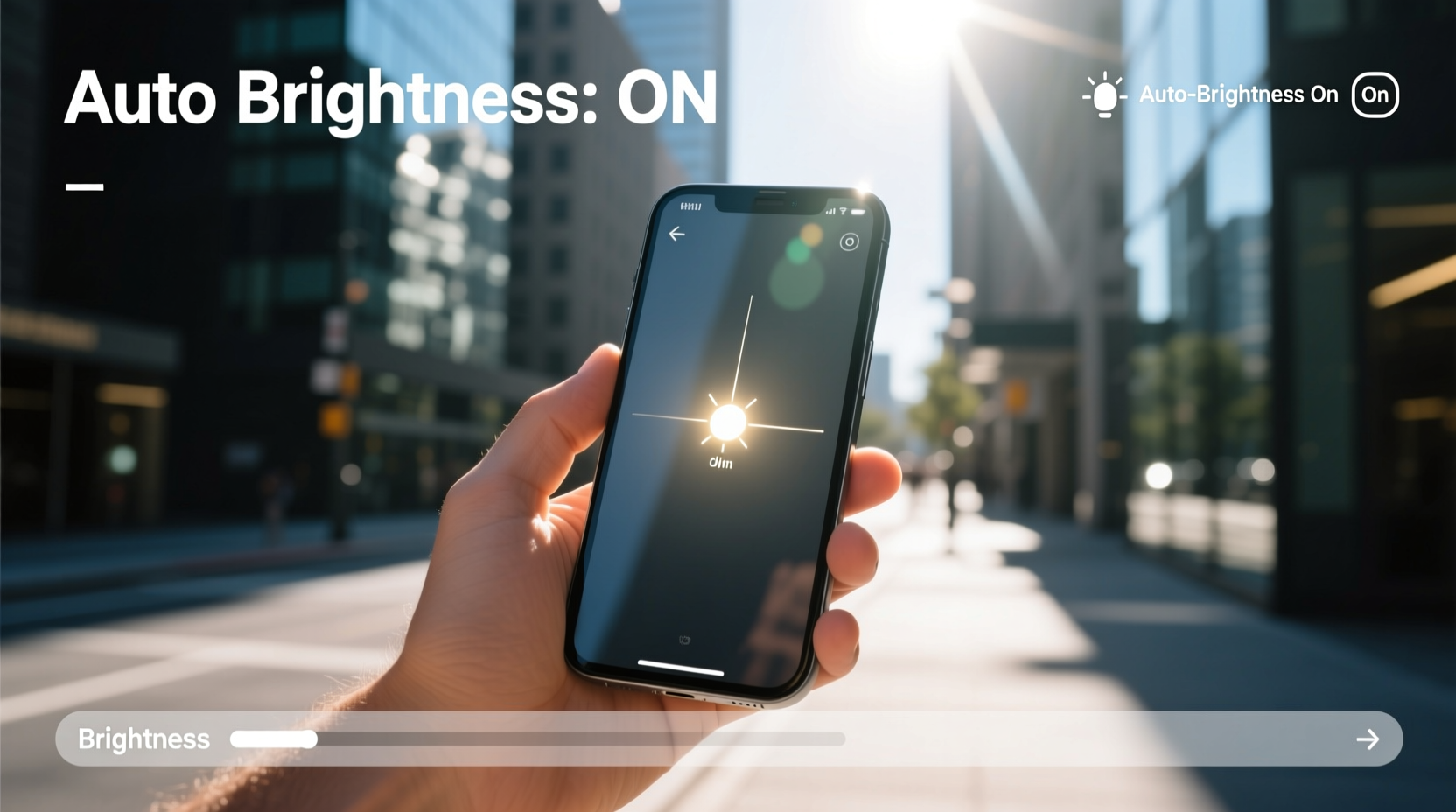
Most modern devices have an ambient light sensor. It detects surrounding light and adjusts screen brightness. In dark rooms, the screen dims to reduce eye strain. In bright areas, the screen brightens to improve visibility. This sensor works quietly in the background.
Battery Optimization
Battery optimization features manage power use efficiently. Dimming the screen is one way to cut energy use. The system adjusts brightness based on your usage patterns. This saves battery without affecting device performance much.
Screen Timeout Settings
Screen timeout settings turn off the display after inactivity. Before turning off, the screen may dim as a warning. This setting helps prevent screen burn-in and saves power. You can change the timeout duration in your device’s settings.
Credit: www.alibaba.com
Impact Of Software
Software plays a big role in how your screen behaves. Many times, the screen dims because of software settings or actions. Understanding these helps fix the dimming problem quickly.
Software controls screen brightness to save battery or reduce eye strain. Sometimes, it causes dimming without your notice.
Operating System Features
Most operating systems have built-in settings to adjust screen brightness automatically. These features react to ambient light or battery level. They lower brightness to save energy or protect your eyes. Sometimes, these features turn on without clear signs. You can check and change these settings in your system preferences.
App Interference
Some apps control screen brightness for better user experience. Video players or reading apps may dim the screen to reduce glare. Other apps might conflict with system settings, causing unexpected dimming. Closing or updating apps often fixes this issue. Watch for apps running in the background that adjust brightness.
Updates And Bugs
Software updates can change how brightness works. Sometimes bugs in updates cause the screen to dim wrongly. These bugs may appear after installing a new update. Restarting your device or installing patches usually solves the problem. Keep your system updated to avoid these issues.
Hardware Factors
Hardware problems can cause your screen to dim automatically. These issues come from parts inside your device. Understanding these can help you figure out the cause faster.
Sensor Malfunction
Many devices use light sensors to adjust screen brightness. These sensors detect room light levels. When they stop working correctly, they send wrong signals. This makes the screen dim even in bright places. Dust, dirt, or damage can cause sensor problems. Cleaning the sensor gently can help sometimes. If the problem stays, the sensor may need repair or replacement.
Display Hardware Issues
The screen itself can have hardware faults. Problems in the display panel or its connections can cause dimming. Loose cables or worn-out parts affect brightness control. Older screens can lose brightness over time. Repairing or replacing the display might fix the issue. Always get help from a professional for hardware fixes.
Credit: www.alibaba.com
Adjusting Screen Brightness
Adjusting screen brightness helps you see your device clearly. It also saves battery life. Many devices change brightness on their own. Sometimes this can be annoying or distracting. Knowing how to control brightness can improve your experience.
Manual Brightness Control
You can change brightness by hand. Most devices have a slider for this. Slide it up to make the screen brighter. Slide it down to dim the screen. This is quick and easy. It works well in most lighting conditions.
Disabling Auto-brightness
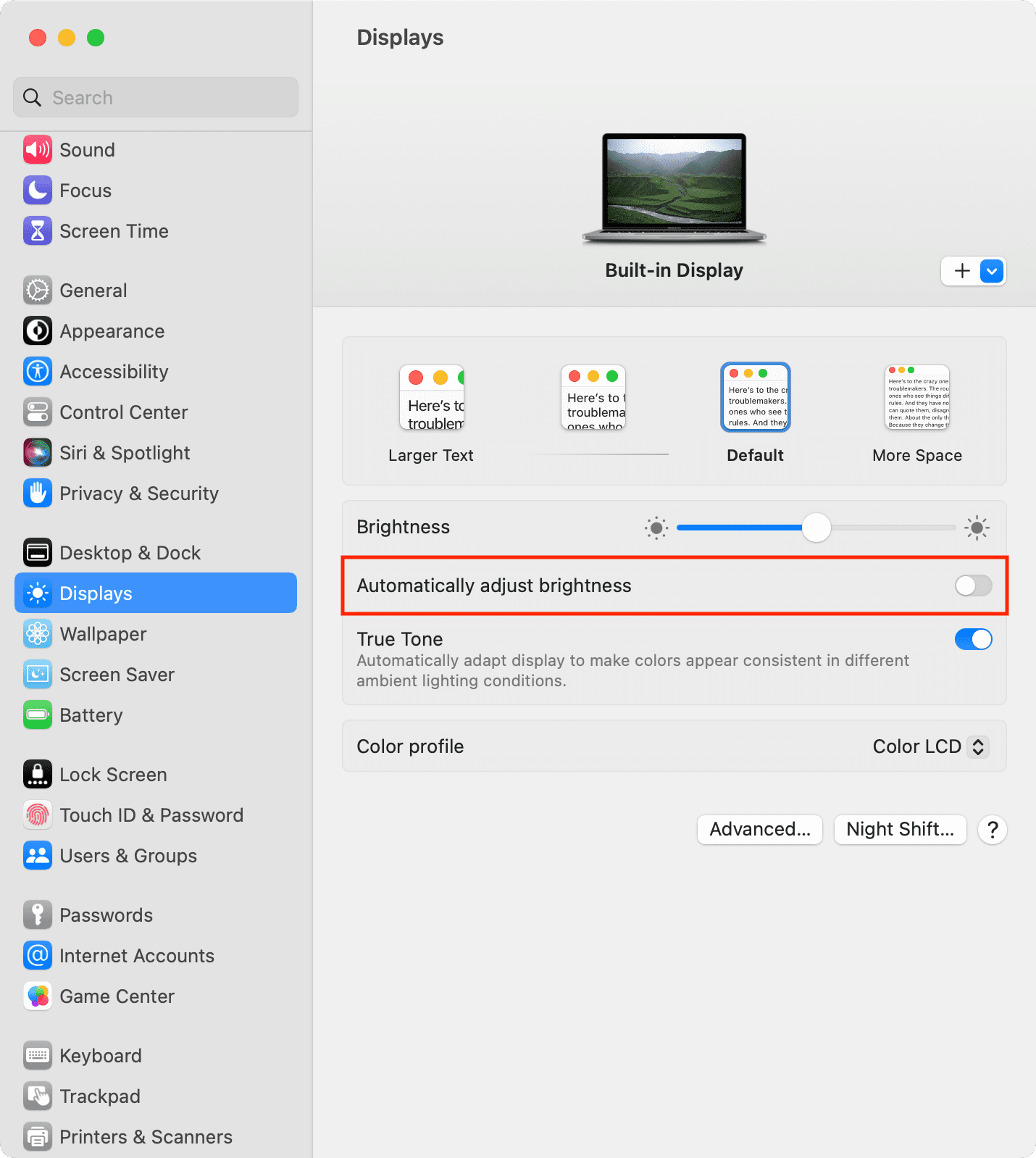
Auto-brightness changes screen light based on surroundings. It uses sensors to detect light levels. You can turn this feature off. Go to your device’s settings to find it. Disabling auto-brightness stops the screen from changing on its own. This gives you full control over brightness.
Using Third-party Apps
Some apps help manage screen brightness better. They offer more options than built-in settings. You can set schedules or specific brightness levels. These apps work on many devices. Download them from trusted sources only. They can make adjusting brightness easier.
Battery And Performance
Your device dims the screen automatically to save battery and keep performance steady. Bright screens use more power. Dimming helps extend battery life without you noticing much change. It also keeps your device cool and running smoothly.
Devices adjust brightness based on battery levels and active performance modes. This balance helps avoid sudden shutdowns and keeps the device responsive. Understanding these settings can help you manage your screen brightness better.
Balancing Brightness And Battery Life
Bright screens use a lot of power. Dimming the screen reduces battery drain. This lets your device last longer between charges. Your device senses when the battery is low and dims the screen automatically. This saves power quietly and efficiently.
Lower brightness means less strain on your battery. It also reduces heat, which protects your device parts. You might not notice the dimming right away. But it helps keep your device working well throughout the day.
Performance Modes And Their Effects
Many devices have performance modes that change screen brightness. Power-saving modes lower brightness to save energy. High-performance modes keep the screen bright for better viewing. Your device switches these modes based on your needs.
In power-saving mode, dimming is more aggressive. This helps stretch the battery during heavy use. In normal mode, brightness adjusts more gently. Knowing your device’s mode can explain why the screen dims suddenly.
Troubleshooting Tips
Screen dimming can be frustrating. It interrupts your work or entertainment. Before you get worried, try some simple troubleshooting tips. These steps can fix the problem quickly. They help find if the issue is with settings or software.
Restarting Your Device
Turn off your device completely. Wait for about 30 seconds. Turn it back on. Restarting clears temporary glitches. This often solves many screen dimming issues. It gives your device a fresh start.
Resetting Display Settings
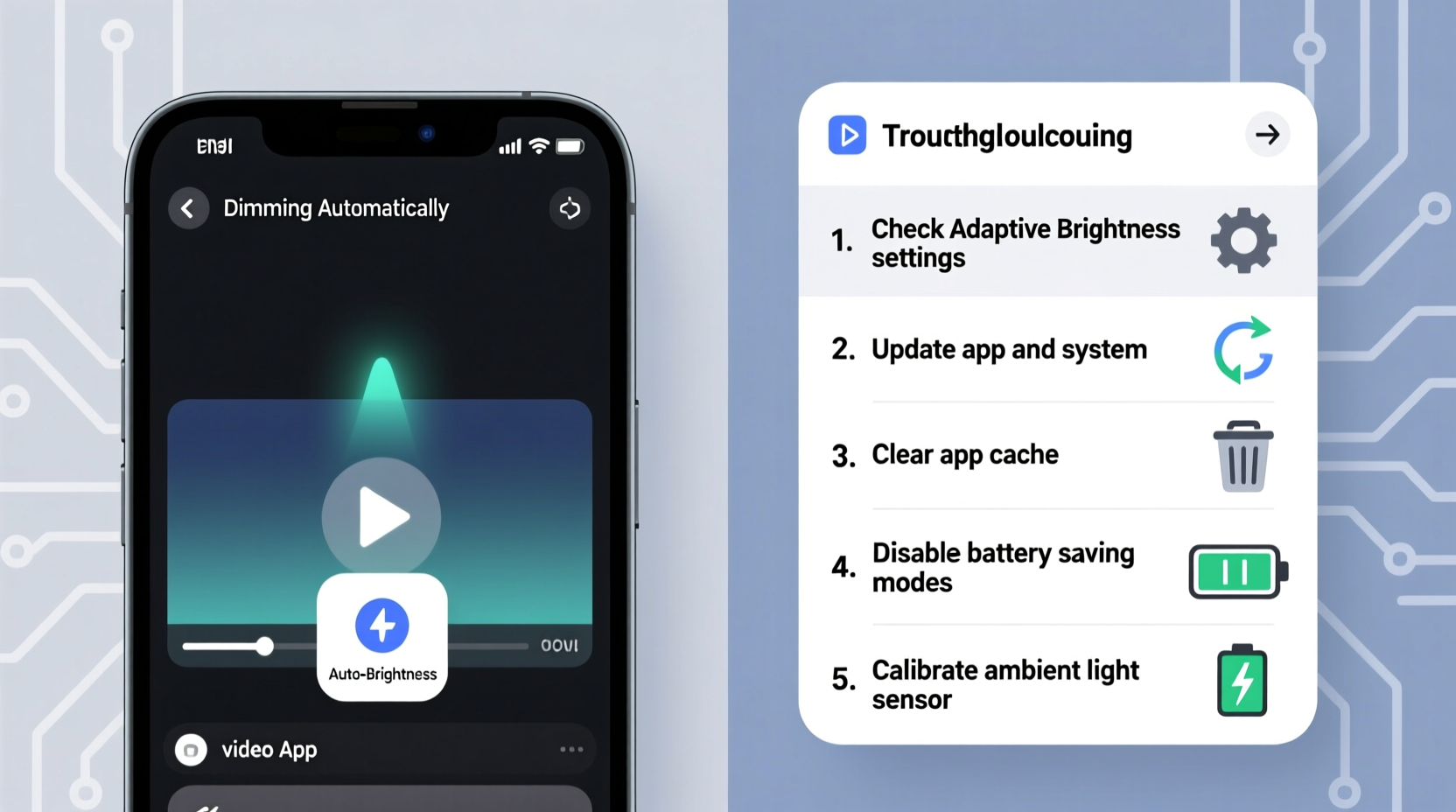
Go to your device’s display settings. Look for brightness or adaptive brightness options. Turn off any automatic brightness features. Set the brightness manually. Resetting display settings can stop unwanted dimming. It ensures your screen stays bright as you want.
Checking For Software Updates
Check if your device has new updates. Software updates often fix bugs and glitches. Go to settings and select “Software Update.” Download and install any available updates. Keeping your device updated improves performance. It can fix screen dimming problems caused by old software.
Contacting Support
If the screen still dims, contact device support. They can provide expert help. Explain the problem clearly. They might guide you through advanced fixes. Support can also check for hardware issues. Don’t hesitate to seek professional advice.
Frequently Asked Questions
Why Does My Screen Dim Automatically At Night?
Your device dims the screen at night to reduce eye strain and save battery. This feature adjusts brightness based on ambient light or time settings.
How Do I Stop My Screen From Dimming Automatically?
To stop automatic dimming, disable adaptive brightness or auto-brightness in your device’s display settings. This keeps brightness fixed.
Does Screen Dimming Save Battery Life Effectively?
Yes, screen dimming reduces power consumption by lowering brightness, extending battery life, especially on OLED and LCD screens.
Can Screen Dimming Indicate A Hardware Problem?
Usually, screen dimming is a software feature, but if it’s erratic, it might signal sensor or hardware issues needing inspection.
Conclusion
Screen dimming happens to save battery and protect your eyes. Your device adjusts brightness based on light and settings. Sometimes, apps or updates change these settings without warning. You can check and change brightness or power options easily. Knowing why your screen dims helps you fix it fast.
Keep your device settings clear for the best experience. Don’t let unexpected dimming interrupt your work or fun. Simple fixes often solve this small but annoying issue. Stay in control of your screen’s brightness every time.