Why is My Bluetooth Not Connecting Properly

Are you tired of your Bluetooth device refusing to connect properly? It’s frustrating when your headphones, speakers, or gadgets just won’t sync up, leaving you stuck and annoyed.
You might wonder, “Why is my Bluetooth not connecting properly? ” The answer isn’t always obvious, but understanding the common reasons behind this issue can save you time and stress. Keep reading, and you’ll discover simple fixes that can get your devices talking again—fast.
Don’t let a small glitch ruin your day. Let’s dive in and solve this together!
Common Bluetooth Issues
Bluetooth connection problems are common and often frustrating. Several issues can stop devices from pairing or working well together. Understanding these common problems helps find the right fix faster.
Interference And Range Problems
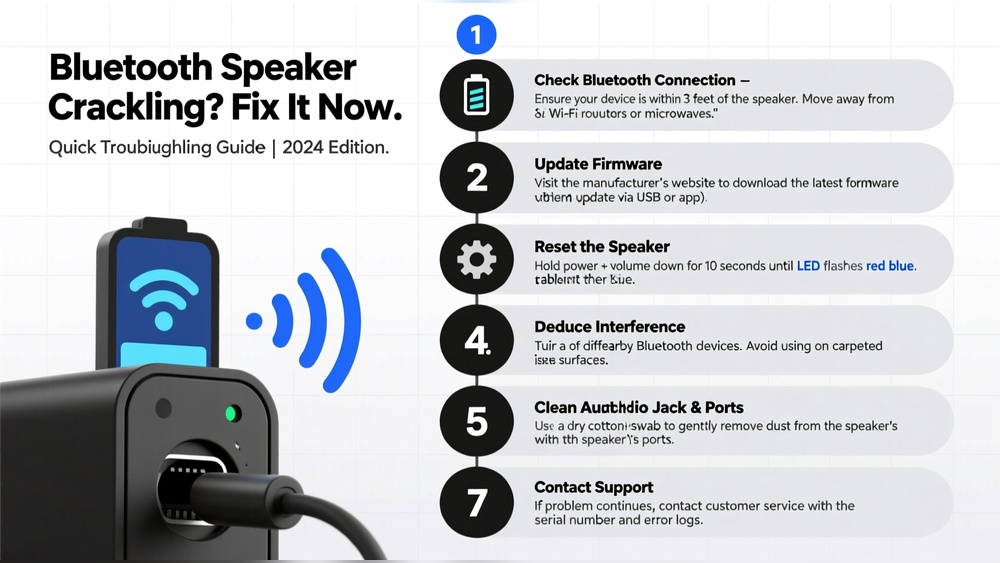
Bluetooth works best at short distances. Walls, furniture, and other objects block signals. Devices far apart may lose connection or not connect at all. Other wireless devices like Wi-Fi routers or microwaves can cause interference. This interrupts Bluetooth signals and slows down data transfer.
Device Compatibility
Not all Bluetooth devices work well together. Different versions of Bluetooth have varied features. Older devices might not support the latest Bluetooth standards. Some devices only connect to specific brands or models. Check if your devices are compatible before pairing.
Outdated Software
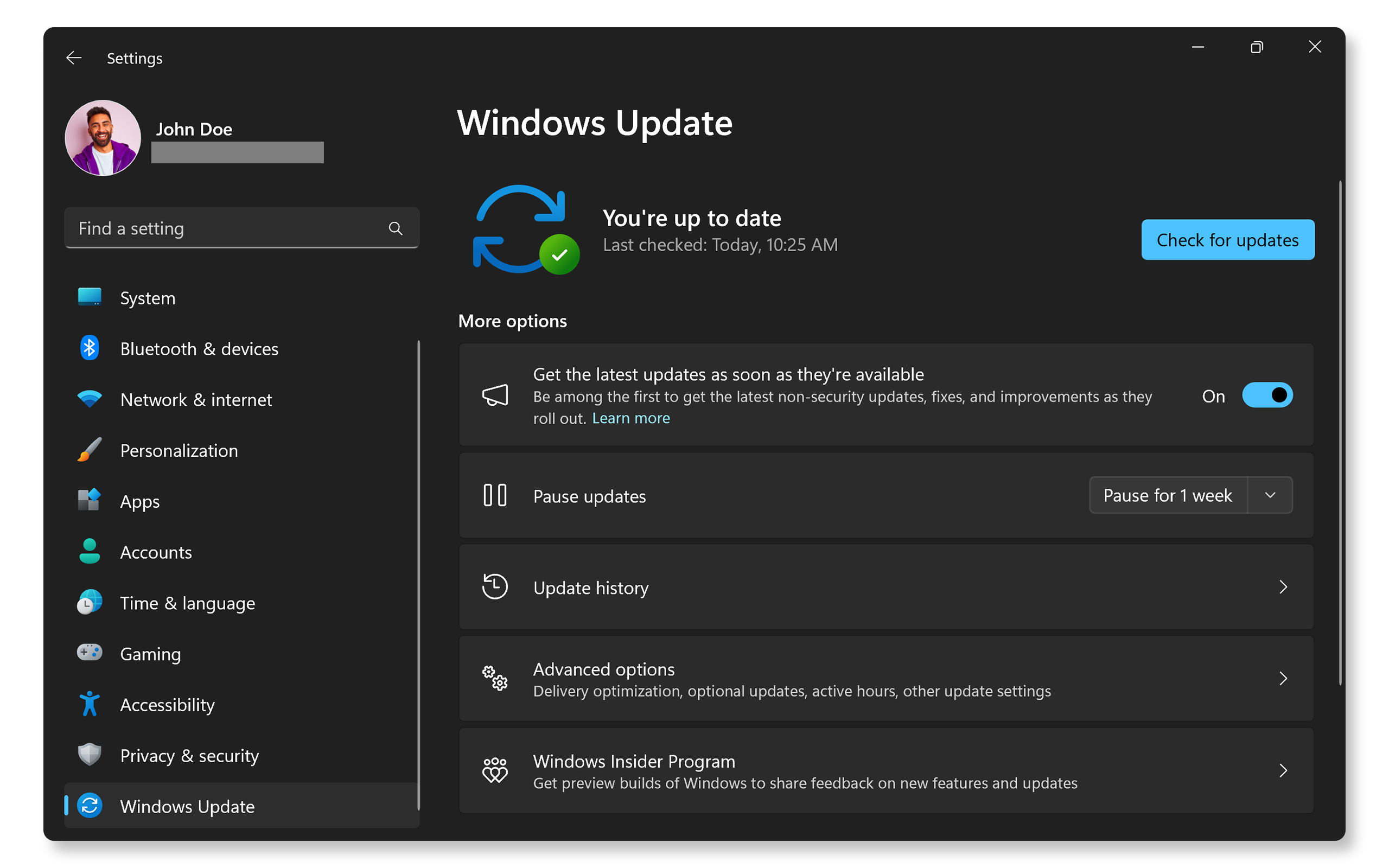
Old software can cause Bluetooth to fail. Device updates often fix bugs and improve connections. Without updates, devices may struggle to connect or stay connected. Always keep your device’s software up to date for smooth Bluetooth use.
Credit: www.dell.com
Troubleshooting Steps
Bluetooth connection problems can be frustrating. Simple steps can fix most issues. Follow these easy troubleshooting steps to get your devices talking again.
Restart Devices
Turn off your Bluetooth device and the device you want to connect. Wait for about 30 seconds. Turn both devices back on. Restarting clears temporary glitches. It often restores proper connection.
Check Bluetooth Settings
Open the Bluetooth settings on your device. Make sure Bluetooth is turned on. Check if your device is visible to others. Look for any error messages or connection limits. Sometimes, settings block new connections.
Remove And Re-pair Devices
Go to your Bluetooth settings. Find the device causing trouble in the paired list. Select “Forget” or “Remove” this device. Search for it again and pair afresh. This refreshes the connection and fixes pairing issues.
Hardware Problems
Hardware problems often cause Bluetooth connection issues. These problems stop devices from pairing or staying connected. Understanding hardware faults helps find the right fix faster.
Faulty Bluetooth Adapter
The Bluetooth adapter is the main part that sends signals. A faulty adapter cannot communicate properly with other devices. It may cause slow or no connection at all. Replacing the adapter can solve this problem.
Physical Damage
Physical damage to your device can affect Bluetooth performance. Drops, bumps, or water exposure harm internal parts. Damaged circuits or antennas reduce signal strength. Avoid rough handling to keep Bluetooth working well.
Battery And Power Issues
Low battery power can weaken Bluetooth functions. Devices may fail to connect or drop connections suddenly. Charging your device fully improves Bluetooth performance. Power-saving modes might also limit Bluetooth activity.
Software And Driver Updates
Bluetooth connection problems often relate to outdated software or drivers. Keeping these updated helps fix bugs and improves device compatibility. This section covers simple steps to update your system and drivers. Follow these tips to enhance your Bluetooth connection.
Update Operating System
Your device’s operating system controls Bluetooth functions. Updates fix bugs and improve performance. Check for updates regularly. On Windows, go to Settings > Update & Security. On Mac, open System Preferences > Software Update. On smartphones, visit Settings > System > Software Update. Install all available updates to ensure smooth Bluetooth operation.
Update Bluetooth Drivers
Bluetooth drivers allow your device to communicate with other devices. Outdated drivers cause connection issues. On Windows, open Device Manager, find Bluetooth, right-click, and select Update Driver. On Mac, driver updates come with system updates. For Android or iOS devices, driver updates are included in system updates. Keeping drivers current helps your Bluetooth work better.
Reset Network Settings
Resetting network settings clears old connections and fixes errors. This step often resolves Bluetooth problems. On iPhone, go to Settings > General > Reset > Reset Network Settings. On Android, open Settings > System > Reset options > Reset Wi-Fi, mobile & Bluetooth. After reset, reconnect Bluetooth devices. This simple step refreshes your connection.
Preventive Tips
Preventing Bluetooth connection issues saves time and avoids frustration. Small actions can keep your devices working well together. Follow these simple tips to keep Bluetooth running smoothly.
Keep Devices Updated
Always update your device software and Bluetooth drivers. Updates fix bugs and improve connection stability. Check for updates regularly to avoid compatibility problems.
Avoid Interference Sources
Keep Bluetooth devices away from other electronics. Wi-Fi routers, microwaves, and cordless phones cause interference. This interference weakens the Bluetooth signal and disrupts connections.
Maintain Device Proximity
Keep your devices close to each other while connecting. Bluetooth signals work best within a short range. Moving devices too far apart causes weak or lost connections.

Credit: www.youtube.com

Credit: www.youtube.com
Frequently Asked Questions
Why Won’t My Bluetooth Connect To My Device?
Bluetooth may not connect due to interference, outdated drivers, or device compatibility issues. Ensure both devices are close, updated, and paired properly.
How Do I Fix Bluetooth Connection Problems?
Restart devices, update Bluetooth drivers, and toggle Bluetooth off and on. Remove old pairings and try reconnecting to solve issues.
Can Bluetooth Distance Affect Connection Quality?
Yes, Bluetooth works best within 30 feet. Physical obstacles and interference can reduce signal strength and cause connection drops.
Why Does Bluetooth Keep Disconnecting Randomly?
Random disconnections often result from low battery, interference, or software glitches. Keep devices charged and update firmware to improve stability.
Conclusion
Bluetooth connection problems can happen to anyone. Small issues like distance or interference often cause trouble. Restarting devices usually helps fix the problem fast. Checking settings and updates can improve connection too. Keep devices close and free from obstacles. Patience and simple steps solve most Bluetooth issues.
Stay calm and try these easy tips. Your devices will connect smoothly again soon.