Why is My Laptop Screen Black But Still Running

Is your laptop screen suddenly black, but you can still hear it running? It’s confusing and frustrating, especially when you don’t know what’s wrong or how to fix it.
You might wonder if your laptop is broken beyond repair or if there’s a simple solution. Don’t worry—you’re not alone, and this problem is more common than you think. You’ll discover the main reasons why your laptop screen is black but the machine is still on.
Plus, you’ll learn easy steps to diagnose and possibly fix the issue yourself. Keep reading, and take control of your laptop’s health today!
Credit: www.anyrecover.com
Common Causes Of Black Screen
A black screen on your laptop can be confusing and frustrating. The device may seem on, but the display stays dark. Several common causes might explain this issue. Understanding these causes can help you find the right fix.
Power Supply Issues
Power problems are a top cause of black screens. A dead battery or faulty charger can stop the screen from lighting up. Sometimes, the laptop may run on battery but fail to power the screen. Loose power cables or damaged ports also cause trouble.
Display Connection Problems
Internal cables connect the screen to the motherboard. If these cables are loose or damaged, the display stays black. A broken screen cable or poor connection inside the laptop can block the image. External monitors can help check if the issue is with the screen or connections.
Hardware Failures
Hardware parts like the graphics card or screen itself may fail. A damaged graphics card can stop the display from working. Screen backlight failure also causes a black screen. These hardware issues often need professional repair or replacement.
Software Glitches
Software errors can make the screen go black. Operating system crashes or driver problems often cause this issue. Sometimes, updates or corrupted files prevent the display from showing. Restarting or booting in safe mode can help fix these software glitches.
Troubleshooting Power Problems
Troubleshooting power problems is the first step in fixing a black laptop screen. Power issues often cause the screen to go black, even when the laptop is running. Checking the power supply and resetting the laptop can solve this problem quickly.
Checking Battery And Charger
Start by inspecting the battery. Remove it if possible. Check for any damage or swelling. Next, check the charger and power cable. Make sure they are not broken or frayed. Plug the charger into a different outlet. Watch for any charging lights on the laptop. If the battery is dead, the screen may stay black. Using a different charger can also help confirm the issue.
Performing A Hard Reset
A hard reset can clear power glitches causing the black screen. Turn off the laptop completely. Disconnect the charger and remove the battery if you can. Press and hold the power button for 15-20 seconds. This drains residual power from the laptop. Reinsert the battery and plug in the charger. Turn on the laptop and watch the screen. This simple step often fixes power-related screen problems.
Inspecting The Display
When your laptop screen turns black but the device is still running, the problem might lie with the display itself. Checking the display helps find out if the issue is with the screen or something inside the laptop. This step is important before trying other fixes or repairs.
External Monitor Test
Connect your laptop to an external monitor or TV using an HDMI or VGA cable. This test shows if the laptop’s graphics card is working. If the external screen shows your desktop, the laptop screen may be broken or disconnected. No picture on the external display means the problem might be deeper, like with the graphics chip or motherboard.
Adjusting Brightness And Display Settings
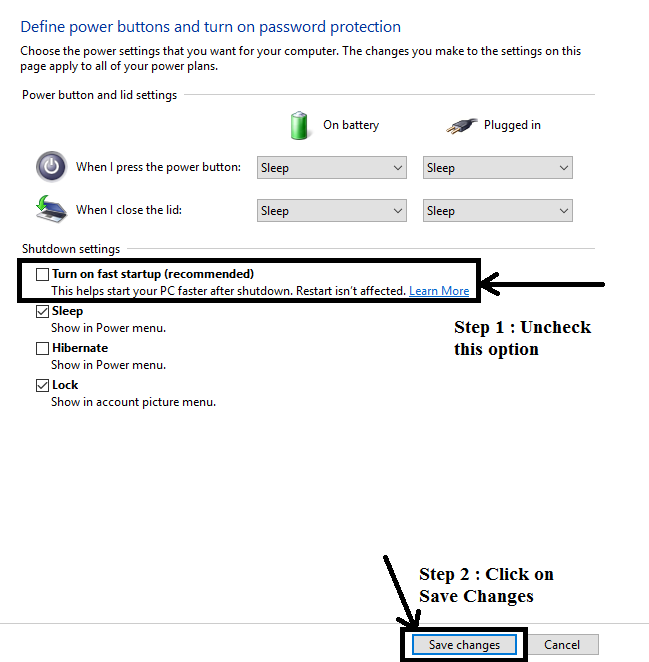
Sometimes the screen looks black because the brightness is too low. Use the brightness keys on your keyboard to increase the light. Check the display settings in your laptop’s control panel. Make sure the screen is not set to a very low brightness or black color. Also, look at the power settings to see if the display is set to turn off quickly.

Credit: www.youtube.com
Diagnosing Hardware Issues
Diagnosing hardware problems is a key step when your laptop screen stays black but the machine runs. It helps find the exact cause and avoid unnecessary repairs. Hardware faults often hide behind simple symptoms like a blank screen. Careful checks can reveal if parts need fixing or replacing.
This section covers common hardware issues. Understanding these can guide your next move. Start with basic tests and move to specific components like memory and graphics. Each part plays a role in displaying your screen.
Ram And Hard Drive Checks
RAM problems often cause screen issues. Loose or damaged RAM can stop the display without shutting down the laptop. Remove and reseat the RAM sticks gently. Dust or poor contact may cause failure. Use clean hands and avoid static electricity.
The hard drive also affects startup and screen display. A failing hard drive may prevent the operating system from loading. Listen for unusual noises or repeated clicking sounds. Running a hard drive diagnostic tool helps find faults early.
Graphics Card Malfunction
The graphics card controls what appears on your screen. If it malfunctions, the display might stay black even if the laptop runs. Check if the card is loose or dusty. Some laptops have integrated graphics, making this less common but still possible.
External monitors can help test graphics issues. Connect your laptop to a second screen. If the external display works, the problem may be the laptop screen or its connection, not the graphics card itself.
Software And Driver Fixes
Software and driver problems often cause a black laptop screen. The laptop might run, but the display stays blank. Fixing software or driver issues can bring your screen back to life. Try simple steps first before seeking hardware help.
These fixes are easy to try at home. They do not need special tools or skills. Just follow the instructions carefully. It can save time and money.
Booting In Safe Mode
Safe Mode starts your laptop with only essential programs. It helps check if software or drivers cause the black screen. To enter Safe Mode, restart your laptop and press the F8 key repeatedly before Windows loads. A menu will appear. Choose “Safe Mode.”
In Safe Mode, the screen should work if the problem is not hardware. You can then uninstall or update faulty drivers. Safe Mode also allows you to run virus scans and system checks. After fixing, restart your laptop normally to see if the screen returns.
Updating Or Reinstalling Drivers
Drivers connect your laptop hardware to the software. Outdated or corrupted drivers can cause display problems. Updating drivers often fixes black screen issues. Open Device Manager by right-clicking the Start button. Find “Display adapters” and expand it.
Right-click your graphics driver and select “Update driver.” Choose “Search automatically for updated driver software.” Follow the prompts to install updates. If updating does not work, uninstall the driver and restart your laptop. Windows will try to reinstall the correct driver.
Using the latest driver from the laptop maker’s website can also help. Download the driver on another device if needed. Install it using a USB drive. This process can restore your laptop’s display function.
Credit: www.hp.com
When To Seek Professional Help
Knowing when to seek professional help can save your laptop and data. A black screen may signal a deeper issue. Early expert intervention prevents further damage. Some problems look simple but hide serious faults.
Signs Of Serious Hardware Damage
Repeated black screens show possible hardware failure. Strange noises during startup or shutdown warn of trouble. Overheating or burning smells must never be ignored. Laptop screen flickering or total blackout needs expert check. Sudden shutdowns or inability to boot also signal issues. Hardware damage can worsen without timely repair.
Data Recovery Options
Data loss causes stress and worry. Professionals use special tools to retrieve files. They can access data even if the laptop won’t start. Backup copies may save time and money. Never try risky recovery methods alone. Experts ensure safe and secure data retrieval. Early action increases chances of full recovery.
Frequently Asked Questions
Why Is My Laptop Screen Black But Still On?
A black screen with a running laptop usually means a display issue. It could be a faulty cable, bad backlight, or graphics driver problems. Checking connections and restarting the laptop often helps. If unresolved, professional repair might be necessary.
How To Fix A Black Screen On A Running Laptop?
Start by rebooting your laptop and checking the brightness settings. Connect an external monitor to test video output. Update or reinstall your graphics drivers. If these steps fail, hardware issues like a damaged screen or motherboard may be the cause.
Can A Laptop Run With A Black Screen?
Yes, a laptop can run with a black screen if the internal components work but the display is faulty. The system operates normally, but without visual output, troubleshooting or repairs are needed to restore the screen.
What Causes A Laptop Screen To Go Black Suddenly?
Sudden black screens are often caused by software crashes, driver failures, or hardware faults like loose cables or damaged screens. Overheating or power supply issues can also trigger this problem. Regular updates and hardware checks help prevent it.
Conclusion
A black laptop screen can be frustrating and confusing. Many causes might lead to this issue, like hardware or software problems. You can try simple fixes like restarting, checking connections, or adjusting brightness. Sometimes, updating drivers or resetting the laptop helps.
If the screen stays black, a professional check may be necessary. Understanding these steps saves time and stress. Keep calm and follow the solutions carefully. Your laptop can often be fixed without much trouble. Don’t ignore small signs; act early to protect your device.