Why is My Laptop Volume So Low Even at Max

Have you ever cranked your laptop volume all the way up, only to be met with barely audible sound? It’s frustrating when your favorite songs, movies, or calls come through too quietly, even at max volume.
You might wonder if your laptop’s speakers are broken or if something else is going on. The good news is, low volume isn’t always a sign of hardware failure. You’ll discover the common reasons why your laptop’s volume stays low and simple steps you can take to fix it—so you can enjoy clear, loud sound again without hassle.
Keep reading to turn your quiet laptop into a powerful audio machine.
Common Causes Of Low Laptop Volume
Low laptop volume can be very frustrating. You turn the volume to the max, but the sound remains weak. Many things cause this problem. Understanding these causes helps you fix the issue faster.
Hardware Issues
Sometimes, the laptop speakers have physical damage. Dust or dirt can block the sound. Internal speaker parts may wear out over time. Broken wires inside the laptop can also reduce volume. Testing with headphones helps check speaker hardware.
Software Settings
Sound settings might be set too low. Volume mixer could have some apps muted. Sound enhancement options may reduce volume by mistake. Check the system sound settings carefully. Resetting sound preferences often solves the problem.
Driver Problems
Audio drivers control the laptop sound. Outdated or corrupted drivers can lower volume. Drivers may conflict after system updates. Updating or reinstalling drivers usually improves sound. Use the device manager to check driver status.
External Device Interference
Connected devices can affect laptop sound. Bluetooth speakers or headphones may redirect audio output. USB devices might interfere with sound settings. Disconnect all external devices to test volume. Changing audio output device often restores normal sound.
Checking And Adjusting Sound Settings
Low laptop volume can be frustrating, especially when the sound is at maximum. Checking and adjusting sound settings often solves this problem. These settings control how loud your laptop plays audio. Sometimes, the volume on one part is low, even if the main volume is high. Understanding these settings helps find the issue quickly.
Volume Mixer Controls
The volume mixer controls the sound for different apps and system sounds. Open it by right-clicking the speaker icon on the taskbar. Check if any app has a lower volume than others. Adjust the sliders to increase the volume for each app. This can fix issues where some programs are quieter than expected.
Sound Enhancements
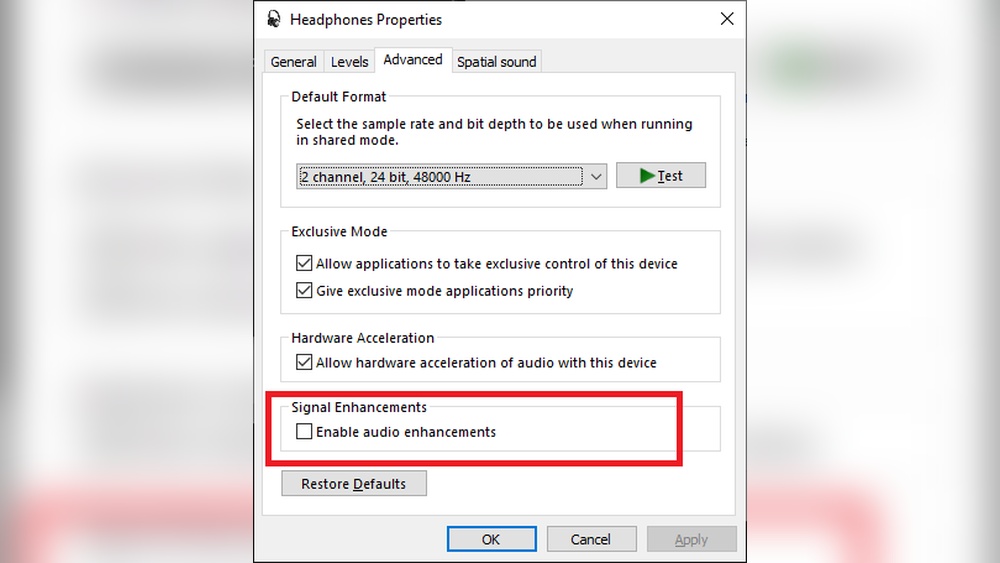
Sound enhancements change how audio sounds on your laptop. They can make audio clearer or louder. Open the sound settings and find the enhancements tab. Turn on options like loudness equalization. This helps balance sound and can increase volume without distortion. Try turning off enhancements if sound becomes worse.
App-specific Volume
Some apps have their own volume controls inside the program. Check the app’s settings or media player controls. Make sure the volume is not muted or very low there. Adjusting app-specific volume often fixes low sound issues. This step is important for apps like music players or video chats.
Updating And Reinstalling Audio Drivers
Audio drivers help your laptop’s sound system work correctly. Old or damaged drivers can cause low volume issues. Updating or reinstalling these drivers often fixes sound problems. This section explains how to handle audio drivers easily.
Finding The Right Drivers
Start by knowing your laptop’s audio hardware. Visit the laptop maker’s official website. Look for the support or download section. Enter your laptop model to find compatible drivers. Check the release date and version to get the latest driver. Avoid downloading drivers from unknown sites. This ensures safety and compatibility.
Step-by-step Update Process
Open the Device Manager on your laptop. Find the “Sound, video and game controllers” section. Right-click your audio device and select “Update driver.” Choose “Search automatically for updated driver software.” Wait for Windows to find and install updates. Restart your laptop to apply changes. This simple process often boosts volume levels.
Reinstalling Drivers
Sometimes updates don’t fix the problem. Reinstalling drivers can help. In Device Manager, right-click the audio device. Select “Uninstall device” and confirm. Restart the laptop; Windows should reinstall the driver. If not, use the downloaded driver from the official site. This step refreshes the audio system and may improve sound quality.

Credit: www.reddit.com
Hardware Troubleshooting Tips
Low laptop volume can sometimes be caused by hardware problems. Checking your hardware helps find the cause fast. Simple steps can solve many sound issues.
Start with the speakers and headphones. They often have obvious problems. Then try external devices to see if the issue is inside your laptop. Clean audio ports to remove dust or dirt. These steps improve sound quality.
Inspecting Speakers And Headphones
Look at your laptop speakers closely. Are there cracks or dirt on them? Dirt can block sound. Use a soft cloth to clean the speaker grills gently.
Try headphones to check if sound is better. Plug in your headphones and play audio. Low volume here means headphone or port issues. Normal sound means laptop speakers may be the problem.
Testing With External Devices
Connect external speakers or headphones. Play sound and listen carefully. Good sound means laptop speakers or internal parts might be faulty. No sound or low volume might mean software or driver issues.
Testing with different devices helps find if the problem is hardware or software. It narrows down the cause quickly.
Cleaning Audio Ports
Audio ports can collect dust and dirt. This blocks sound or causes weak audio. Use a small brush or compressed air to clean ports gently.
Be careful not to damage the port pins. Clean ports can improve connection and sound volume. Check ports regularly for dirt build-up.
Using Third-party Audio Boosters
Using third-party audio boosters can help increase your laptop’s volume beyond its usual limits. These tools work by enhancing the sound output through software adjustments. They can make your audio louder and clearer. This is useful when your laptop’s maximum volume feels too low for your needs.
Many users turn to these programs for a quick fix. They often offer easy controls and extra features. Some boosters can improve sound quality along with volume. Others focus only on making audio louder. Choosing the right software depends on what you want to achieve.
Popular Software Options
Several audio boosters are popular among laptop users. VLC Media Player has a built-in volume booster up to 200%. Equalizer APO allows detailed sound adjustments with plugins. Boom 3D offers 3D surround sound and volume boosting features. Let’s not forget about Letasoft Sound Booster, which increases volume in many apps.
These programs are easy to install and use. Most have free versions or trials. Each works differently, so trying a few might help you find the best fit.
Risks And Benefits
Third-party audio boosters can improve your listening experience. They make sounds louder without buying extra hardware. They also allow customizing audio settings to your taste.
Still, there are risks. Boosting volume too much can damage your speakers. It may also cause sound distortion or reduce audio quality. Some software might contain ads or unwanted programs. Always download from trusted sources to avoid malware.
Balance is key. Use boosters carefully to protect your laptop and ears.

Credit: www.reddit.com
Preventive Measures For Better Sound
Low laptop volume can be frustrating, especially when you set it to maximum. Taking steps to protect your laptop’s sound system helps keep audio clear and loud. Simple habits can prevent many sound issues before they start.
Regular Maintenance
Dust and dirt often block laptop speakers. Clean your laptop gently with a soft brush or cloth. Avoid using water or harsh chemicals near the speakers. Keep your laptop’s software updated. Sound drivers and system updates improve audio performance. Check volume settings and sound controls regularly. Reset sound settings if you notice any changes.
Avoiding Physical Damage
Speakers are delicate parts of your laptop. Avoid dropping or bumping your laptop. Use a protective case during travel to prevent shocks. Keep liquids away to stop moisture damage. Do not place heavy objects on your laptop. These actions protect speaker wires and components from damage.
Credit: taoofmac.com
Frequently Asked Questions
Why Is My Laptop Volume Low At Maximum Setting?
Low volume at max can result from outdated drivers, software glitches, or hardware issues. Check audio settings, update sound drivers, and test with external speakers to isolate the problem.
How Can I Fix Low Laptop Volume Quickly?
Adjust sound settings, update audio drivers, and disable audio enhancements. Restart your laptop and test volume again to see if the issue resolves.
Could Software Updates Affect Laptop Audio Volume?
Yes, software updates can change audio settings or drivers. Ensure all updates are installed correctly and check sound settings after any system update.
Does Using Headphones Affect Laptop Speaker Volume?
Yes, headphone use can change audio output settings. Disconnect headphones and verify the speaker volume is set correctly and not muted.
Conclusion
Low laptop volume can frustrate anyone. Check your sound settings first. Update your audio drivers next. Inspect for hardware issues or speaker damage. Use external speakers if needed. Adjust app-specific volume controls too. Small fixes often improve sound quality. Stay patient and try each step.
Clear, louder sound is possible with care. Don’t ignore simple solutions; they often work best. Keep your laptop’s sound system healthy for a better experience.