Why is My Screen Too Bright Even on Lowest Setting

Have you ever noticed that your screen feels way too bright, even when you’ve turned the brightness down to the lowest setting? It’s frustrating, isn’t it?
You might strain your eyes, feel uncomfortable, or even get headaches. But why does this happen? Is it a problem with your device, or something else entirely? Keep reading, because understanding this mystery can help you fix the issue and make your screen comfortable again.
Let’s dive into what’s really going on and how you can take control of your screen’s brightness today.
Causes Of Excessive Brightness
Excessive screen brightness can cause discomfort and strain your eyes. Many users face this issue even after setting the brightness to the lowest level. Several factors can cause this problem. Understanding these causes helps find the right fix quickly.
Hardware Limitations
Some screens have a minimum brightness level that is still quite bright. This limit depends on the device’s design and hardware parts. Older devices or budget models often have fewer brightness steps. This means the lowest setting might not be dim enough for your comfort.
Software Glitches
Software bugs can affect brightness control. Sometimes, the brightness slider does not work properly. The system may fail to apply the setting you choose. Restarting the device or updating the software can often fix this problem.
Ambient Light Sensor Issues
Many devices use sensors to adjust brightness automatically. If the ambient light sensor is dirty or broken, it may misread the environment. This causes the screen to stay too bright. Turning off auto-brightness can help in such cases.
Display Driver Problems
Display drivers control how your screen behaves. Outdated or corrupted drivers can cause brightness errors. They might prevent the screen from dimming properly. Updating or reinstalling the drivers often restores normal brightness control.
Credit: ipadpilotnews.com
Adjusting Brightness Settings
Sometimes, your screen stays too bright even at the lowest setting. This can be frustrating and strain your eyes. Adjusting brightness settings can help fix this problem. You can use different methods to change your screen brightness.
Using System Controls
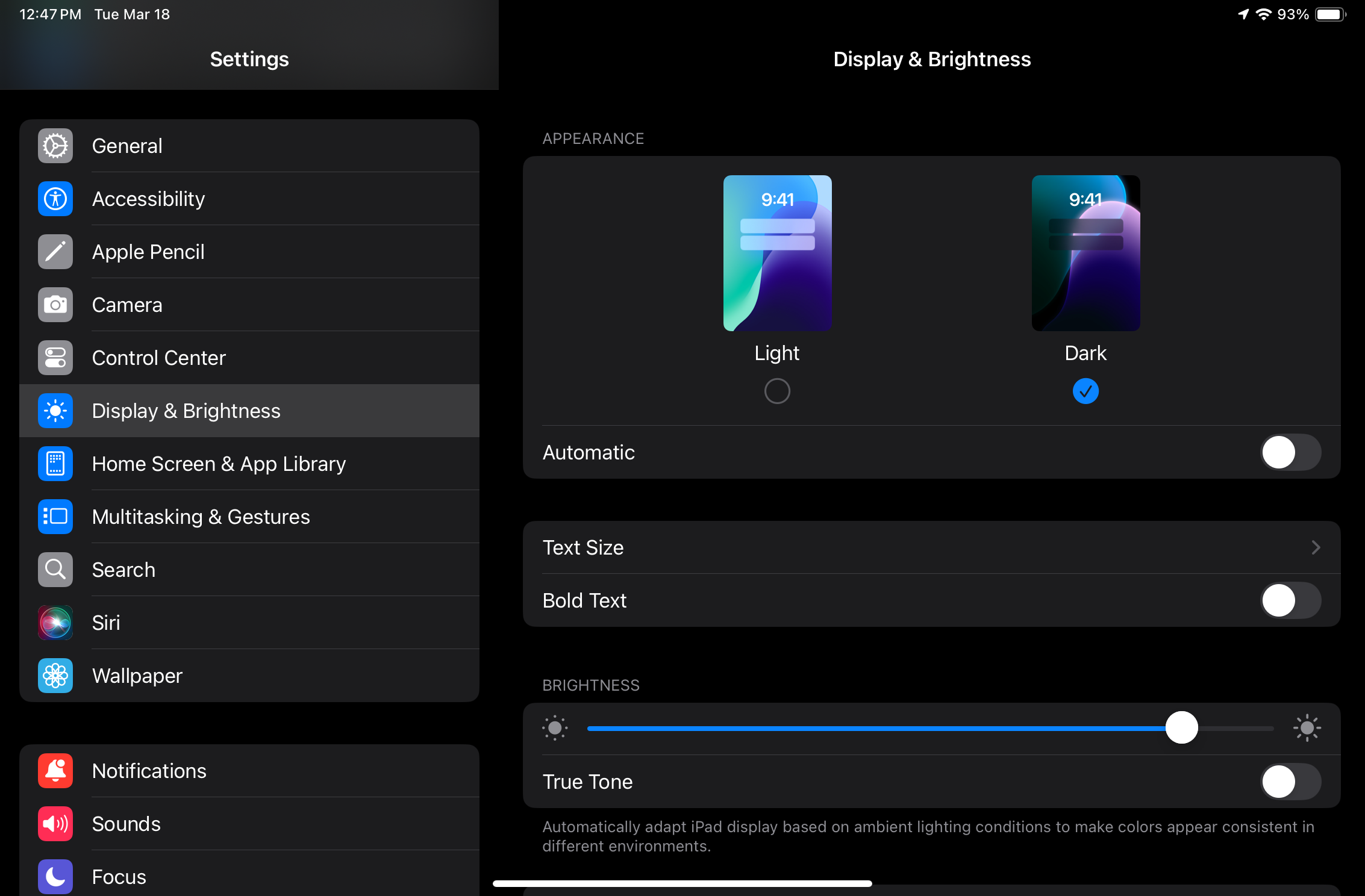
Most devices have built-in controls to change screen brightness. On Windows, use the Action Center or Settings menu. On Mac, use the brightness keys on the keyboard or System Preferences. Smartphones have brightness sliders in the quick settings or display options. These controls are the first step to try.
Third-party Apps
Some apps let you control screen brightness more precisely. These apps offer extra options beyond system controls. You can set custom brightness levels for different times of day. Some apps reduce blue light to ease eye strain. Choose apps with good reviews and simple interfaces.
Accessibility Features
Accessibility settings can also affect brightness. Features like high contrast or color filters might make the screen look brighter. Check your device’s accessibility options and adjust or turn off these features. This can help reduce unwanted brightness and improve screen comfort.
Troubleshooting Hardware
Troubleshooting hardware issues can solve many screen brightness problems. Sometimes, the screen looks too bright even at the lowest setting due to hardware faults. Checking the physical parts of your device helps find the root cause. Follow simple steps to inspect the screen and connections. This will guide you to fix the brightness issue or know when to seek help.
Checking Display Connections
Loose or damaged cables can cause brightness problems. Look at the cable connecting your screen to the device. Make sure it is firmly plugged in. Unplug and plug it back gently to secure the connection. Check for any visible damage on the cable or ports. Replace the cable if it looks worn out or broken. A stable connection often fixes the brightness issue quickly.
Inspecting Screen For Damage
A damaged screen might show wrong brightness levels. Look closely for cracks, scratches, or black spots. Such damage can affect how light is shown on the screen. If you find any damage, the screen may need repair or replacement. Avoid pressing hard on the screen, as it can cause more damage. Use a soft cloth to clean the screen gently. Damage can sometimes cause the brightness to stay too high.
Updating Device Firmware
Firmware controls how your device works with the screen. Outdated firmware can cause brightness control problems. Check the device settings for any firmware updates. Follow the instructions to download and install the latest version. Updated firmware improves screen performance and fixes bugs. Keep your device updated to avoid hardware-related brightness issues. This step often restores normal brightness control.

Credit: www.reddit.com
Fixing Software Issues
Sometimes, screen brightness issues come from software problems. These problems can stop your screen from dimming properly. Fixing these issues often solves the brightness problem. Try a few simple software fixes before thinking about hardware repair.
Updating Operating System
Old operating systems can cause screen brightness problems. Updates often fix bugs and improve device performance. Check your device settings for available updates. Install the latest version to help fix brightness issues. This step can make your screen respond better to brightness controls.
Reinstalling Display Drivers
Display drivers control how your screen looks. Sometimes drivers get corrupted or outdated. Reinstalling them can fix the brightness problem. Go to your device manager and find display drivers. Uninstall the current driver, then restart your device. Windows will reinstall the driver automatically. This can restore normal brightness control.
Resetting Display Settings
Custom display settings might cause brightness to stay high. Resetting these settings can help. Open your display settings and find the reset option. Reset all settings to default. This clears any incorrect settings causing brightness issues. Your screen should dim properly after the reset.
Preventing Brightness Problems
Brightness problems can annoy anyone using a device. Screens too bright, even at the lowest setting, hurt the eyes and waste battery life. Preventing these issues helps keep your screen comfortable and your device working well. Simple habits and checks make a big difference in managing screen brightness.
Regular Software Updates
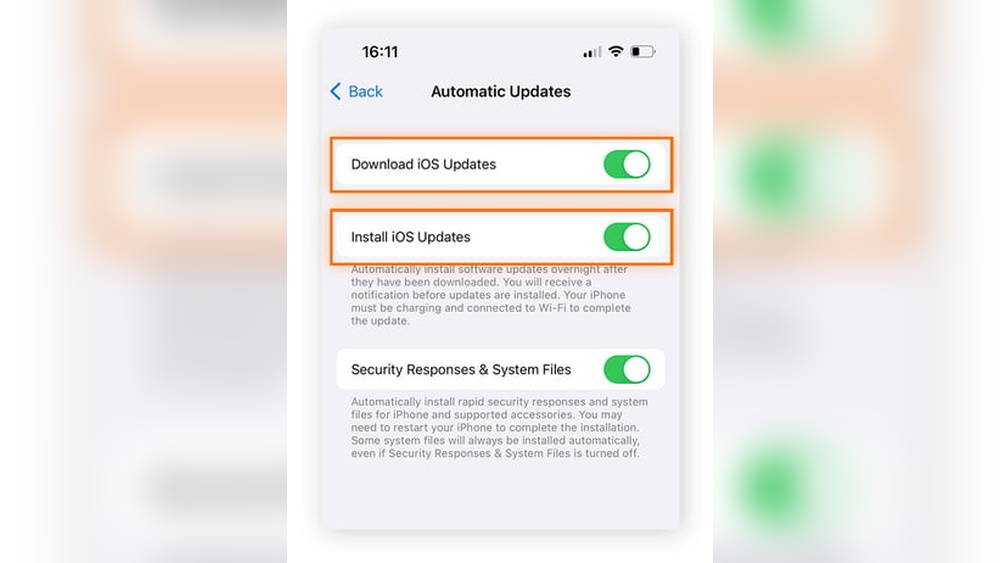
Keep your device software up to date. Updates fix bugs that can cause brightness issues. They improve how your screen adjusts to light. Updated software also supports better battery use, which affects screen brightness. Always install new updates soon after they become available.
Proper Device Handling
Handle your device with care to avoid screen damage. Avoid exposing the screen to extreme heat or cold. Do not press too hard on the screen, as this can affect brightness. Clean the screen gently with a soft cloth to remove dirt and fingerprints. Proper care helps keep the display working correctly.
Calibrating Display
Calibrate your screen to ensure accurate brightness levels. Calibration adjusts colors and brightness for your eyes. Many devices have built-in calibration tools in settings. Follow simple steps to adjust brightness and color balance. Regular calibration keeps the screen comfortable and prevents brightness problems.

Credit: www.youtube.com
Frequently Asked Questions
Why Is My Screen Still Bright At Lowest Setting?
Your device’s brightness sensor or calibration may be faulty. Software glitches can also cause brightness issues. Updating drivers or restarting the device often helps fix this problem quickly.
Can Screen Brightness Be Controlled Beyond Default Limits?
Yes, third-party apps or system tweaks can adjust brightness beyond default settings. However, extreme dimming might affect visibility and cause eye strain. Always use trusted software for safe adjustments.
Does Ambient Light Affect Screen Brightness Settings?
Ambient light sensors adjust brightness automatically based on surroundings. If sensors malfunction or are blocked, screen brightness may stay too high. Cleaning the sensor or disabling auto-brightness can resolve this.
How Do Software Updates Impact Screen Brightness?
Software updates can fix bugs related to brightness control. Occasionally, updates may reset or change brightness calibration. Keeping your device updated ensures better screen brightness management and overall performance.
Conclusion
A screen that stays too bright can cause discomfort and eye strain. Check your device’s settings carefully for brightness controls and night mode. Sometimes, software updates or driver issues affect screen brightness. Adjusting these can help reduce glare and improve comfort.
Remember, simple fixes often solve this problem. Keep your screen brightness balanced for better viewing experience. Stay patient while trying different solutions. Your eyes will thank you.