Why is My Wifi Connected But Internet Not Working on Phone

Have you ever found yourself staring at your phone, seeing that it’s connected to WiFi, but the internet just won’t work? It’s frustrating, confusing, and can stop you from doing what you need right now.
You might wonder, “Why is my WiFi connected but the internet not working on my phone? ” You’re not alone, and there are simple reasons behind this problem. You’ll discover easy steps to fix it quickly. Keep reading, and you’ll get your internet back without stress.
Credit: www.reddit.com
Common Causes Of Wifi Connection Without Internet
Wifi may show as connected on your phone but still lack internet access. This issue can frustrate many users. Understanding common causes helps fix it quickly. Several factors can interrupt internet access while keeping the wifi signal active. Identifying the root cause is the first step toward a solution.
Router And Modem Issues
Routers and modems often cause internet problems. A simple restart can clear errors and restore connection. Outdated firmware or hardware failure may also block internet access. Check if your router or modem lights show normal activity. Faulty devices stop internet even if wifi stays connected.
Ip Address Conflicts
Phones need unique IP addresses to connect to networks. Sometimes, two devices share the same IP address. This conflict confuses the network and blocks internet access. Renewing the IP address on your phone can resolve this. Conflicts usually happen after network changes or device restarts.
Dns Problems
DNS translates website names into internet addresses. If DNS servers fail, websites won’t load. Your phone may connect to wifi but fail to reach websites. Changing DNS settings to a public server often fixes this issue. DNS problems disrupt internet without affecting wifi signals.
Network Overload
Too many devices on one network can cause overload. The router struggles to handle all traffic at once. Slow or no internet access happens even with a strong wifi signal. Disconnecting some devices or limiting bandwidth helps improve speed. Overloaded networks reduce internet quality but keep wifi alive.
Phone Software Glitches
Phone software bugs can interrupt internet access. System updates or app errors may cause connection issues. Restarting your phone or updating its software can fix these glitches. Sometimes, resetting network settings on the phone restores internet. Software problems can stop internet while wifi remains connected.

Credit: www.wikihow.com
Troubleshooting Steps On Your Phone
When your phone shows it is connected to WiFi but the internet does not work, simple fixes might help. These troubleshooting steps focus on your phone. Follow them one by one. They often solve the problem quickly.
Restarting Wifi And Airplane Mode
Turn off your WiFi on the phone. Wait for 10 seconds. Turn it back on. This helps refresh the connection.
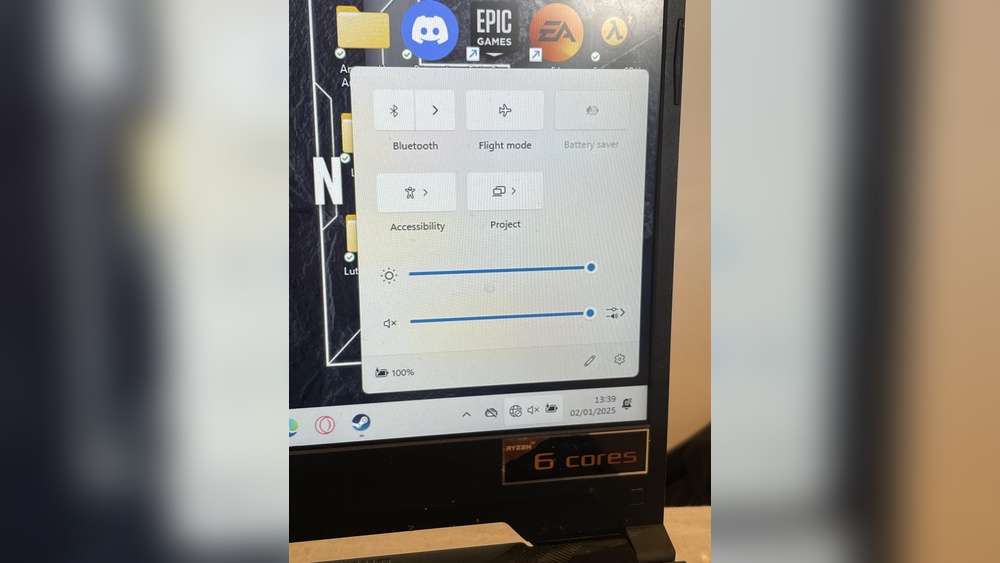
Try turning on Airplane Mode for 15 seconds. Then turn it off. This resets all wireless connections on your phone.
Forget And Reconnect To Network
Go to your phone’s WiFi settings. Find the network name. Choose “Forget” or “Remove” network.
Search for the network again. Enter the password carefully. Reconnect to see if the internet works now.
Check Date And Time Settings
Incorrect date and time can block internet access. Go to your phone’s settings. Check if date and time are correct.
Turn on “Set Automatically” if available. This keeps your time synced with the network.
Reset Network Settings
Resetting network settings can fix deeper connection problems. This deletes saved WiFi networks and passwords.
Go to Settings > System > Reset options > Reset WiFi, mobile & Bluetooth. Confirm to reset. Reconnect to your WiFi after reset.
Router And Modem Fixes
Router and modem issues often cause your phone to show wifi connected but no internet. These devices manage your internet connection and need to work properly. Simple fixes can solve many common problems quickly. Follow the steps below to check your router and modem.
Power Cycling Devices
Turn off your router and modem. Unplug them from power for 30 seconds. Plug them back in and turn them on. This process clears temporary faults and refreshes the connection. It often restores internet access on your phone.
Firmware Updates
Check if your router has the latest firmware version. Firmware updates fix bugs and improve performance. Access your router’s settings through a web browser. Download and install any available updates. Updated firmware helps maintain a stable internet connection.
Checking Device Limits
Your router may limit the number of connected devices. Too many devices can slow or block internet access. Log in to your router’s admin panel. Review connected devices and remove unknown or unused ones. This frees up bandwidth and improves connection quality.
Resetting To Factory Settings
Resetting your router and modem restores default settings. This removes incorrect configurations that may block internet. Find the reset button on your device. Hold it for 10 seconds using a paperclip. Set up your network again after the reset. This often fixes persistent internet problems.
Credit: www.youtube.com
Advanced Network Solutions
Advanced network solutions can fix many phone internet problems. These methods go beyond basic checks. They help improve your connection and solve hidden issues. Trying these steps can restore your internet access.
Changing Dns Servers
DNS servers translate website names into IP addresses. Sometimes, default DNS servers are slow or blocked. Changing DNS servers can speed up browsing and fix loading errors. Use public DNS servers like Google DNS or Cloudflare DNS. This change can clear connection blocks on your phone.
Assigning Static Ip
A static IP address stays the same on your network. Phones usually get dynamic IPs automatically. Assigning a static IP can stop conflicts between devices. This step helps if your phone loses connection often. Set a static IP in your phone’s Wi-Fi settings for stable access.
Checking Mac Address Filtering
MAC address filtering limits which devices connect to a router. Your phone’s MAC address may be blocked by this filter. Check your router settings to see if MAC filtering is on. Add your phone’s MAC address to the allowed list if needed. This allows your phone to connect and access the internet.
When To Contact Your Isp
Sometimes, your phone shows a WiFi connection but no internet access. This problem can be tricky to fix alone. Knowing when to contact your Internet Service Provider (ISP) can save time. Your ISP can help diagnose and solve issues beyond your control.
Service Outages
Check if there is a service outage in your area. Outages can stop internet access even with a strong WiFi signal. Your ISP usually updates outage information on their website or social media. Calling your ISP can confirm if a problem affects many users. Wait for the ISP to fix the outage if this is the case.
Account And Billing Issues
Sometimes, internet service stops due to unpaid bills or account problems. Your ISP may pause service until payment is made. Verify your account status by logging into your ISP portal or calling customer support. Fixing billing issues quickly can restore your internet service. Keep your account details up to date to avoid interruptions.
Requesting Technical Support
Contact your ISP for technical help if no outage or billing issue exists. Explain the problem clearly and mention your device and connection type. The ISP can run tests and guide you through troubleshooting steps. They may send a technician if the problem is complex or hardware-related. Don’t hesitate to ask for help to get your internet working again.
Preventive Tips For Stable Wifi
Keeping your WiFi connection stable helps avoid common internet issues on your phone. Simple steps can improve your WiFi’s reliability. These preventive tips reduce disruptions and keep your internet running smoothly.
Regular Router Maintenance
Restart your router once a week to clear temporary glitches. Keep the router firmware updated for better performance. Clean dust from your router to prevent overheating. Place the router in an open area for better signal strength.
Securing Your Network
Use a strong password to stop unauthorized access. Change your WiFi password regularly for added security. Enable WPA3 or WPA2 encryption on your router. Limit the number of devices connected to your network.
Avoiding Network Congestion
Disconnect devices not in use to free bandwidth. Avoid heavy downloads during peak hours for smoother browsing. Use the 5GHz band if your router supports dual bands. Position your phone closer to the router for better speed.
Frequently Asked Questions
Why Is My Phone Connected To Wifi But No Internet?
Your phone may connect to WiFi but lack internet due to router issues, ISP outages, or incorrect IP settings. Restart your router and phone. Check if other devices access the internet. Reset network settings if needed to resolve connectivity problems.
How To Fix Wifi Connected But No Internet On Phone?
Restart your phone and router first. Forget and reconnect to the WiFi network. Check for IP address conflicts or DNS errors. Update your phone’s software. If issues persist, reset network settings or contact your ISP for assistance.
Can A Weak Wifi Signal Cause No Internet Access?
Yes, a weak WiFi signal can cause no internet access despite connection. Walls, distance, and interference reduce signal strength. Move closer to the router or remove obstacles. Use WiFi extenders to improve signal and restore internet access.
Does Phone Software Affect Wifi Internet Connectivity?
Yes, outdated or corrupted phone software can disrupt WiFi internet access. Regularly update your phone’s OS and apps. Software bugs or glitches may block internet connectivity even if WiFi shows connected.
Conclusion
Wifi shows connected, but no internet? It’s a common issue. Restart your phone and router first. Check for software updates on your device. Confirm your internet service is active. Sometimes, changing DNS settings helps. Try forgetting the network and reconnecting.
These steps fix most problems fast. Stay patient and test each solution. Your internet should work again soon. Don’t give up if it takes time. Keep these tips handy for next time.