Why is My Laptop Overheating When Idle

Have you ever noticed your laptop getting hot even when you’re not using it? It can be confusing and worrying to see your device overheating while just sitting idle.
You might wonder if something is wrong or if your laptop is about to break down. Understanding why this happens is important because overheating can slow down your laptop, damage its parts, or even cause it to shut down unexpectedly.
You’ll discover the common reasons behind this problem and simple steps you can take to keep your laptop cool and running smoothly. Keep reading to protect your device and avoid costly repairs.

Credit: www.youtube.com
Common Causes Of Idle Overheating
Laptop overheating while idle can confuse many users. The device should stay cool when not in use. Several common issues cause this problem. Identifying these helps fix overheating quickly.
Background Processes And Apps
Some apps run in the background without your knowledge. These processes use CPU power constantly. High CPU use generates heat even when idle. Checking task manager shows active programs. Closing unnecessary apps reduces heat and saves battery.
Dust And Vent Blockage
Dust builds up inside the laptop over time. It blocks air vents and cooling fans. Poor airflow makes heat stay inside the laptop. Cleaning vents and fans improves cooling. Regular maintenance prevents dust-related overheating.
Faulty Cooling System
The cooling system includes fans and heat pipes. If fans stop working, heat increases quickly. Heat pipes may lose efficiency with age. A broken cooling system cannot remove heat well. Repair or replace parts to restore cooling.
Outdated Drivers And Bios
Drivers and BIOS control hardware performance. Outdated software can cause poor fan control. This leads to unnecessary heat generation. Updating drivers and BIOS improves system stability. It also helps the laptop cool properly during idle.
Impact Of Overheating On Laptop
Overheating affects laptops in many harmful ways. It can cause problems even when the laptop is not in use. Understanding these effects helps you protect your device better.
Performance Slowdown
Heat makes the laptop’s processor work slower. This happens to stop the device from getting too hot. As a result, your laptop may freeze or take longer to open programs. Even simple tasks can feel slow and frustrating.
Hardware Damage Risks
High temperatures can break important parts inside the laptop. The CPU, GPU, and motherboard are especially at risk. Over time, this damage can cause your laptop to fail completely. Repairs can be costly and sometimes impossible.
Battery Life Reduction
Heat also harms the laptop’s battery. It makes the battery wear out faster than normal. You may notice your laptop won’t hold a charge as long. Replacing the battery early means extra expenses and inconvenience.
Steps To Diagnose Overheating
Overheating while your laptop is idle can cause damage and slow down your device. Diagnosing the problem helps you fix it before it worsens. Follow simple steps to find out why your laptop heats up without heavy use.
Monitoring Temperature And Cpu Usage
Check your laptop’s temperature using free software like HWMonitor or Core Temp. Watch for high numbers above 80°C, which show overheating. Also, see CPU usage in real-time. High CPU use during idle means a program or process is active. This can cause extra heat.
Checking Task Manager For Background Tasks
Open Task Manager by pressing Ctrl + Shift + Esc. Look under the Processes tab to find programs using much CPU or memory. Some apps run in the background and cause overheating. End unnecessary tasks to reduce CPU load. This helps lower your laptop’s temperature.
Inspecting Physical Vents And Fans
Dust or blockages in vents stop proper airflow. This traps heat inside your laptop. Check vents and fans for dust build-up or obstructions. Clean gently with compressed air or a soft brush. Make sure fans spin freely. Proper airflow prevents overheating when idle.

Credit: www.reddit.com
Solutions To Reduce Idle Heat
Excess heat while your laptop is idle can cause damage and slow performance. Several simple actions help lower idle temperatures. These solutions keep your laptop safe and running smoothly. Follow these easy steps to reduce heat buildup during idle times.
Closing Unnecessary Programs
Many programs run in the background and use CPU power. Close apps you do not need to reduce workload. Check the task manager for hidden processes. Fewer active programs mean less heat generated by your laptop.
Cleaning Laptop Internals
Dust and dirt block air vents and fans. This stops proper airflow and traps heat inside. Open your laptop carefully and use compressed air to clean vents. Regular cleaning improves cooling and lowers idle temperature.
Updating System Software
Old software can cause your laptop to overwork. Keep your operating system and drivers up to date. Updates fix bugs and improve energy efficiency. This helps your laptop stay cool when idle.
Adjusting Power Settings
Power settings control how your laptop uses energy. Change settings to power saver or balanced mode. This lowers CPU speed during idle periods. Reduced power use means less heat production.
Using Cooling Pads
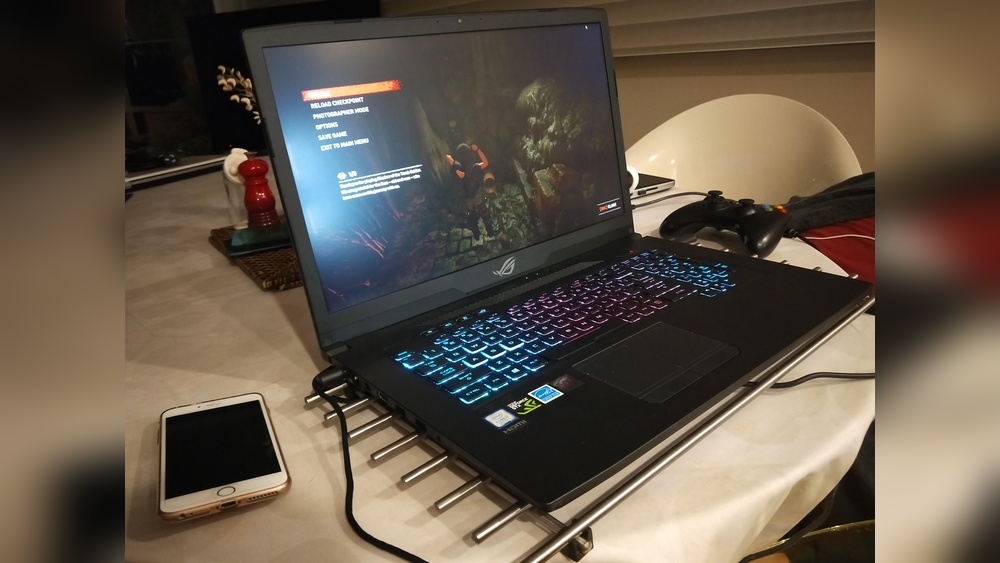
Cooling pads provide extra airflow under your laptop. Place your laptop on a cooling pad while working or idle. Fans in the pad help remove heat quickly. This keeps your laptop cooler for longer.
Preventive Maintenance Tips
Keeping your laptop cool is easier with regular care. Preventive maintenance stops overheating before it starts. Small habits help your laptop run smoothly and last longer. Follow these simple tips to protect your device.
Regular Cleaning Schedule
Dust and dirt block air vents and fans. Clean your laptop every few months. Use a soft brush or compressed air to remove dust. Avoid liquids that may damage internal parts. Keeping vents clean improves airflow and cooling.
Proper Ventilation Setup
Place your laptop on a hard, flat surface. Soft surfaces like beds or couches block vents. Keep the laptop away from heat sources. Leave space around the laptop for air to flow. Good ventilation lowers the risk of overheating.
Routine Software Updates
Update your operating system and drivers regularly. Updates fix bugs that can cause high CPU usage. Use trusted antivirus software to scan for malware. Malware can make your laptop work harder and heat up. Staying updated keeps performance steady and cool.
Credit: www.alibaba.com
Frequently Asked Questions
Why Does My Laptop Overheat When Idle?
Laptops can overheat when idle due to background processes using CPU power. Dust buildup and poor ventilation also cause heat. Overheating may result from outdated drivers or malware running unseen tasks. Regular maintenance and software updates help prevent this issue.
Can Malware Cause Laptop Overheating At Idle?
Yes, malware can cause overheating by running heavy processes in the background. These unwanted programs consume CPU resources, increasing heat generation. Running antivirus scans and removing malware improves performance and reduces overheating risks when the laptop is idle.
How Does Poor Ventilation Affect Laptop Temperature?
Poor ventilation restricts airflow, trapping heat inside the laptop. This causes the internal components to heat up even when idle. Always use laptops on hard, flat surfaces to ensure proper airflow and prevent overheating.
Does Outdated Software Cause Laptop Overheating?
Outdated software and drivers can cause inefficient CPU usage, leading to higher heat production. Keeping your operating system and drivers updated ensures better resource management and reduces overheating during idle periods.
Conclusion
Laptop overheating when idle can have many causes. Dust buildup blocks air vents and fans. Background apps may use CPU without your knowledge. Old or faulty hardware can also cause heat. Regular cleaning and closing unused programs help a lot.
Check your laptop’s settings for power and cooling options. Keeping your device cool improves its speed and life. Don’t ignore overheating; it can damage your laptop. Simple care makes a big difference in performance. Stay aware and act fast to keep your laptop safe.