How to Fix Internet Lag During Video Calls

Are you tired of your video calls freezing or lagging right when you need them most? Nothing is more frustrating than losing connection during an important meeting or a heart-to-heart chat with loved ones.
But don’t worry—fixing internet lag during video calls is easier than you think. You’ll discover simple, practical tips that can make your calls smooth and clear again. Keep reading, and say goodbye to annoying delays and interruptions for good.
Identify Lag Causes
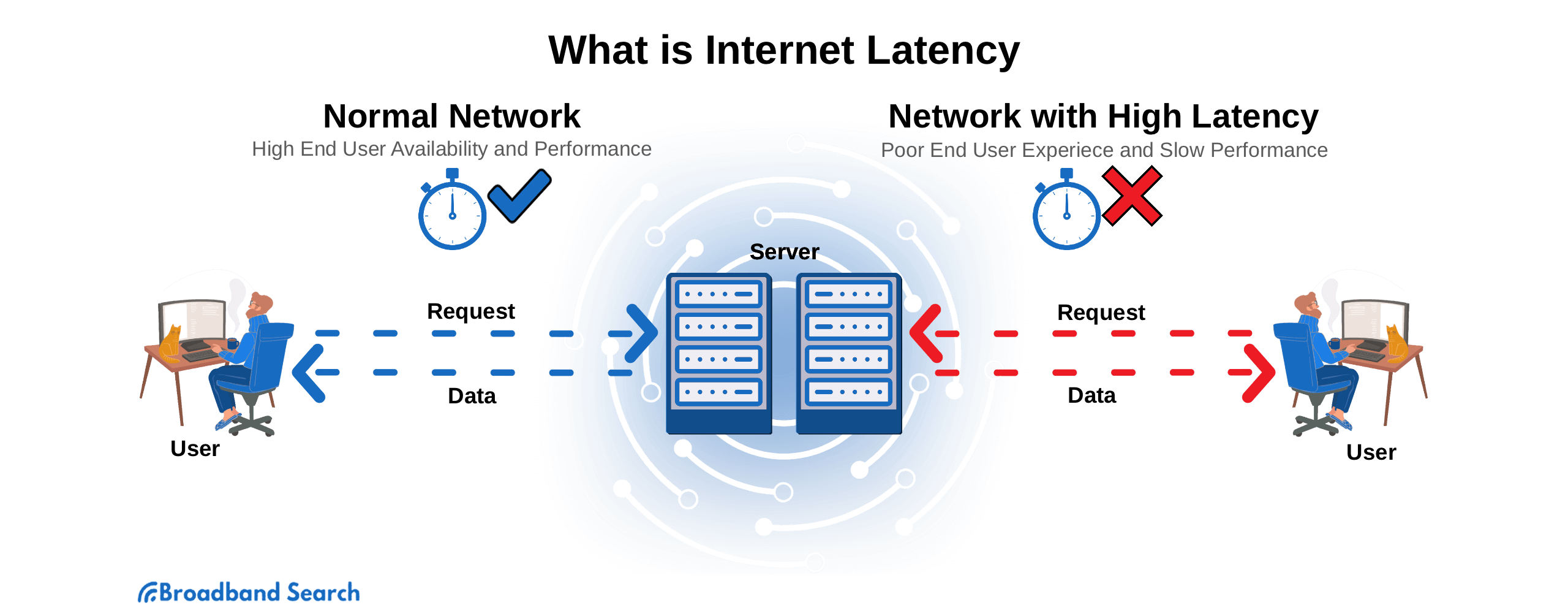
Internet lag during video calls can disrupt communication and cause frustration. Identifying the cause of lag is the first step to fixing it. You need to check different areas that affect call quality. This helps you find the exact problem quickly. Let’s explore key areas to examine.
Check Network Speed
Slow internet speed often causes lag in video calls. Use an online speed test to check your connection. Look for both download and upload speeds. A stable connection with at least 1.5 Mbps upload speed is best for video calls. If speeds are low, try restarting your router. Also, reduce the number of devices using the network.
Analyze Device Performance
Old or overloaded devices can slow down video calls. Check your device’s CPU and memory usage during calls. Close unnecessary apps running in the background. Make sure your device has enough free space and updates installed. Sometimes, switching to a different device improves call quality.
Evaluate Video Call App Settings
App settings can affect call quality and cause lag. Lower video resolution in the app settings to reduce data use. Turn off HD video if your network is weak. Check if the app is updated to the latest version. Also, disable any features that are not needed during calls.

Credit: www.youtube.com
Optimize Network Connection
Improving your network connection can reduce lag during video calls. A strong, stable connection helps keep video and audio clear. Small changes to your setup can make a big difference.
Focus on optimizing your network to get the best performance. This section explains simple steps to improve your internet for calls.
Use Wired Connections
Wired connections are more stable than Wi-Fi. Using an Ethernet cable can reduce interruptions. It provides a direct link to your router. This lowers delay and keeps video smooth. Try to connect your device directly to the router.
Limit Background Bandwidth Usage
Other apps or devices can slow your internet. Pause downloads, streaming, or cloud backups during calls. Ask others to avoid heavy internet use. This frees up bandwidth for your video call. The call will feel faster and clearer.
Restart Router And Modem
Restarting your router and modem refreshes your connection. Turn them off for 30 seconds, then back on. This clears temporary issues in the network. It helps improve speed and reduces lag. Do this regularly to keep your connection healthy.
Adjust Video Call Settings
Adjusting your video call settings can reduce lag and improve connection quality. Simple changes in these settings help your device use less internet. This makes your video calls smoother and clearer.
Focus on lowering the video quality and turning off features you do not need. These steps can make a big difference during calls, especially with slow or unstable internet.
Lower Video Quality
Reducing video resolution uses less data and bandwidth. Try switching to 480p or lower if your call app allows it. This change helps prevent freezing and delays in video streams.
Disable Hd Video
High Definition (HD) video requires more internet speed. Turning off HD lowers the data load on your connection. This keeps your video feed steady without sharp drops in quality.
Turn Off Unnecessary Features
Features like virtual backgrounds and filters use extra processing power. Disable these to free up resources for better video and audio. This step helps reduce lag and keeps calls running smoothly.

Credit: www.reddit.com
Improve Device Performance
Improving your device’s performance can reduce internet lag during video calls. A slow device can cause delays and poor video quality. By optimizing your system, calls run smoother and clearer. Follow these simple steps to boost your device’s speed.
Close Unneeded Applications
Running many apps uses your device’s memory and CPU. Close apps you don’t need during video calls. This frees up resources for the call to work better. Check your task manager or activity monitor to see which apps use the most power. Shut down apps like games, browsers, or background programs.
Update Software And Drivers
Outdated software can slow your device and cause lag. Keep your operating system and apps updated. Updates often fix bugs and improve performance. Also, update your device drivers, especially for your network and video hardware. Updated drivers ensure better communication with your device’s parts.
Clear Cache And Temporary Files
Cache and temporary files build up over time and slow devices down. Clear these files regularly to free up space. This helps apps run faster and reduces lag during calls. Use your device’s built-in tools or third-party cleaners to remove old files safely.
Manage External Factors
Managing external factors can greatly improve your video call experience. Many times, internet lag happens because of issues outside your device. Controlling these external elements helps keep your connection stable and smooth.
Simple changes around your network can reduce lag. Focus on what uses your internet and when. Small steps make a big difference in call quality.
Reduce Connected Devices
Too many devices on the same network can slow internet speed. Each device uses some bandwidth, causing congestion. Disconnect devices not in use during video calls. This frees up bandwidth for better call performance.
Schedule Calls During Off-peak Hours
Internet speed often slows down during busy hours. Many people use the internet at the same time. Try to schedule calls when fewer users are online. Early mornings or late evenings usually have less traffic. This can reduce lag and improve video quality.
Use Quality Of Service (qos) Settings
QoS settings prioritize important traffic on your network. You can tell your router to give video calls more bandwidth. Access your router’s settings and enable QoS. This helps your calls stay smooth, even with other devices connected.
Explore Advanced Solutions
Exploring advanced solutions can significantly reduce internet lag during video calls. Basic fixes sometimes fall short, especially with heavy traffic or weak connections. These advanced steps improve stability and speed for smoother calls. They offer practical ways to enhance your online experience without complex tech skills.
Upgrade Internet Plan
Choosing a faster internet plan can cut lag drastically. Higher speed plans handle more data and support video calls better. Check your current plan’s speed and compare it with your needs. Many providers offer affordable upgrades with better bandwidth. A strong internet plan reduces buffering and delays during calls.
Use Network Extenders
Network extenders boost Wi-Fi signals throughout your home or office. They help eliminate dead zones where the connection is weak. Place extenders near your video call device for best results. Extenders create a stronger, wider network coverage. This means fewer interruptions and clearer video and audio.
Consider Alternative Video Call Platforms
Different platforms use varying amounts of data and technology. Some are designed to work well on slower connections. Trying a new platform may improve call quality and reduce lag. Look for apps known for low bandwidth use and good performance. Switching platforms can offer a smoother, more reliable call experience.
Credit: www.broadbandsearch.net
Frequently Asked Questions
How Can I Reduce Internet Lag During Video Calls?
To reduce lag, close unused apps and browser tabs. Use a wired connection if possible. Restart your router and limit other devices using bandwidth during calls.
What Causes Internet Lag In Video Calls?
Internet lag is often caused by slow bandwidth, high network traffic, or weak Wi-Fi signals. Hardware issues and outdated software can also affect call quality.
How Do I Improve Wi-fi For Better Video Calls?
Place your router centrally and away from obstructions. Use a dual-band router and switch to 5GHz Wi-Fi for faster speeds. Update router firmware regularly.
Can Upgrading My Internet Plan Fix Video Call Lag?
Yes, upgrading to a higher-speed plan can reduce lag. Ensure your plan supports stable upload and download speeds suitable for video conferencing.
Conclusion
Fixing internet lag during video calls improves your experience greatly. Check your Wi-Fi signal and move closer to the router. Close apps using the internet to free up bandwidth. Restart your modem and router regularly for better speed. Use a wired connection if possible for stable internet.
Lower video call quality to reduce lag. These simple steps help keep your calls clear and smooth. Enjoy talking without interruptions or delays. Better internet means better communication every time.