How to Fix No Sound on Headphones Windows

Are you frustrated because your headphones suddenly have no sound on your Windows PC? You’re not alone, and the good news is that this problem is often easy to fix.
Imagine getting your favorite playlist or important calls back without delay. You’ll discover simple, step-by-step solutions that anyone can follow, even if you’re not tech-savvy. Keep reading, and by the end, you’ll have your sound working perfectly again. Don’t let silence slow you down—let’s solve this together!
Credit: www.avast.com
Check Hardware Connections
Checking hardware connections is the first step to fix no sound on headphones in Windows. Faulty or loose connections often cause sound issues. A careful check can save time and effort.
Inspect Headphone Jack And Plug
Look closely at the headphone jack on your PC. Dust or dirt can block the connection. Clean it gently with a soft cloth or a toothpick. Check the headphone plug for bends or damage. A damaged plug may stop sound from reaching your headphones.
Try Different Headphones
Use another pair of headphones to test the sound. This helps find out if your current headphones are the problem. If the new headphones work fine, your original ones may be broken. If no sound comes from both, the issue is likely with your PC or settings.
Test Usb Or Bluetooth Headphones
USB and Bluetooth headphones need extra checks. Make sure USB headphones are fully plugged into the port. Try different USB ports to rule out a faulty port. For Bluetooth, confirm your headphones are paired and connected to the PC. Check the battery level. Low battery can cause sound problems.
Credit: www.dell.com
Adjust Sound Settings
Adjusting sound settings is a key step to fix no sound on headphones in Windows. It helps ensure your headphones are recognized and sound plays correctly. Simple tweaks can restore audio quickly without complex fixes.
Try these adjustments to get sound back on your headphones. Each step targets common issues in Windows sound setup.
Set Headphones As Default Device
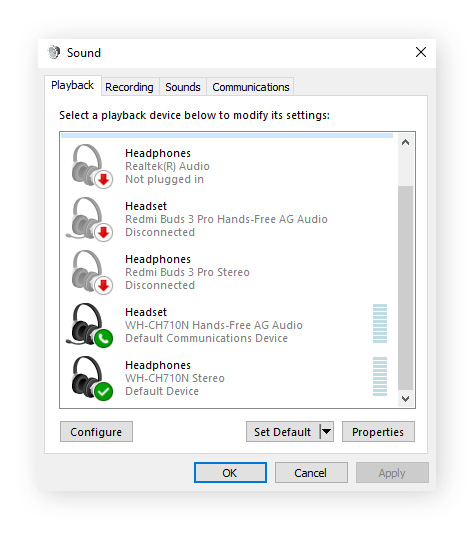
Windows may not use your headphones by default. You must set them as the default audio device.
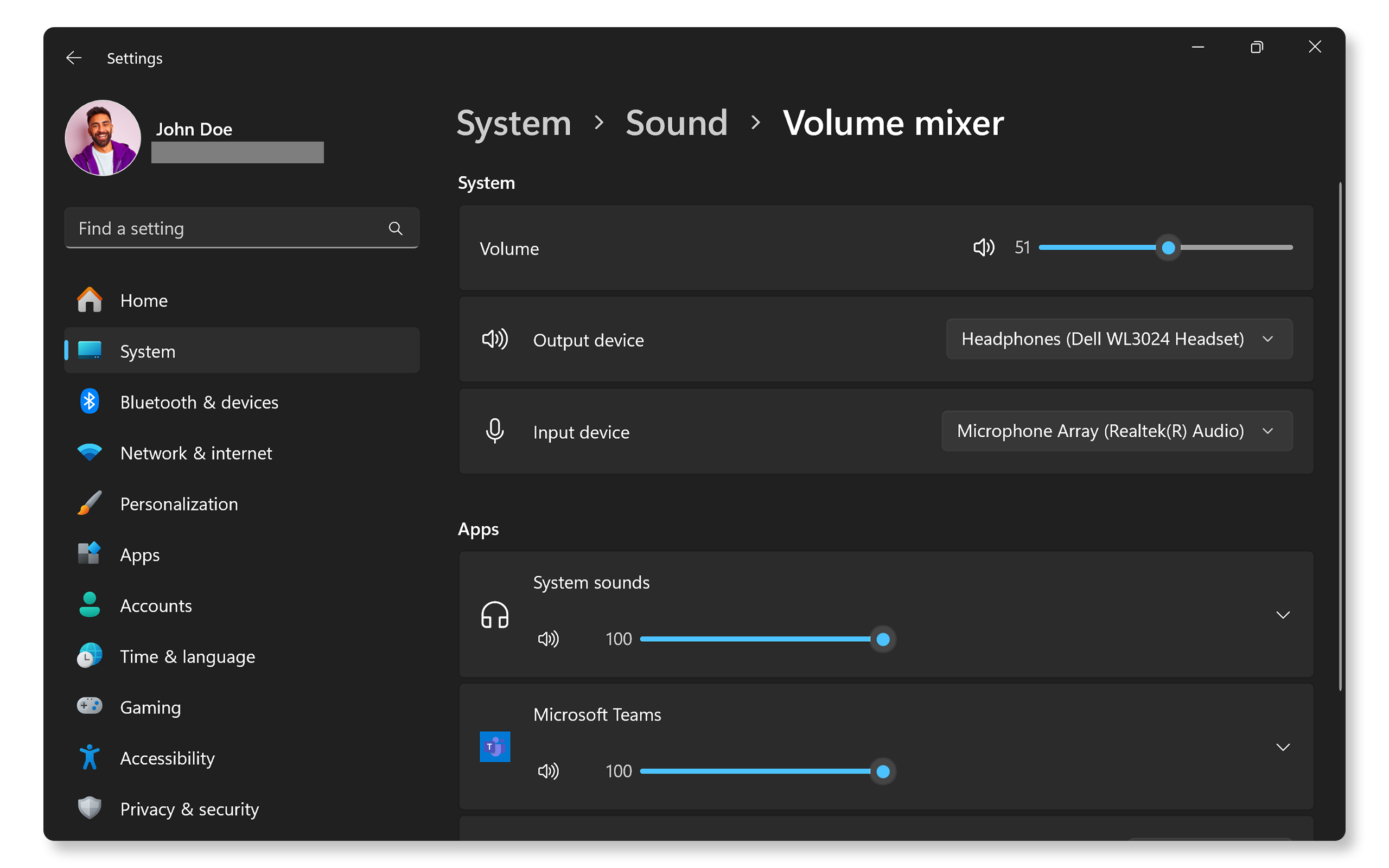
Right-click the sound icon on the taskbar. Select “Sounds” or “Open Sound settings.” Go to the “Playback” tab. Find your headphones in the list. Right-click them and choose “Set as Default Device.” Click “OK” to save. This forces Windows to send audio to your headphones.
Increase Volume Levels
Low volume can seem like no sound. Check both Windows and headphone volume.
Click the sound icon on the taskbar. Drag the volume slider up to increase. Open “Sound settings” and select your headphones. Make sure the volume is not muted or too low. Also, check physical volume controls on the headphones or device.
Disable Audio Enhancements
Audio enhancements can sometimes cause sound issues. Turning them off might help.
Open “Sound” settings and select your headphones. Click “Properties” then go to the “Enhancements” tab. Check the box for “Disable all enhancements.” Click “Apply” and “OK.” Test your headphones again. Disabling enhancements often fixes distortion or silence problems.
Update Or Reinstall Audio Drivers
Audio drivers help Windows talk to your headphones. Outdated or broken drivers cause no sound issues. Updating or reinstalling these drivers often fixes the problem quickly.
This guide shows easy steps to update or reinstall your audio drivers. Try these methods to get sound back on your headphones.
Use Device Manager To Update Drivers
Open Device Manager by typing it in the search bar. Find “Sound, video and game controllers” and expand it. Right-click your audio device and select “Update driver.” Choose “Search automatically for updated driver software.” Windows looks for updates and installs them. Restart your PC to apply changes.
Roll Back To Previous Driver Version
Sometimes new drivers cause sound problems. Rolling back to the old version can help. In Device Manager, right-click your audio device and select “Properties.” Go to the “Driver” tab and click “Roll Back Driver.” Follow the instructions and restart your PC. This returns the driver to the earlier version.
Reinstall Audio Drivers
Reinstalling drivers removes and replaces them. Open Device Manager and right-click your audio device. Choose “Uninstall device” and confirm. Restart your computer. Windows will reinstall the driver automatically. Test your headphones for sound after the restart.
Run Windows Troubleshooter
Running the Windows troubleshooter is a simple way to fix no sound on headphones. This built-in tool finds and repairs common audio problems. It saves time and effort without technical skills.
The troubleshooter checks your audio settings and hardware. It detects errors that stop sound from playing through headphones. Windows then suggests fixes to restore audio quickly.
Access Sound Troubleshooter
Open the Start menu and type “Troubleshoot settings.”
Select the Troubleshoot settings option from the list.
Find “Playing Audio” and click on it.
Press the “Run the troubleshooter” button.
Windows will begin scanning for sound issues on your device.
Follow Recommended Fixes
Wait for the troubleshooter to complete the scan.
It will show detected problems with your headphones.
Follow the on-screen instructions to apply suggested fixes.
Restart your computer if prompted by the troubleshooter.
Check if the headphone sound works after applying fixes.
Check Audio Services
Audio services control sound functions on Windows. If headphones produce no sound, these services might be stopped or misconfigured. Checking and fixing these services can bring back sound quickly. Follow simple steps to ensure audio services run properly.
Restart Windows Audio Service
Press Windows + R keys and type services.msc. Press Enter to open Services.
Scroll down to find Windows Audio. Right-click it and choose Restart.
This action refreshes the audio service and often fixes sound issues.
If Restart is greyed out, select Start instead.
Verify Service Startup Type
In the Services window, right-click Windows Audio and select Properties.
Look for Startup type in the General tab.
Set the startup type to Automatic. Click Apply then OK.
This setting ensures the audio service starts with Windows every time.
Modify Advanced Sound Settings
Modifying advanced sound settings can fix no sound on headphones in Windows. These settings control how audio plays through your device. Adjusting them often solves sound issues quickly. Let’s explore two key changes you can make.
Change Default Format
Windows uses a default audio format to play sound. Sometimes, this format may not work with your headphones. Changing it can restore sound. To do this, right-click the speaker icon and select “Sounds.” Go to the “Playback” tab, then select your headphones. Click “Properties” and open the “Advanced” tab. Choose a different format from the dropdown menu. Test the sound after each change. Pick the format that works best for your headphones.
Disable Exclusive Mode
Exclusive mode allows apps to take full control of your audio device. This can block other sounds from playing. Disabling exclusive mode may fix no sound problems. Open your headphone properties again and go to the “Advanced” tab. Uncheck the boxes under “Exclusive Mode.” Click “Apply” and then “OK.” This lets multiple apps use your headphones without interruption.
Fix Bluetooth Headphone Issues
Bluetooth headphones offer great convenience for Windows users. Sometimes, sound issues occur even if the headphones connect. Fixing these Bluetooth headphone problems often restores clear sound quickly. Try simple steps first to fix the sound on your Bluetooth headphones.
Reconnect Bluetooth Device
Turn off your Bluetooth headphones. Wait 10 seconds. Turn them back on. On your Windows PC, open the Bluetooth settings. Disconnect the headphones from the list. Then reconnect them. This simple reset can fix many sound problems.
Update Bluetooth Drivers
Old or faulty drivers can cause no sound on headphones. Open Device Manager on your PC. Find the Bluetooth section and expand it. Right-click your Bluetooth device and select “Update driver.” Choose “Search automatically for updated driver software.” Install any updates found. Restart your computer to apply changes.
Remove And Pair Again
Go to Bluetooth settings on your PC. Find your headphones in the paired devices list. Click “Remove device” or “Forget.” Turn off your headphones. Turn them back on and set them to pairing mode. Add the headphones again in Bluetooth settings. This fresh pairing often solves sound issues.
Explore Third-party Software Conflicts
Third-party software can cause headphone sound issues on Windows. Some apps interfere with audio settings or drivers. Checking these conflicts helps restore sound quickly. Focus on apps that control audio or affect system performance.
Disable Audio Management Apps
Audio management apps often control sound settings. They can mute headphones or change output devices. Disable these apps temporarily to test sound. Look for apps like Realtek HD Audio Manager or Nahimic. Close them from the system tray or task manager. Restart your computer after disabling.
Check For Malware Interference
Malware can disrupt audio functions on your PC. It may block sound drivers or modify settings. Run a full system scan with trusted antivirus software. Remove any threats found during the scan. Keep your security software updated to avoid future issues.
Credit: www.youtube.com
Frequently Asked Questions
Why Is There No Sound On My Windows Headphones?
No sound on Windows headphones often results from incorrect audio settings or driver issues. Check if headphones are set as default playback devices. Also, update or reinstall audio drivers to fix sound problems quickly and effectively.
How Do I Fix Headphone Sound Issues On Windows?
Start by checking volume levels and headphone connections. Then, update audio drivers via Device Manager. Additionally, run the Windows audio troubleshooter to detect and fix common sound problems automatically.
Can Outdated Drivers Cause Headphone Sound Problems?
Yes, outdated or corrupted drivers often cause headphone sound issues. Updating your audio drivers ensures compatibility and resolves glitches, improving sound quality and device performance on Windows.
How To Set Headphones As Default Audio Device In Windows?
Go to Sound settings, then Playback tab. Select your headphones, and click “Set Default. ” This ensures Windows routes audio through your headphones instead of speakers or other devices.
Conclusion
Fixing no sound on headphones in Windows is often simple. Check your audio settings and connections first. Restart your computer to refresh system functions. Update or reinstall audio drivers for better performance. Test your headphones on another device to rule out hardware issues.
Small steps can solve big problems. Stay patient and follow these tips carefully. Enjoy clear sound again without frustration.