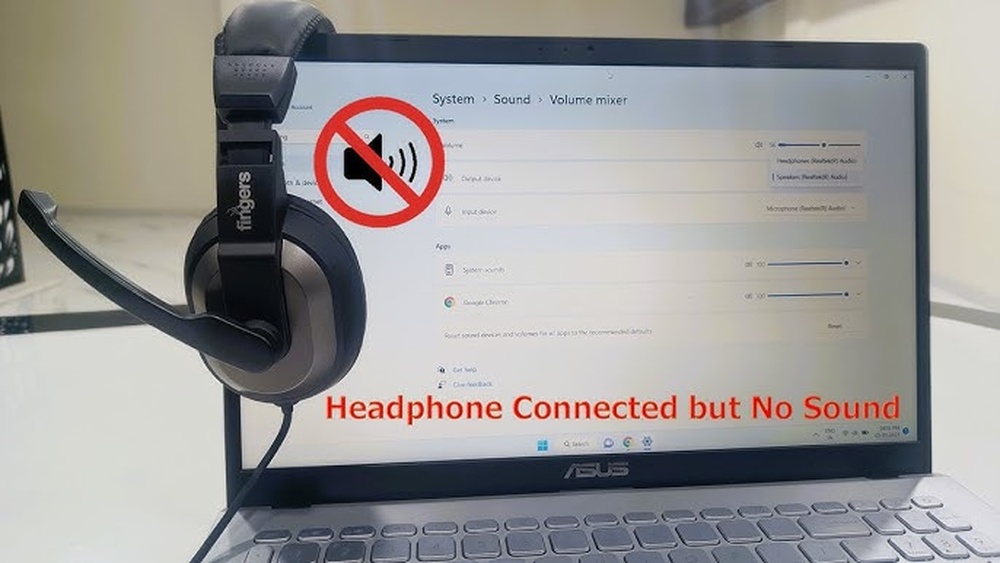
How to Fix Keyboard Not Typing on Laptop

Is your laptop keyboard suddenly not typing? It’s frustrating when you need to work or browse, and your keys just won’t respond.
But don’t worry—you’re not alone, and this problem can often be fixed quickly. In this guide, you’ll discover simple, step-by-step solutions to get your keyboard working again. Keep reading, because by the end, you’ll have your laptop typing smoothly, saving you time and stress.
Check Keyboard Connection
Checking the keyboard connection is a key step in fixing a laptop keyboard that does not type. A loose or faulty connection often causes the keyboard to stop working. Ensuring the keyboard is properly connected can solve the problem quickly. Both external and internal keyboards need proper connections to function well.
External Keyboard Setup
For external keyboards, check the cable or wireless connection first. A USB keyboard must be plugged into the right port firmly. Try unplugging and plugging the cable again. If using a Bluetooth keyboard, ensure it is paired correctly with the laptop. Also, check the keyboard’s battery level. A low battery can stop keys from working.
Internal Keyboard Connection
Internal keyboards connect to the laptop’s motherboard with a ribbon cable. This cable can become loose over time. Carefully remove the back cover of the laptop to access the keyboard connection. Gently press the ribbon cable back into place. Make sure it clicks or fits securely. Avoid forcing the cable to prevent damage.
Restart Your Laptop
Restarting your laptop can fix many keyboard issues. Sometimes, software glitches stop the keyboard from working. A quick restart clears temporary files and resets drivers. This simple step often solves the problem fast.
Try restarting before trying more complex fixes. It saves time and effort. Most laptop keyboards work fine after a reboot.
How To Restart Your Laptop Properly
First, save all your work. Close all open programs. Click the Start menu at the bottom left of your screen. Select the Power button. Choose Restart from the options.
What Happens During A Restart
The laptop shuts down all programs and services. It clears temporary errors in the system. Drivers, including keyboard drivers, reload fresh. This process can fix minor software bugs.
When To Restart Again
If the keyboard still does not type after one restart, try again. Sometimes two restarts help clear stubborn glitches. If the problem remains, other fixes may be needed.
Update Keyboard Drivers
Updating keyboard drivers can solve many typing problems on laptops. Drivers help your system recognize and use the keyboard properly. Outdated or corrupted drivers may cause keys to stop working. Regular updates keep your keyboard running smoothly.
Using Device Manager
Open Device Manager by right-clicking the Start button. Find the “Keyboards” section and expand it. Right-click your keyboard device and select “Update driver.” Choose “Search automatically for updated driver software.” Windows will check for the latest driver and install it. Restart your laptop after the update completes. Test the keyboard to see if it works now.
Downloading From Manufacturer
Visit your laptop brand’s official website. Go to the support or drivers section. Enter your laptop model number to find the correct drivers. Download the latest keyboard driver available. Open the downloaded file and follow the installation steps. Restart your laptop to apply changes. This method ensures you get the exact driver for your device.
Credit: www.myfixguide.com
Run Keyboard Troubleshooter
Running the keyboard troubleshooter can fix many keyboard problems fast. This tool finds errors and suggests solutions automatically. It saves time and avoids complex steps.
Windows includes a built-in troubleshooter for keyboards. It checks settings, drivers, and hardware issues. Using this tool is easy and helps identify the root cause.
How To Access The Keyboard Troubleshooter
Open the Settings app by pressing Windows + I keys. Then, click on “Update & Security.” Next, select “Troubleshoot” from the left menu. Scroll down and find “Keyboard.” Click it and press “Run the troubleshooter.”
Steps To Follow During Troubleshooting
The troubleshooter will scan your keyboard for problems. Follow the instructions on the screen carefully. It might ask to update or reinstall drivers. Allow the tool to apply fixes automatically.
What To Do After Running The Troubleshooter
Restart your laptop after troubleshooting completes. Test the keyboard to see if it types correctly. If issues persist, try other fixes or seek expert help.
Check Keyboard Settings
Checking your keyboard settings is a key step when the keyboard stops typing. Settings can affect how your keyboard works. Sometimes, a simple change in settings can fix the problem. It is easy to check these on your laptop. Let’s explore some important settings to check.
Language And Region
The keyboard layout depends on the language and region settings. A wrong setting can cause wrong keys to appear or no response at all. Go to your laptop’s control panel or settings menu. Look for “Language” or “Region and Language.” Ensure the correct language is selected. For example, choose “English (United States)” if you use a US keyboard. Changing this can fix typing issues quickly.
Filter Keys And Sticky Keys
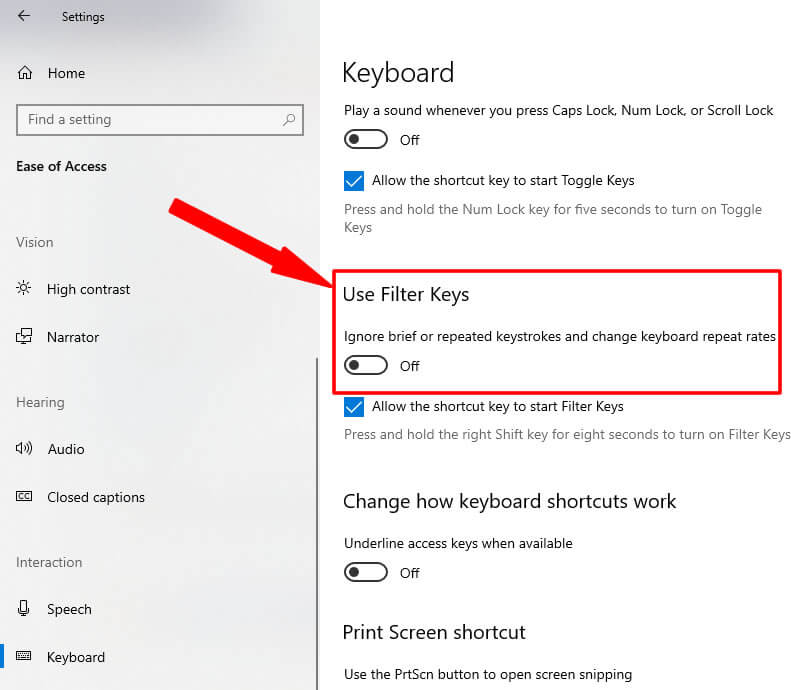
Filter Keys and Sticky Keys help users with special needs but can block normal typing. Filter Keys ignore brief or repeated keystrokes. Sticky Keys let you press one key at a time for shortcuts. Both can stop your keyboard from working right. Check these in the “Ease of Access” or “Accessibility” settings. Turn off Filter Keys and Sticky Keys to restore normal typing. This step often resolves keyboard problems easily.
Clean The Keyboard
Cleaning the keyboard is a simple way to fix typing problems. Dust, crumbs, and dirt can stop keys from working. A clean keyboard helps the laptop work better. This section shows easy steps to clean your laptop keyboard safely.
Turn Off And Unplug Your Laptop
Always turn off your laptop before cleaning. Unplug it from the power source. This prevents any damage or short circuits. Safety first. Do not skip this step.
Remove Loose Debris
Hold the laptop upside down. Gently shake it to remove crumbs and dust. Use a soft brush or compressed air to clear spaces between keys. This removes dirt without harming the keyboard.
Clean The Surface Of The Keys
Dampen a soft cloth with a small amount of water or rubbing alcohol. Wipe each key carefully. Avoid using too much liquid. This cleans dirt and oils from fingers.
Use Cotton Swabs For Hard-to-reach Areas
Dip a cotton swab in rubbing alcohol. Clean around the edges of each key. This removes grime stuck in tight spaces. Let the keyboard dry completely before use.
Test In Safe Mode
Testing your keyboard in Safe Mode helps identify software conflicts. Safe Mode starts your laptop with only essential programs and drivers. This limits interference from other software that might block your keyboard.
If the keyboard works in Safe Mode, a program or driver is likely causing the issue. If it still does not work, the problem may be hardware-related.
How To Enter Safe Mode On Windows
First, press the Windows key and the letter “R” together to open the Run dialog box. Type “msconfig” and press Enter. In the System Configuration window, click the “Boot” tab. Check the box for “Safe boot” and select “Minimal.” Click “OK” and restart your laptop. It will start in Safe Mode.
How To Test Keyboard Function In Safe Mode
After your laptop boots in Safe Mode, open a text editor like Notepad. Try typing on your keyboard. Check if all keys respond correctly. If typing works fine, software conflicts cause the problem. If not, hardware issues might be the cause.
How To Exit Safe Mode
Press the Windows key and “R” again. Type “msconfig” and press Enter. Go to the “Boot” tab and uncheck “Safe boot.” Click “OK” and restart your laptop. Your laptop will start normally, outside Safe Mode.
Credit: www.freecodecamp.org
Use On-screen Keyboard
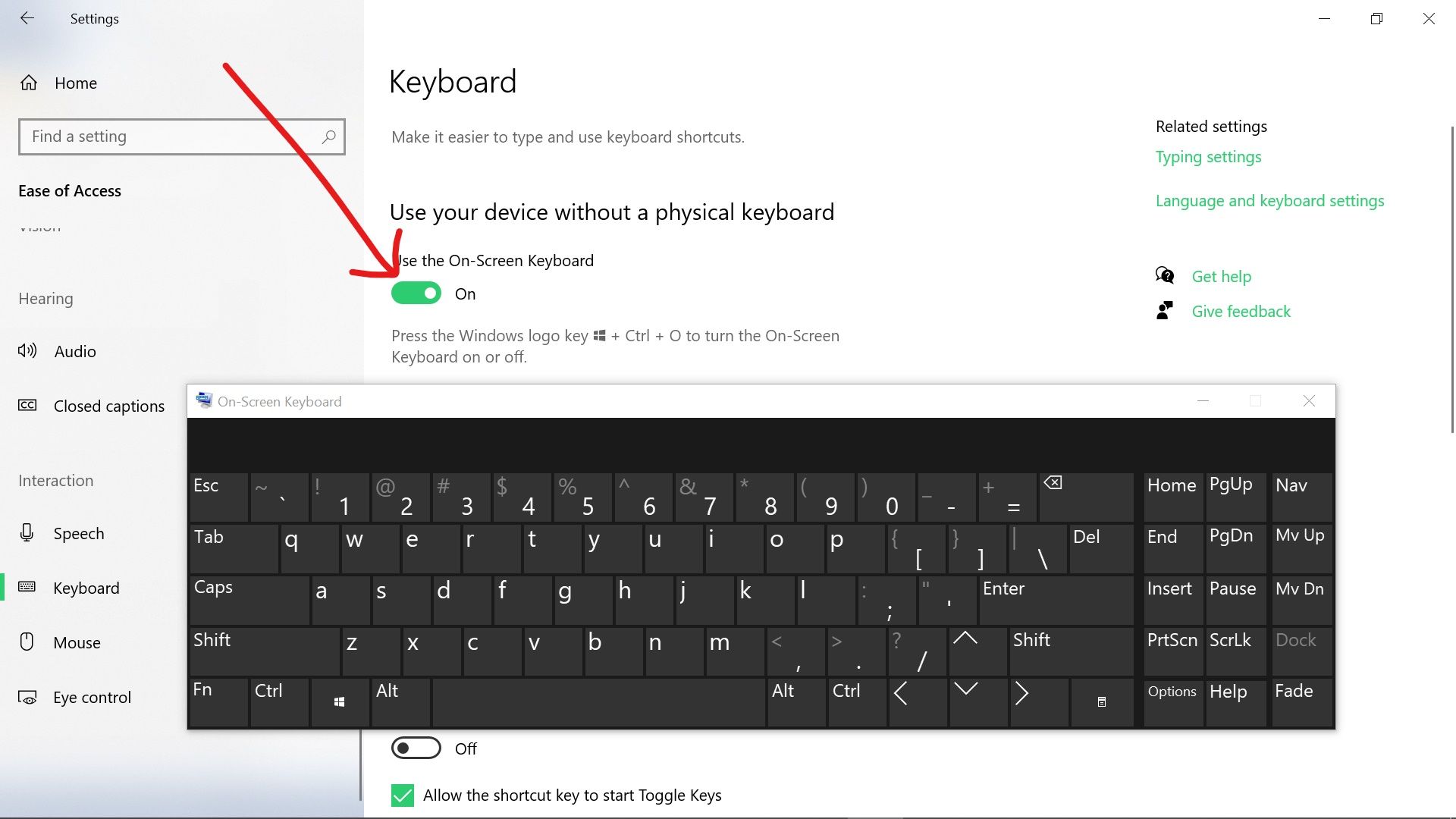
When your laptop keyboard stops typing, the on-screen keyboard can help. It shows a virtual keyboard on your screen. You can use your mouse or touch to type. This tool helps you keep working without delay.
The on-screen keyboard works well for short tasks. It is easy to open and use. It can also help check if the physical keyboard is the problem.
How To Open On-screen Keyboard On Windows
Click the Start button. Type “On-Screen Keyboard” in the search box. Select the On-Screen Keyboard app from the list. The keyboard will appear on your screen. You can now click keys to type.
How To Open On-screen Keyboard On Mac
Go to System Preferences. Click Keyboard, then Input Sources. Check the box for “Show Input menu in menu bar.” Click the input menu icon at the top right. Select “Show Keyboard Viewer.” The virtual keyboard will show up.
Using On-screen Keyboard For Troubleshooting
Use the on-screen keyboard to type in a text editor. If typing works here, the physical keyboard might be faulty. This helps confirm the issue. You can then plan repair or replacement.
Reset Or Reinstall Operating System
Sometimes, keyboard issues come from the operating system itself. Resetting or reinstalling the OS can fix deep software problems. This process restores system files and settings to their original state. It often solves keyboard problems caused by corrupted files or settings.
Before resetting or reinstalling, back up important files. This step prevents data loss. After backup, follow simple steps to reset or reinstall Windows or macOS.
How To Reset Windows Operating System
Open Settings and go to Update & Security. Click Recovery and find Reset this PC. Choose to keep your files or remove everything. Follow the on-screen instructions to complete the reset. This process reinstalls Windows and fixes system errors.
How To Reinstall Windows Using Installation Media
Create a bootable USB with Windows Media Creation Tool. Restart the laptop and boot from the USB drive. Follow the setup prompts to install Windows again. This method wipes old system files and installs a fresh copy.
How To Reset Or Reinstall Macos
Restart your Mac and hold Command + R keys. This opens macOS Recovery mode. Choose Reinstall macOS and follow the instructions. The process installs the latest version without deleting your files. For a full reset, erase the disk first from Disk Utility.

Credit: www.youtube.com
Seek Professional Repair
Seeking professional repair is a smart choice for keyboard problems. Experts have the right tools and skills to fix complex issues safely. This option helps avoid further damage and saves time.
Professionals can diagnose hidden problems that are hard to spot. They can replace damaged parts or fix software glitches. This service ensures your laptop keyboard works like new again.
Finding A Trusted Repair Service
Choose a repair shop with good reviews and experience. Check if they specialize in laptop keyboards. Ask about warranty and service guarantees before you decide.
What To Expect During Repair
The technician will test the keyboard first. Then they will identify the exact problem. Repairs may include cleaning, part replacement, or software updates.
Cost And Time For Professional Repair
Repair costs vary depending on the issue. Simple fixes may be affordable and quick. Complex repairs might take longer and cost more.
Benefits Of Professional Repair
Experts ensure quality work and prevent future issues. They use genuine parts for replacements. This keeps your laptop reliable and extends its life.
Frequently Asked Questions
Why Is My Laptop Keyboard Not Typing?
Your laptop keyboard might stop typing due to driver issues, dirt, or hardware faults. Check connections, update drivers, and clean the keyboard for quick fixes.
How Do I Fix A Laptop Keyboard Not Working?
Restart your laptop, update or reinstall keyboard drivers, and check for physical damage. Cleaning the keyboard and running troubleshooting tools can also help.
Can A Software Update Fix Keyboard Typing Issues?
Yes, software updates often include fixes for driver and compatibility problems. Keeping your system updated ensures better hardware performance, including the keyboard.
How To Clean A Laptop Keyboard Safely?
Turn off the laptop, use compressed air to remove debris, and gently wipe keys with a soft, damp cloth. Avoid liquids near internal components.
Conclusion
Fixing a laptop keyboard that does not type can be simple. Try cleaning the keys or restarting your device first. Check for driver updates or reconnect the keyboard if needed. Small issues often cause big problems. Taking these steps saves time and money.
Your laptop will work smoothly again soon. Keep calm and follow these tips carefully. You can solve keyboard troubles without extra help. Stay patient and test the keyboard after each step. This way, you find the best fix quickly.