How to Stop Battery Drain When Phone is Idle

Is your phone battery dropping fast even when you’re not using it? It’s frustrating to find your device dead before the day ends, especially when it’s just sitting idle.
You might think your battery problems only happen during heavy use, but background processes and settings can quietly drain power without you noticing. What if you could stop this silent battery drain and keep your phone ready whenever you need it?
You’ll discover simple, effective steps to prevent your phone from losing charge while idle. Keep reading to learn how to make your battery last longer and avoid unexpected shutdowns.

Credit: www.reddit.com
Common Causes Of Idle Battery Drain
Phones lose battery power even when not in use. This happens due to several common reasons. Knowing these causes helps save battery life. Here are some key factors that drain your phone’s battery while idle.
Background Apps And Processes
Many apps run in the background without your notice. These apps use power to update data or check for notifications. Some apps keep refreshing content, which drains battery fast. Closing unused apps helps reduce this drain. Also, disabling background activity for non-essential apps saves energy.
Wireless Connections
Wi-Fi, Bluetooth, and mobile data stay active when idle. These connections search for signals or devices continuously. This constant searching consumes battery power. Turning off unused wireless features prevents needless battery drain. Airplane mode is a quick way to stop all wireless use.
Display And Brightness Settings
The screen uses a lot of battery, even when idle. High brightness settings drain power faster. Some phones keep the display on for notifications or alerts. Reducing brightness or setting a shorter screen timeout helps save battery. Using dark mode can also lower battery use on some screens.
Notifications And Syncing
Notifications wake your phone from sleep and use power. Apps syncing data in the background also drain battery. Frequent syncing with email, social media, or cloud storage uses energy. Limiting notifications and syncing intervals lowers idle battery drain. Choose only important apps to sync automatically.
System Updates And Bugs
Sometimes software bugs cause battery drain during idle. Outdated system software can have glitches that waste power. Regular updates often fix these bugs and improve battery life. Installing updates keeps the phone running smoothly. Restarting the phone can also resolve temporary battery issues.
Optimize App Usage
Optimizing app usage is key to stopping battery drain when your phone is idle. Apps run in the background and use power even if you do not open them. Managing these apps saves battery life and improves phone performance. Focus on controlling which apps run and how they behave.
Identify Power-hungry Apps
Some apps use more battery than others. Check your phone’s battery settings to see which apps consume the most power. These apps often run tasks in the background or send frequent notifications. Spotting these apps helps you decide which ones to limit or remove.
Restrict Background Activity
Many apps run in the background without your knowledge. You can restrict this background activity through your phone settings. Limiting background use prevents apps from using battery when the screen is off. This step reduces unnecessary power drain and keeps your battery healthy.
Uninstall Unnecessary Apps
Apps you no longer use still consume power and storage. Removing these apps frees up space and stops hidden battery use. Keep only the apps you really need. Less clutter means better battery life and a faster phone.
Adjust Connectivity Settings
Adjusting your phone’s connectivity settings can help save battery life during idle times. Phones use power to keep searching for signals and connections. Turning off some features stops this unnecessary drain. Simple changes make a big difference.
Disable Wi-fi And Bluetooth When Not Needed
Wi-Fi and Bluetooth use power even if not connected. Switch them off when you do not need them. This stops your phone from constantly looking for networks or devices. It saves battery and keeps your phone ready for use.
Use Airplane Mode During Idle
Airplane mode turns off all wireless signals. It stops your phone from searching for calls, messages, and data. Use it when you do not expect any calls or notifications. This setting helps your battery last longer during idle times.
Manage Location Services
Location services drain battery by using GPS and data. Turn off location access for apps that do not need it. Set location services to work only while using the app. This reduces power use and keeps your phone running longer.
Tweak Display And Power Settings
Adjusting your phone’s display and power settings can greatly reduce battery drain when it is idle. Small changes in brightness and screen time can save power without affecting usability. These tweaks help your phone use less energy, keeping the battery alive longer.
Lower Screen Brightness
Bright screens use a lot of power. Lowering the screen brightness reduces energy use. Set the brightness to a comfortable but low level. Many phones also have an automatic brightness setting. This adjusts brightness based on light around you. It helps save battery without making the screen too dim.
Shorten Screen Timeout
The screen timeout is how long the screen stays on when idle. A long timeout wastes battery by keeping the display active. Set the screen timeout to the shortest time that works for you. This makes the screen turn off quickly when you stop using the phone. It prevents unnecessary power drain during idle times.
Enable Dark Mode
Dark mode changes the phone’s display to darker colors. This uses less power on phones with OLED or AMOLED screens. Dark mode also reduces eye strain in low light. Turn on dark mode in your phone’s display settings. It saves battery without changing how you use the phone.
Manage Notifications And Sync
Managing notifications and sync settings helps save your phone’s battery. Notifications and sync use power even when your phone is idle. Adjusting these settings reduces unnecessary battery drain. It also keeps your phone running longer between charges.
Limit Push Notifications
Push notifications wake your phone frequently. They cause the screen to light up and use data. Limit notifications from apps you do not use often. Turn off notifications for games and social media apps. This reduces background activity and saves battery life.
Adjust Sync Frequency
Syncing checks for new emails, contacts, and app updates. Frequent syncing drains battery fast. Set your phone to sync less often. Change sync settings to manual or longer intervals. This lowers background data use and conserves energy.
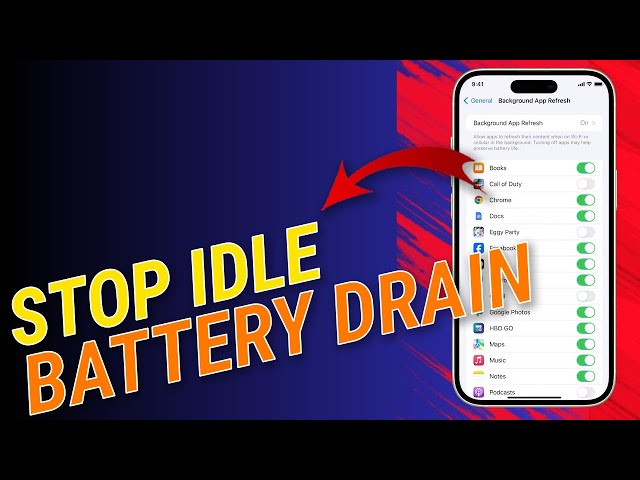
Use Battery Saver Modes
Battery saver modes reduce background activity automatically. They limit sync and notifications to save power. Activate battery saver when your phone is idle or low on charge. This helps extend battery life without much effort.
Credit: www.youtube.com
Update And Maintain Your Phone
Keeping your phone updated and well-maintained helps reduce battery drain. Regular care improves performance and saves energy. Small habits make a big difference. Focus on updating software, clearing cache, and rebooting regularly.
Install Latest Software Updates
Software updates fix bugs that cause battery drain. They improve system efficiency and security. Check for updates often and install them promptly. Updated phones run smoother and use less power.
Clear Cache And Temporary Files
Cached data can slow your phone and waste battery. Clear cache regularly to free up space. Temporary files build up over time and affect performance. Use your phone settings to remove them.
Perform Regular Reboots
Restarting your phone closes background apps and processes. It refreshes system resources and reduces battery use. Reboot your phone at least once a week. A fresh start helps your phone run better.
Use Battery Monitoring Tools
Battery drain during idle time can be frustrating. Use battery monitoring tools to find which apps or processes use the most power. These tools help you control and reduce power use. You get clear information about what drains your battery fast. This knowledge helps you stop unnecessary battery drain. Let’s explore two main types of battery monitoring tools you can use.
Built-in Battery Usage Stats
Most smartphones have built-in battery usage stats. These stats show how much power each app or service uses. Open your phone’s settings and find the battery section. Here, you will see a list of apps with their battery use percentages. Check for apps using power even when the phone is idle. You can force stop or uninstall these apps to save battery. Built-in stats are easy to use and need no extra downloads.
Third-party Battery Saver Apps
Third-party battery saver apps offer more detailed battery insights. These apps track power use over time and suggest ways to save battery. Some apps can automatically limit background activity for power-hungry apps. Others provide alerts when an app uses too much battery. Choose apps with good reviews and simple interfaces. They can help you manage battery use better than built-in tools alone.
Credit: www.reddit.com
Frequently Asked Questions
How Can I Reduce Battery Drain When My Phone Is Idle?
To reduce battery drain during idle, close background apps, disable unnecessary notifications, and turn off Wi-Fi or Bluetooth if unused. Also, enable battery saver mode and lower screen brightness to extend battery life effectively.
Why Does My Phone Battery Drain Quickly When Not In Use?
Battery drain occurs due to background apps, push notifications, and active network connections. Poor signal strength and location services also consume power when the phone is idle.
Does Turning Off Wi-fi Help Stop Battery Drain?
Yes, turning off Wi-Fi when not in use stops constant network searching. This reduces background activity and helps conserve battery life significantly.
How Does Battery Saver Mode Prevent Battery Drain?
Battery saver mode limits background processes, reduces screen brightness, and disables non-essential features. This conserves power and extends battery life during idle periods.
Conclusion
Stopping battery drain while your phone is idle saves power and extends battery life. Adjust settings like screen brightness and background app refresh. Turn off unnecessary features such as Bluetooth or location services when not in use. Keep your phone updated to benefit from battery improvements.
Small changes add up to big savings. Try these simple tips and enjoy longer phone use without frequent charging. Battery life can improve with mindful habits and smart settings. Save energy and stay connected longer.