Why is My Laptop Battery Stuck at 0 Percent

Is your laptop battery stuck at 0 percent no matter how long you charge it? This frustrating problem can leave you feeling powerless and worried about your device’s health.
You might wonder if your laptop is broken or if there’s a simple fix you’re missing. The good news is, you’re not alone—and understanding why this happens can save you time, money, and stress. Keep reading to discover the common reasons behind this issue and what you can do right now to bring your battery back to life.

Credit: www.youtube.com
Common Battery Issues
Many laptop users face the problem of the battery stuck at 0 percent. This issue often comes from common battery problems. Understanding these problems helps fix the issue quickly.
The battery might not show the correct charge due to several reasons. Some issues are easy to fix, while others need professional help.
Battery Calibration Problems
Battery calibration means the laptop shows the right battery level. Sometimes, the battery meter gets confused. It may say 0 percent even if there is some charge left. This happens when the battery is not calibrated correctly. Calibrating the battery can fix this problem. It helps the laptop measure the battery level properly.
Battery Wear And Tear
Laptop batteries lose power over time. Every charge cycle reduces battery life a little. After long use, the battery cannot hold much charge. The laptop may show 0 percent because the battery is weak. Wear and tear is normal but causes battery issues. Replacing an old battery can solve the problem.
Software Glitches
Sometimes, the laptop’s software causes battery errors. Bugs or glitches can show wrong battery status. The system may read the battery as empty even if it is not. Updating the laptop’s software can fix these glitches. Restarting the laptop also helps refresh the battery data.
Signs Of A Faulty Battery
Recognizing a faulty laptop battery early can save you from unexpected problems. Faulty batteries often show clear signs before completely failing. Knowing these signs helps in taking timely action. It also prevents data loss and laptop damage.
Sudden Shutdowns
Your laptop turns off without warning. The battery may show some charge but still dies fast. This happens because the battery cannot hold power properly. Sudden shutdowns often mean the battery is failing.
Inaccurate Charge Indicators
The battery percentage jumps up and down quickly. Sometimes, it stays at 0 percent even after charging. This happens when the battery sensor is faulty. The laptop cannot show the real battery level.
Overheating
The laptop or battery becomes very hot during use or charging. Overheating can damage the battery cells. It also causes the battery to lose capacity faster. A hot battery is a clear sign of a problem.
Troubleshooting Steps
When your laptop battery stays stuck at 0 percent, it stops working properly. This can be frustrating and may cause your laptop to shut down unexpectedly. Several simple steps can help find and fix the issue. These troubleshooting steps target common problems that block the battery from charging or showing its true level.
Performing A Hard Reset
Start by doing a hard reset. Turn off your laptop completely. Unplug the power cord and remove the battery if possible. Press and hold the power button for 15 seconds. This clears temporary electrical charge and resets the hardware. Reinsert the battery and plug in the charger. Turn your laptop back on and check the battery status. This often fixes minor glitches that stop the battery from charging correctly.
Updating Battery Drivers
Outdated or corrupted drivers can cause battery issues. Open the Device Manager on your laptop. Find the “Batteries” section and expand it. Right-click on “Microsoft ACPI-Compliant Control Method Battery.” Select “Update driver” and follow the instructions. The system will search for the latest driver online. Installing the newest driver helps your laptop communicate better with the battery. This update can solve problems with battery detection and charging.
Running Battery Diagnostics
Most laptops have a built-in battery diagnostic tool. This tool checks the battery health and charging ability. Access the diagnostics by restarting your laptop and pressing a specific key like F2 or Esc. Follow the on-screen instructions to run the battery test. The results show if the battery needs replacement or repair. Running diagnostics helps identify deeper battery problems that simple fixes cannot solve.
Credit: www.reddit.com
Battery Replacement Options
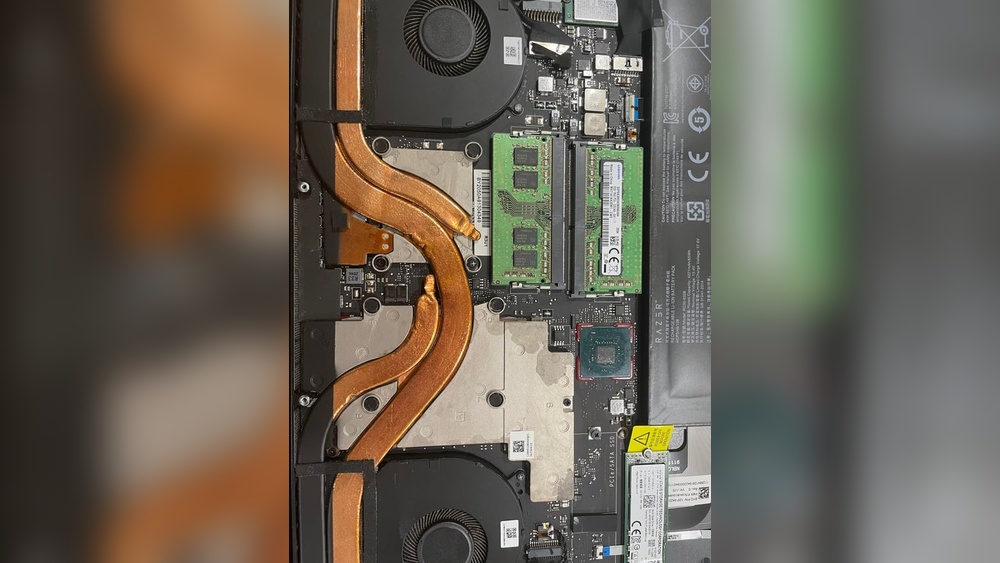
Battery replacement is a common solution for laptops stuck at 0 percent charge. Old or damaged batteries fail to hold a charge. Replacing the battery can restore your laptop’s power and performance.
Choosing the right replacement option matters. The battery must fit your laptop and work safely. Explore your options carefully to avoid further issues.
Checking Warranty Coverage
Start by checking your laptop’s warranty status. A valid warranty may cover battery replacement at no cost. Contact the manufacturer or retailer to confirm coverage. This saves money and ensures a genuine battery.
Choosing Genuine Batteries
Always choose genuine batteries from trusted sources. Fake or low-quality batteries can damage your laptop. They may cause overheating or poor battery life. Genuine batteries match your laptop’s specifications exactly.
Professional Vs Diy Replacement
Professional replacement offers safety and expertise. Technicians handle delicate parts and proper installation. DIY replacement saves money but needs care and skill. Follow instructions closely to avoid damage or voiding warranty.
Preventive Measures
Preventive measures play a key role in keeping your laptop battery healthy. Taking care of the battery can stop it from getting stuck at 0 percent. Small daily habits make a big difference in battery life and performance.
Proper Charging Habits
Charge your laptop battery regularly but avoid overcharging. Unplug the charger once the battery reaches 100 percent. Do not let the battery drain completely to zero often. Partial charges between 20 and 80 percent help the battery last longer. Use the original charger to avoid power issues.
Avoiding Extreme Temperatures
Keep your laptop away from very hot or cold places. High heat can damage the battery cells. Cold temperatures slow down battery performance. Use the laptop in a room with normal temperature. Avoid leaving your laptop in a car under the sun or in freezing weather.
Regular Battery Maintenance
Check your battery health status often using built-in tools. Calibrate the battery every few months by fully charging and then fully discharging it once. Clean the battery contacts gently to ensure good connection. Replace the battery if it no longer holds charge well. Regular care helps avoid many battery problems.
Credit: www.reddit.com
Frequently Asked Questions
Why Does My Laptop Battery Show 0% But Won’t Charge?
This happens due to battery calibration errors or a faulty battery sensor. Sometimes, the battery needs recalibration. Other times, hardware issues prevent proper charging. Checking the power adapter and updating battery drivers can help resolve this issue.
How Can I Fix A Laptop Battery Stuck At 0%?
Try recalibrating your battery by fully charging and discharging it. Update your laptop’s battery drivers and BIOS. If these steps fail, the battery might be damaged and require replacement for proper functioning.
Can A Dead Laptop Battery Cause 0% Charge Display?
Yes, a dead or worn-out battery often shows 0% charge. Over time, batteries lose capacity and fail to hold charge. Replacing the battery is the most effective solution to restore accurate charge readings.
Is A Faulty Charger Responsible For 0% Battery Charge?
A faulty charger or power adapter can prevent the battery from charging. Check the charger for damage and ensure it’s compatible. Using a proper, working charger usually resolves the 0% charge issue.
Conclusion
A laptop battery stuck at 0 percent can cause real frustration. Many reasons might cause this issue, such as a faulty charger, battery wear, or software glitches. Try simple fixes first, like restarting your laptop or checking the charger. Sometimes, updating your system helps.
If the problem stays, a battery replacement might be necessary. Taking care of your battery extends its life. Watch for signs like quick draining or overheating. Understanding the problem helps you find the right solution fast. Don’t let a dead battery slow your work or play.